
Action menu
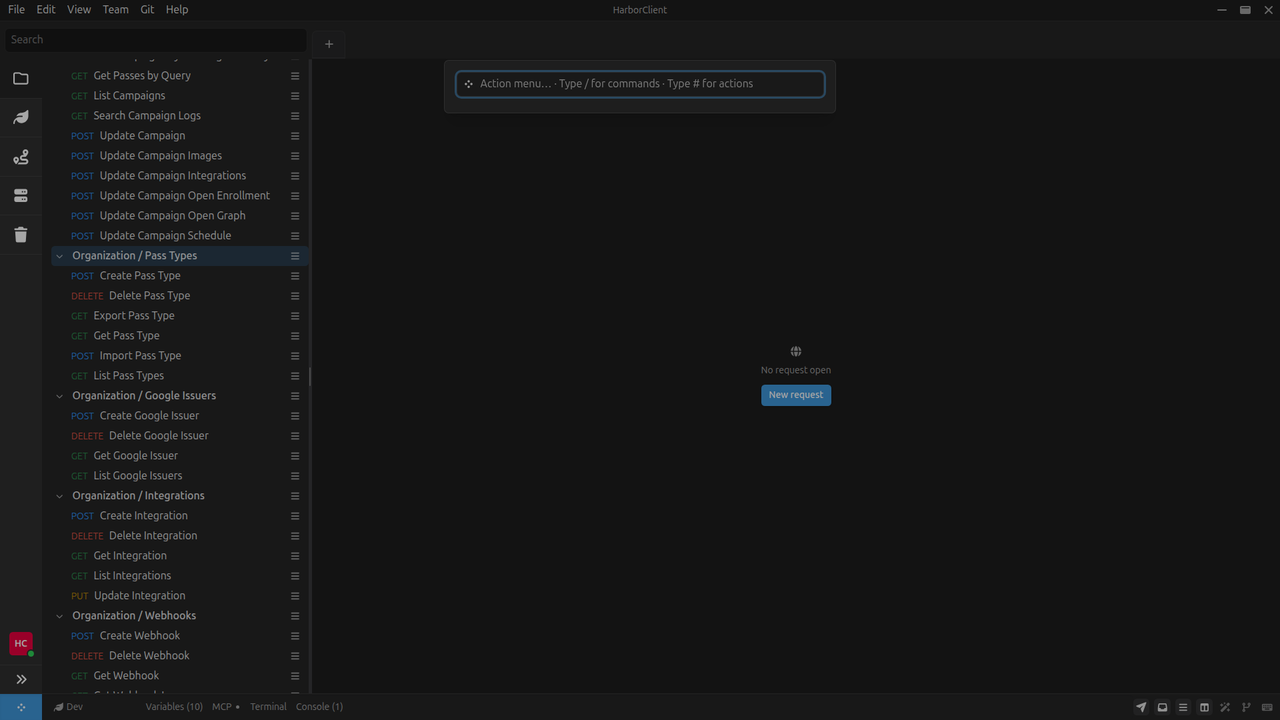
The Action menu is HarborClient's global launcher for search, built-in commands, slash commands, and plugin-provided actions. Open it from the footer button, the View menu, or with Cmd/Ctrl+Shift+P (default; customizable in Settings → Shortcuts).
Search mode
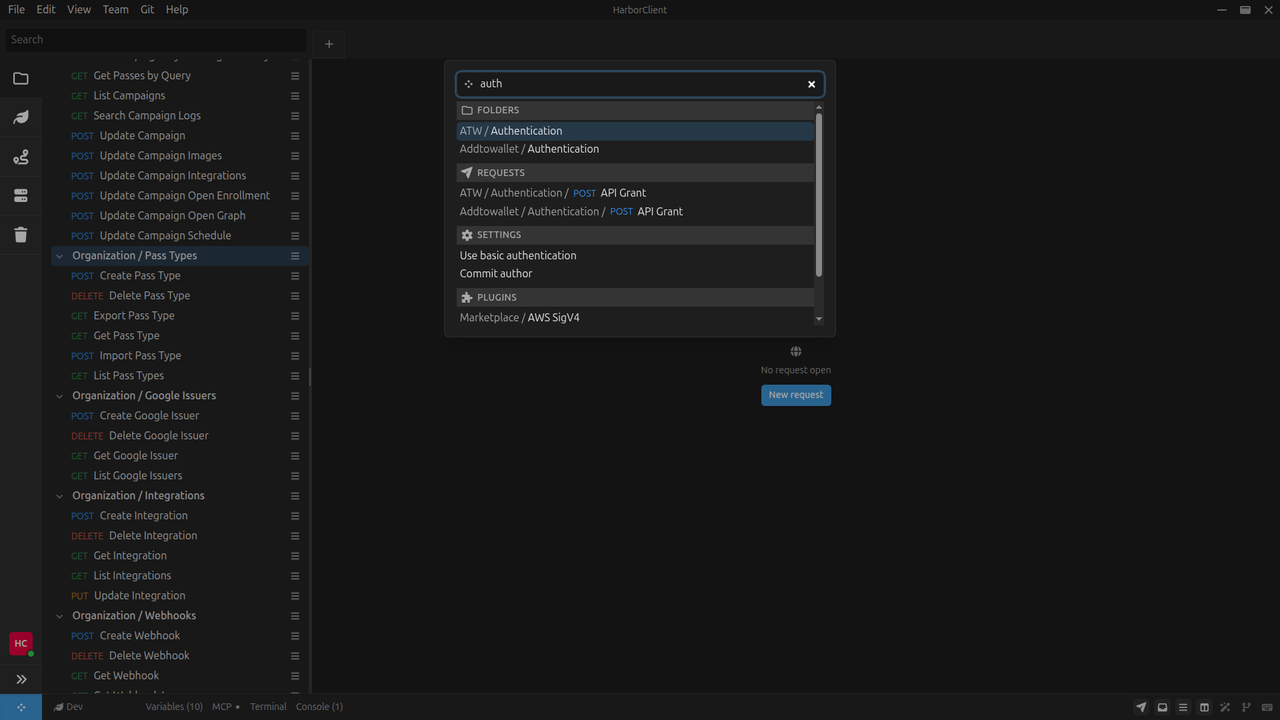
Type normally to search collections, folders, saved requests, environments, individual settings fields, marketplace plugins and themes, installed plugins and themes, and snippets from one place.
Results appear in grouped sections with up to eight hits total. HarborClient balances results across categories so one domain does not fill the list. Plugin and theme rows show an Installed › or Marketplace › prefix so you can tell whether the hit is already on your machine or still in the catalog.
Selecting a result closes the Action menu and navigates to the target:
| Result type | What happens |
|---|---|
| Collection | Shows the sidebar and selects the collection |
| Folder | Expands the collection tree and highlights the folder |
| Request | Opens the saved request in a tab and reveals it in the sidebar |
| Environment | Shows and expands the Environments section with the environment selected |
| Setting | Opens Settings on the correct section and focuses the matching field |
| Plugin | Opens File → Plugins on Installed or Marketplace with the search query prefilled |
| Theme | Opens File → Themes on Installed or Marketplace with the search query prefilled |
Request rows show the HTTP method badge and name; other rows show a title and optional subtitle, such as the parent collection or setting description.
Actions mode
Type # to switch to actions. The list shows built-in app actions and plugin actions grouped by namespace, such as:
File: SettingsFile: PluginsFile: ThemesView: Toggle SidebarTeam: Accept Team Hub InviteHelp: Keyboard Shortcuts
Keep typing after # to filter by namespace or label. For example, #team narrows to Team actions, and #themes finds File: Themes.
Installed plugins can add their own namespaced actions, such as cURL: View or cURL: Close.
Slash commands
Type / to switch to slash commands. HarborClient currently includes /ask, which starts a new AI chat with the text you enter after the command.
For example:
/ask Explain this response bodyKeyboard controls
| Control | Action |
|---|---|
| ↑ / ↓ | Move the highlight between results |
| Enter | Open or run the highlighted item |
| Click | Open or run an item |
| Escape | Close the Action menu |
What's next
- Search — sidebar, settings, and marketplace search
- Settings — appearance, storage, and shortcuts
- Using plugins — install and manage plugins in the app
- Plugin development — build plugin actions with the SDK