
Git-backed collections
HarborClient can store collections as version-controlled files inside a git repository. Link a local clone, edit collections in the app, commit and push from the Git sidebar, and share changes with your team through normal git workflows.
Git-backed storage is a storage connection type in Settings → Storage Locations. Each git connection points at a repository working tree on your machine. Collections for that connection are written under a configurable subdirectory (default .harborclient/).
When to use git
| Approach | Best for |
|---|---|
| Git provider | Teams that already use git for API definitions; reviewable diffs, branches, and PRs |
| Export/Import | One-off snapshots or archives as a single .json file |
| Shares | Live shared collections on Firestore, MySQL, or PostgreSQL |
| Team hubs | HarborClient Team Hub token-based sharing |
Use git when you want collections to live in a repo alongside application code or infrastructure, with history and merge workflows your team already uses.
Setup
- Clone the repository locally (HTTPS URL).
- Open File → Settings → Storage Locations and click Add storage location.
- Choose type Git and configure:
- Repository path — absolute path to your local clone
- Repository URL (HTTPS) — remote URL used for fetch/push (
isomorphic-gitdoes not support SSH keys) - Branch — branch to track (for example
main) - HarborClient subdirectory — where collection files are stored (default
.harborclient)
- Authenticate for private repositories (see Authentication).
- Restart HarborClient so the connection is mounted at launch.
On first use HarborClient creates the subdirectory layout and a .gitignore for local environment overrides.
File layout
Each collection is a directory with a manifest and one file per saved request:
.harborclient/
  .gitignore
  collections/
    <uuid>-<slug>/
      collection.json          # name, variables, headers, auth, script lists, folder order
      requests/
        <uuid>-<slug>.json     # one saved request per file
  environments/
    <uuid>-<slug>.json         # shared environments (values masked per Share flag)
  snippets/
    <uuid>-<slug>.json         # portable snippet exports (harborclientExport: "snippet")
collection.json matches the HarborClient collection export shape except requests live in requests/ instead of a requests[] array. Script data includes ordered pre_request_scripts / post_request_scripts arrays (inline scripts and snippet references) alongside legacy pre_request_script / post_request_script string mirrors. Snippet references in collections store only snippet uuids; full snippet source lives in separate files under snippets/ and can be imported elsewhere via File → Import.
Variables with Share unchecked are masked (value cleared) when written to disk, same as manual export.
Local environment overrides
The generated .gitignore ignores local-only environment files:
environments/local*.jsonenvironments/*-local.json
Commit shared environment definitions in the main environments/ files; keep secrets in ignored local override files on each machine.
Git sidebar
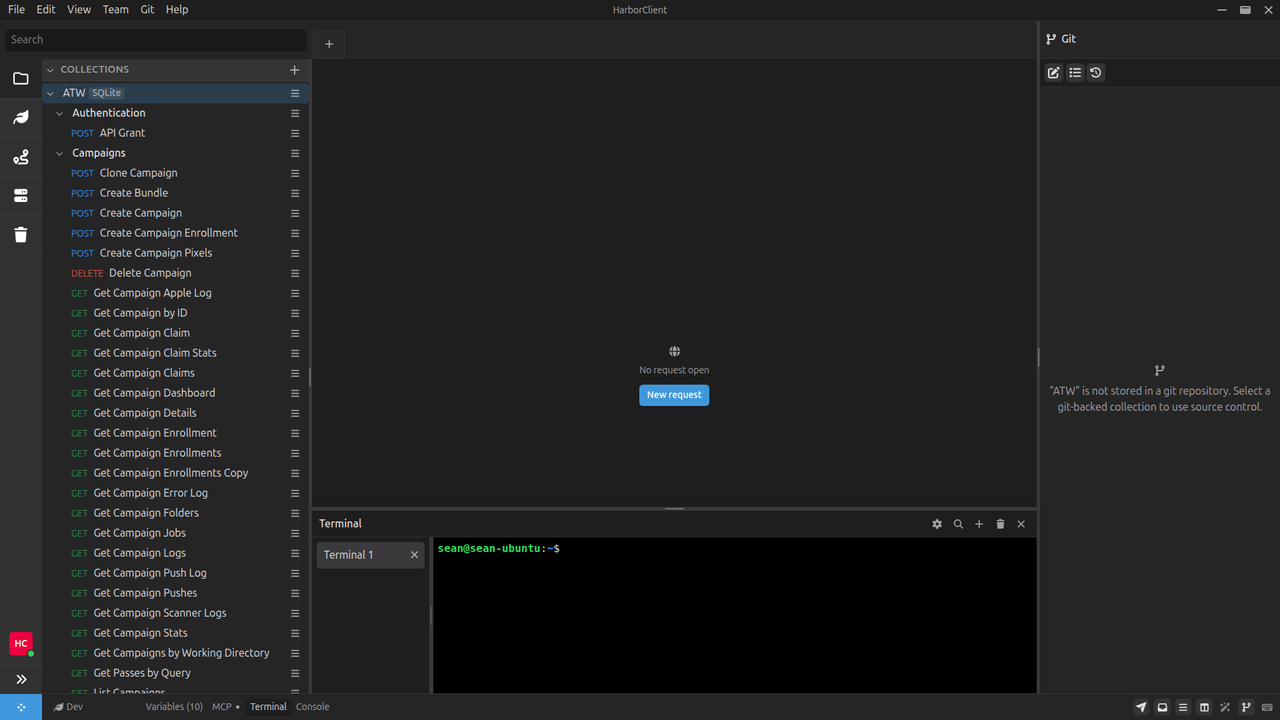
The Git sidebar is the right-side source-control panel for git-backed collections. It shows the active collection's working-tree changes, commit message, and recent history, and provides pull/push controls in the toolbar.
Opening the Git sidebar
Open or close the panel with:
- View → Git (checkbox)
- The default shortcut Cmd/Ctrl+Shift+G (customizable in Settings → Shortcuts)
- The Action menu (
#mode) action View: Toggle Git
The sidebar targets the selected git-backed collection in the Collections tree. Sidebar selection wins over the active request tab so source control stays aligned with the collection you clicked.
When the selected collection is not git-backed—or no collection is selected—the panel shows an empty state instead of commit controls.
HarborClient reloads collections after pull and when files change on disk (for example after an external git pull). A file watcher and window-focus refresh keep both the Collections tree and the Git sidebar in sync with the repository.
Header and toolbar
The header shows the active collection name with a branch icon.
The toolbar has two groups of controls:
| Control | What it does |
|---|---|
| Commit message toggle | Show or hide the Commit message section |
| Changes toggle | Show or hide the Changes section |
| Commits toggle | Show or hide the Commits section |
| Pull | Fetch from the remote and merge into the local branch |
| Push | Push local commits to origin. When you are ahead of the tracked remote branch, the label includes the ahead count (for example Push (2 commit(s) ahead)) and the button shows an accent indicator |
If every section is hidden, HarborClient shows a short status message telling you to use the toolbar toggles.
Commit message
The Commit message section contains:
- A textarea for the commit message
- An optional Generate commit message wand button when AI is available; HarborClient drafts a message from the collection's current diffs
- A Commit button that stages HarborClient-subdirectory changes for the active collection and creates a commit
On first commit, HarborClient may prompt for a commit author name and email if they are not already set under Settings → General. Commits apply to tracked changes under the HarborClient subdirectory for that collection (not a full-repo git commit -a).
Changes
The Changes section lists modified HarborClient files for the active collection (requests, documents, and related paths under the collection folder).
Each row shows a status marker such as [A] (added), [M] (modified), or [D] (deleted). Row actions can open a file diff, reveal the item in the Collections sidebar, revert a change, or open a conflict editor when merge markers are present.
Conflicted files appear first. If git merge conflict markers (<<<<<<<) appear in collection or environment JSON files, HarborClient reports the conflict count and shows a warning. Resolve markers in your editor (or the merge editor), then pull or reload again. Invalid JSON with conflict markers cannot be parsed until resolved.
Commits
The Commits section lists recent commits for the repository. Each row shows the subject, author, and timestamp. Click a row to open commit detail, including the HarborClient files changed in that commit.
Below the branch icon on each row is a push-status indicator:
| Indicator | Meaning |
|---|---|
| Green | The commit is present on the tracked origin branch (already pushed) |
| Muted | The commit is local-only (ahead of origin), or origin tracking is not known yet (for example before the first fetch) |
Hover the indicator for a tooltip (Pushed to origin, Not pushed to origin, or Push status unknown). Screen readers hear the same wording as part of the commit row.
Collection sidebar cues
Git status also appears on collection rows in the left sidebar:
- Branch badge — shows the current branch name when storage location badges are enabled; click it to switch or create branches
- Change-count badge — when the collection has uncommitted HarborClient changes, a recessed count badge opens the Git sidebar
- Row coloring — request and document names can reflect staged, unstaged, or untracked status in the working tree
Git menu
The titlebar Git menu mirrors common source-control actions for the active collection. Most items are enabled only when the active (selected) collection is git-backed.
| Item | What it does | Enabled when |
|---|---|---|
| New Collection | Starts creating a collection on a git storage connection | Always |
| Branches | Opens the branches modal to create or switch branches | Active collection is git-backed |
| Delete Branch | Opens the delete-branch flow for the git connection | Active collection is git-backed |
| Commit | Opens the Git sidebar and focuses the commit flow | Active collection is git-backed |
| Merge | Opens the merge-into-current-branch modal | Active collection is git-backed |
| Fetch | Fetches from the remote without merging | Active collection is git-backed |
| Pull | Fetches and merges from the remote | Active collection is git-backed |
| Push | Pushes local commits to the remote | Active collection is git-backed |
| Settings | Opens Settings on the Git section (identities and related options) | Always |
You can also reach these actions from the Action menu under the Git: namespace (for example #git then Git: Pull). Keyboard accelerators for each action are customizable in Settings → Shortcuts.
Authentication
Private HTTPS remotes require credentials. HarborClient stores tokens encrypted via the same secret storage used for AI API keys — not in the plaintext connection JSON.
| Method | Scope |
|---|---|
| Personal access token (PAT) | Any git host (GitHub, GitLab, Bitbucket, self-hosted). Enter username (often token or your username) and the token in git connection settings. |
| Authorize with GitHub | GitHub.com only. Uses OAuth device flow: approve in the browser, then complete authorization in settings. No client secret is required. |
Both methods feed the same HTTPS authentication path used for fetch, pull, and push.
Custom GitHub OAuth App (Advanced)
By default, Authorize with GitHub uses HarborClient's built-in OAuth App. Teams that require their own app (org policy, audit, or approval workflows) can register a GitHub OAuth App and enter its Client ID under Advanced in git connection settings.
- In your GitHub organization: Settings → Developer settings → OAuth Apps → New OAuth App (or create an organization-owned app).
- Enable Device Flow for the app.
- Request the
reposcope when users authorize (HarborClient requests this during device flow). - Copy the Client ID — no client secret is required for device flow.
- If your organization restricts third-party apps, an admin must approve the app for the org.
- In HarborClient: open the git connection, expand Advanced, paste the Client ID, save the connection, then authorize with GitHub.
Leave the Client ID blank to keep using HarborClient's built-in app. If you change the Client ID after authorizing, revoke GitHub authorization and authorize again so tokens match the new app.
HTTPS only
HarborClient uses isomorphic-git over HTTPS. SSH remotes and SSH keys are not supported. If your team uses SSH URLs, create a PAT for HTTPS access or use external git tooling for push/pull while still editing files through HarborClient.
Provider badge and shares
Collections on a git connection show the connection name badge like other non-active storage locations. Share access is hidden for git-backed collections — sharing is through the repository, not HarborClient share tokens.
What's next
- Storage — overview of storage types and choosing providers per entity
- Collections — sidebar, folders, and export/import
- Settings → Storage Locations — connection types and management
- Action menu — launcher for Git actions under the
Git:namespace - Environments — local variable groups; export/import for handoff between machines