
Team hubs
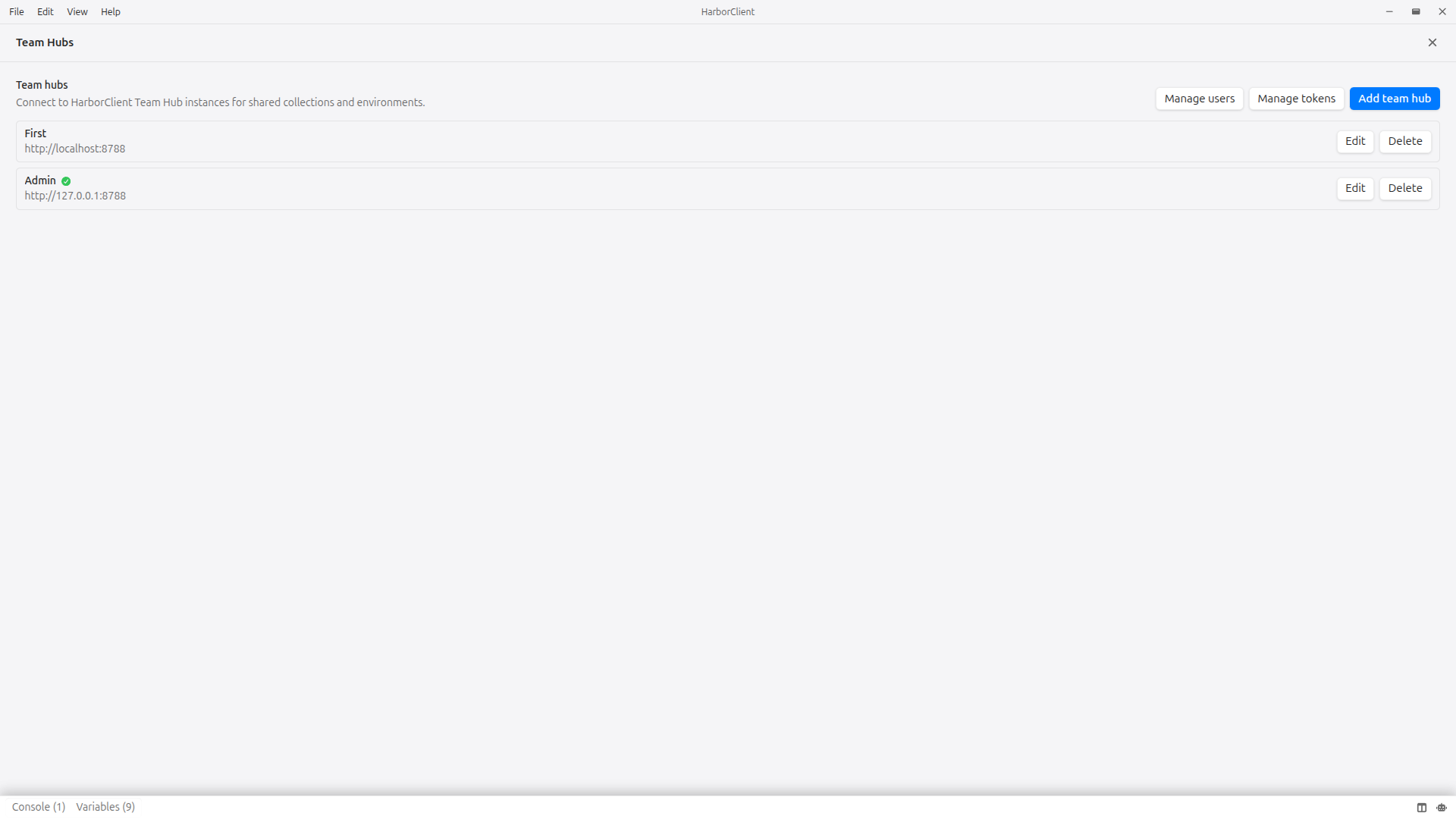
Team hubs connect HarborClient to a running HarborClient Team Hub instance — a self-hosted central server that stores shared collections for your team. Each hub is a named connection with a base URL and bearer API token. Collections you store on a hub live on the team hub; HarborClient syncs them into the sidebar and routes create, read, update, and delete operations through its HTTP API. On hub-backed collections, the Discuss tab also hosts threaded discussions so teammates can comment on requests, collections, folders, and run results without leaving HarborClient.
Environments are not shared via team hubs. Environment variable groups stay in your local database on each machine, even though HarborClient Team Hub supports environments on the server. Use Environments for per-machine variable groups; use team hubs when you want teammates to share the same collection data.
Prerequisites
Before adding a team hub in HarborClient, you need:
| Requirement | Description |
|---|---|
| HarborClient Team Hub | A running team hub instance your team can reach over the network. See the HarborClient Team Hub repository and full documentation for setup and deployment. |
| Team hub URL | The team hub base URL (for example http://127.0.0.1:8788 or https://api.example.com). HarborClient strips trailing slashes when saving. |
| API token | A bearer token prefixed with hbk_ that authorizes your HarborClient instance against protected API routes. Obtain or create tokens according to your team hub's documentation. |
Each token belongs to a Team Hub account with a role that determines what HarborClient can do with that connection:
| Token role | HarborClient behavior |
|---|---|
| user (default) | Syncs collections; no admin management actions on the hub row |
| admin | Shows Manage users, Manage tokens, and Reload on the hub row; does not sync collections (management-only) |
HarborClient verifies connectivity when a hub is saved or mounted at launch. If the team hub is unreachable or the token is invalid, the hub is skipped and a warning is logged — other providers continue to work.
Managing team hubs
Open File → Team Hub to manage hub connections. The page lists every configured hub with its display name, URL, and service badges.
Each hub row shows service badges indicating what the hub server provides for that connection. Storage, LLM, and Plugin catalog appear on every row; active badges use green styling and unavailable services appear muted. An Admin badge appears only on connections that use an admin token. HarborClient probes the hub after the list loads, so badges may appear muted briefly while scanning.
| Badge | Shown when | Active when |
|---|---|---|
| Storage | Always | The hub is reachable and exposes collection storage |
| LLM | Always | The hub has LLM proxy support configured in server.yaml |
| Plugin catalog | Always | The hub publishes plugin marketplace or trusted-publisher URLs |
| Admin | Admin token connections only | This connection uses an admin token with management API access |
Add a team hub
| Step | Action |
|---|---|
| 1 | Click Add team hub |
| 2 | Enter a Name (shown in provider dropdowns and sidebar badges) |
| 3 | Enter the Team hub URL |
| 4 | Enter the API token |
| 5 | Click Save |
On success, HarborClient shows a Team hub saved. toast, mounts the hub, and runs an additive sync so collections already on the team hub appear in the sidebar.
Edit a team hub
Click Edit on a hub row, change any field, and click Save. HarborClient remounts the hub with the updated URL or token and syncs collections again.
Delete a team hub
Click Delete on a hub row and confirm. Deleting a hub:
- Removes the hub connection from HarborClient
- Removes sidebar registry entries for collections that belonged to that hub
- Deletes the local id-map file HarborClient used to translate server UUIDs to numeric ids
Deleting a hub does not delete collections on HarborClient Team Hub itself — teammates who still have access can continue to use server-side data. Your local sidebar entries for that hub are removed.
Admin tokens
An admin token is an hbk_ bearer token issued for a Team Hub account with role: admin. It authorizes the management API — user accounts, roles, and access settings — not collection data.
Admin tokens are created on the Team Hub server, not in HarborClient. After your team hub is running and migrated, an operator can create an admin account and token from the server CLI:
team-hub user create --name ops --role admin
team-hub user token create --user <user-id> --name "Ops laptop"
See the Team Hub authentication documentation for the full CLI workflow, including additional tokens and revocation.
Add an admin token in HarborClient
Admin tokens use the same API token field as regular hub connections — there is no separate admin setting.
| Step | Action |
|---|---|
| 1 | Open File → Team Hub |
| 2 | Click Add team hub (or Edit an existing hub) |
| 3 | Enter a Name, Team hub URL, and paste the admin token into API token |
| 4 | Click Save |
After save, HarborClient probes each hub. Admin-token connections show row actions for team administration:
- Manage users — list, create, edit, and delete user accounts on that hub
- Manage tokens — list, create, and delete API bearer tokens for users on that hub
- Manage collections — list hub collections, delete them on the server, and mark collections as protected from user deletion
- Reload — re-read
server.yamlon the hub server (see Reload hub config)
The Admin service badge appears on the same connections. User-token rows do not show these actions.
Reload hub config
Admin-token connections show a Reload button on the hub row. Click it to call POST /admin/config/reload on the Team Hub server, which re-reads server.yaml and applies reloadable sections (database, Redis, LLM, plugins, and server settings).
HarborClient refreshes cached plugin sources and re-scans service badges after a successful reload. If the config file cannot be parsed or individual sections fail, HarborClient shows an error dialog with the server report.
Admin tokens and collections
Admin tokens cannot read or write collection data through HarborClient for daily API work. HarborClient does not import collections into the sidebar for admin-token connections, even when the Team Hub server returns a catalog on GET /collections. On app launch or hub save, any sidebar entries previously tied to an admin connection are removed automatically.
Use Manage collections on an admin hub row when you need to inspect or delete collections on the server.
Recommended pattern: configure one hub connection with a user token for daily work (collections and requests) and a separate connection with an admin token for team administration. You can also keep an admin connection and use it only when managing users.
Managing team users
Admin-token hub rows include Manage users. Click it to list, edit, and delete user accounts on that Team Hub connection. The page title and view header show the hub name and URL so it is clear which server you are managing.
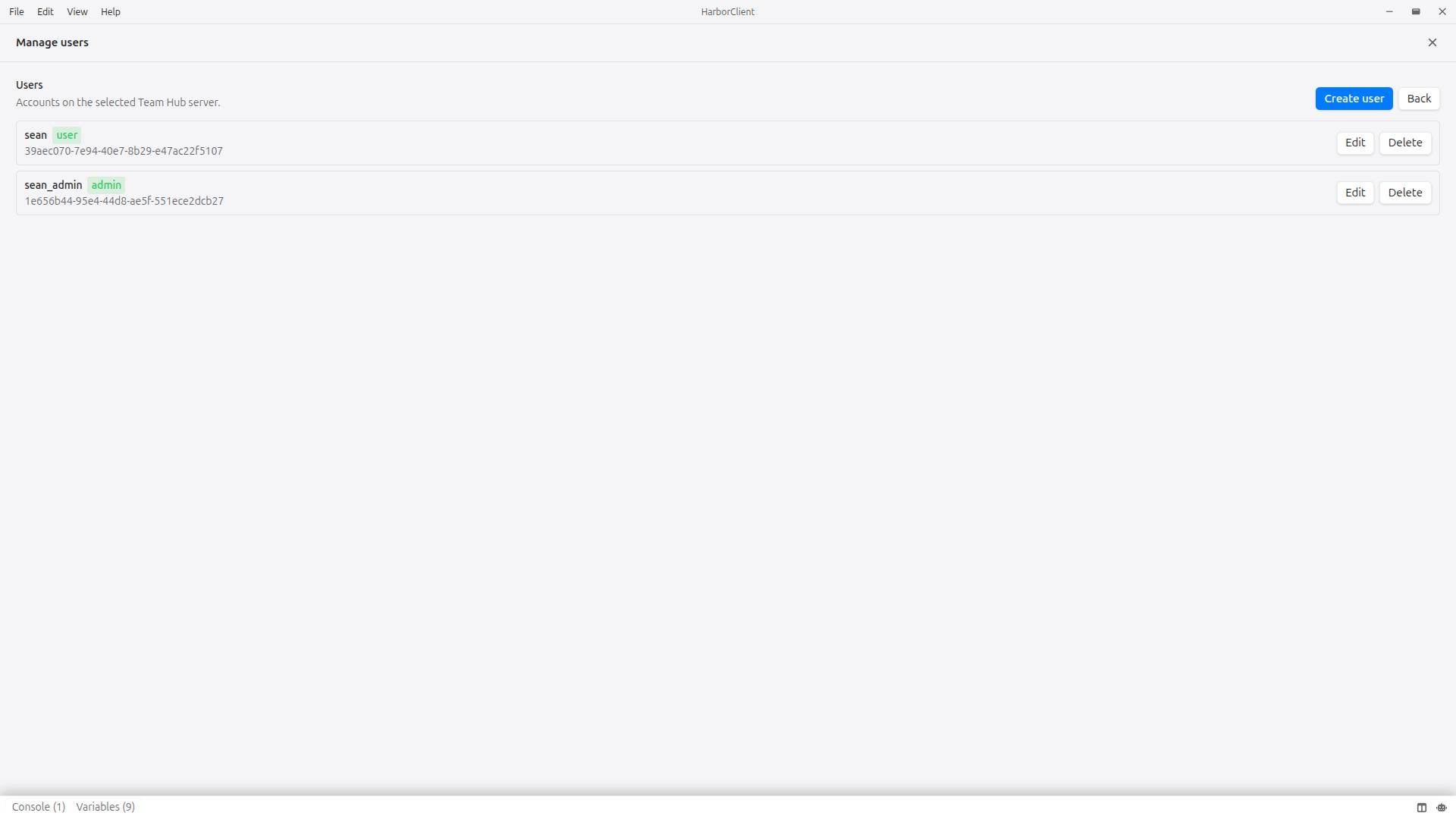
| Step | Action |
|---|---|
| 1 | Open File → Team Hub |
| 2 | Click Manage users on the target admin hub row |
| 3 | Review the user list (name, role badge, account id) |
Click Back to return to the hub connection list.
Use Manage tokens on the same row to create or revoke API bearer tokens for users on that hub.
Use Manage collections on the same row to list collections on the hub, delete them on the server, or toggle Protect from user deletion so non-admin users can only remove the collection from their own sidebar.
Manage collections
Admin-token hub rows include Manage collections. Click it to list every collection on that Team Hub connection.
| Action | Behavior |
|---|---|
| View requests | Click a collection row to inspect its saved requests grouped by folder |
| Delete request | Permanently deletes an individual saved request on the team hub |
| Protect from user deletion | When enabled, user-token deletes remove the collection from that user's sidebar only; the server copy stays available to teammates |
| Delete | Permanently deletes the collection on the team hub (type DELETE to confirm) |
Click Back from the request list to return to the collection list. Click Back from the collection list to return to the hub connection list.
Edit a user
Click Edit on a user row to open the edit dialog. Available fields:
| Field | Notes |
|---|---|
| Name | Display name on the server |
| Role | user or admin |
| Collection access | * or comma-separated collection UUIDs (hidden when role is admin) |
| Environment access | * or comma-separated environment UUIDs (hidden when role is admin) |
| LLM access | Checkbox — enable hub-provided AI models for this account |
| LLM models | * or comma-separated model ids |
| LLM monthly token limit | Blank = unlimited |
Click Save to apply changes. HarborClient shows User updated. on success.
When you change a user's role to admin, collection and environment access fields are cleared on the server — admin accounts manage the hub but do not access entity data through the data API.
Delete a user
Click Delete on a user row. Type DELETE in the confirmation field and click Delete again. This permanently removes the account and revokes all of its API tokens. HarborClient shows User deleted. on success.
Create users
HarborClient does not create user accounts. Operators create them on the Team Hub server:
team-hub user create --name alice --role user
team-hub user token create --user <user-id> --name "Alice laptop"
Teammates then add their user token in HarborClient as described in Add a team hub.
Collections on a team hub
HarborClient treats storage connections and team hubs as providers — places where collection data can live. Hub-backed collections sync saved requests, folders, and markdown documents through the team hub API — documents behave like requests for create, update, delete, reorder, and move operations.
Threaded discussions
When a team hub supports communication, HarborClient replaces per-request notes with a shared Discuss surface:
| Where | What you can discuss |
|---|---|
| Request editor Discuss tab | The open saved request |
| Collection settings Discuss | The collection itself |
| Folder settings Discuss | A folder in the collection |
| Collection runner results | A saved run result |
Threads support nested replies (up to three levels), @mentions, and watching a thread for updates. Local collections and older hubs without discussion support keep the legacy notes and tags UI in the same Discuss tab. See Making requests — Discuss.
Choosing a provider
When you create or move a collection, pick the provider that should store its data:
| Location | How |
|---|---|
| Create new collection | Sidebar + or File → New Collection → Add collection → Create new → choose Provider |
| Move an existing collection | Collection Settings → General → Provider → Save |
The provider dropdown lists SQLite, Firestore, MySQL, PostgreSQL, and configured user-token team hubs. Team hubs are labeled (Team Hub). Admin-token team hub connections are for Team Hub management only (File → Team Hub) and do not appear in collection provider dropdowns because they cannot store collection data.
The active storage location (set in Settings → Storage Locations) is the default provider for new collections when you do not choose another one.
Auto-sync
HarborClient syncs collections from each reachable hub:
- On app launch — after hubs are mounted, new team hub collections are added to the sidebar
- When you save a hub — immediately after add or edit
- When you create or update a server user — user-token hub connections on the same server re-sync and the sidebar refreshes automatically
Sync is additive: collections on the team hub that are not yet in your sidebar are registered automatically. When the hub is reachable, collections deleted on the server are removed from your sidebar on the next sync (app launch, hub save, manual storage sync, or sidebar refresh). When the hub is offline or unreachable, existing sidebar entries are kept until the hub can be contacted again.
You do not need to restart HarborClient after saving a user-token hub connection or changing a server user's collection access.
There is no background polling or live sync. Changes made by teammates appear when HarborClient reloads data — for example, after restarting the app or when a hub is saved again.
Sidebar badges
When a collection's provider is not your active storage location, its row shows a connection badge with the provider name (database or team hub). This helps distinguish local collections from hub-backed or shared remote-storage collections.
Moving and deleting collections
Move a collection off a hub
In Collection Settings → General, change Provider to a database (or another hub) and click Save. HarborClient copies the collection's folders, saved requests, and markdown documents to the target provider and updates the sidebar entry.
When the source is a team hub, HarborClient leaves the original collection on HarborClient Team Hub. Teammates keep access to the server copy. HarborClient records the collection as detached from that hub so a later sync does not re-add it to your sidebar.
When the source is a local or remote storage location, HarborClient deletes the source copy after a successful move, as before.
Move a collection onto a hub
Choose a team hub as the target Provider and save. HarborClient creates the collection on the team hub via the API and removes the source copy from the previous storage provider (standard move behavior).
Delete a hub-backed collection
Choose Delete from the collection row menu.
| Collection state | What happens |
|---|---|
| Not protected, and you created the collection | HarborClient asks you to confirm that team members will lose access on the team hub. Confirming deletes the collection on HarborClient Team Hub and removes it from your sidebar. |
| Protected from user deletion | HarborClient asks whether to remove the collection from your sidebar only. Confirming removes it locally; the collection stays on the team hub for other members and will not reappear in your sidebar after sync. |
| You did not create the collection (and it is not protected) | HarborClient removes the collection from your sidebar only; the server copy remains for the creator and other members. |
Administrators enable protection under File → Team Hub → Manage collections on an admin-token connection.
Deleting a collection from a SQLite or remote-storage provider does not show the team-hub warnings — only hub-backed collections affect shared server data.
Team hubs vs other sharing options
HarborClient offers several ways to work with others. Pick the approach that matches how your team operates:
| Approach | Best for |
|---|---|
| SQLite / local DB | Solo work, offline-first, full control on one machine |
| Remote storage (Firestore, MySQL, Postgres) | Team shares one storage location directly; configure connections in Settings → Storage Locations |
| Encrypted sharing | One-step handoff of storage credentials plus a collection; requires Sharing Keys and Collections → Sharing |
| Team hubs | Team shares collections (and threaded Discuss comments) through HarborClient Team Hub with token-based access — no manual storage setup per teammate |
Remote storage location vs team hub: With a remote storage location, every teammate configures the same DB connection (or joins with a share token that embeds credentials). With a team hub, teammates only need the team hub URL and their own API token; collection data is exposed through HarborClient Team Hub's HTTP API.
Share tokens vs team hubs: Share tokens bundle remote storage location connection details and a single collection mapping. Team hubs are a separate path: collections live on HarborClient Team Hub, and sync discovers collections your token can access. The Share access row menu action is intended for remote-storage sharing; for hub-backed collections, sharing is handled by granting team hub access (tokens) rather than sending a share token.
Team Hub LLM access
When your HarborClient Team Hub administrator enables LLM support, HarborClient can run AI chat through the hub instead of your personal provider keys. The hub holds the OpenAI, Claude, and Gemini keys in server.yaml; your desktop client only sends chat steps to the hub API.
| Topic | Behavior |
|---|---|
| Model picker | Hub models are labeled Team Hub and preferred over personal keys for the same model id |
| Tool calling | HarborClient still executes tools locally against your open requests and collections |
| Access control | Administrators grant LLM access and monthly token limits per user through Manage users in HarborClient or the team hub CLI |
| Fallback | Personal API keys in Settings → AI are used only for models your hubs do not offer |
See the AI assistant guide and the team hub LLM proxy documentation.
Team Hub plugin sources
Team Hub administrators can declare plugin marketplace and trusted-publisher URLs in server.yaml:
plugins:
  catalogs:
    - https://harborclient.com/plugin_catalog.json
  trusted:
    - https://harborclient.com/plugins/trusted.json
HarborClient fetches these from GET /plugins/sources for each connected hub and merges them into File → Plugins → Settings as read-only rows labeled From {hub name}. Users cannot remove or disable Team Hub endpoints in the app; change them on the Team Hub server.
See Using plugins for how custom and hub-provided sources are merged.
Limitations
| Topic | Behavior |
|---|---|
| Live sync | No background polling. Reload data by restarting the app or saving a hub again. |
| Environments | Not shared via hubs. Each HarborClient instance keeps its own environment list locally. |
| Concurrent edits | Last write wins through the team hub API. HarborClient does not merge conflicting edits. |
| Offline team hub | Hub-backed collections may show warnings if the team hub is unreachable; sidebar entries are not auto-deleted. |
| Configuration location | Team hubs are managed under File → Team Hub, not under Settings → Storage Locations. |
What's next
- Storage — storage types, team collaboration, and per-entity provider assignment
- Collections — sidebar, settings, import/export, and provider moves
- Settings → Storage Locations — SQLite and remote storage connections
- Sharing Keys — keys and trusted collaborators for encrypted sharing
- Environments — local variable groups that override collection variables at send time
- HarborClient Team Hub documentation — install, configure, and run the central server
- Team Hub authentication — user roles, token creation, and CLI administration beyond the HarborClient UI