
Settings
HarborClient application settings control appearance, HTTP request defaults, and the storage connections where collections, requests, and environments are stored. Open settings from File → Settings or Cmd/Ctrl+,.
The settings panel has a sidebar with nine sections: General, Globals, Snippets, Storage Locations, Shortcuts, Syntax highlighting, Proxy, AI, and Backup & Restore. General covers appearance, request defaults, and optional diagnostic log file output; Globals manages app-wide variables; Snippets manages reusable JavaScript for script lists; Storage Locations manages the named storage connections that hold your data; Shortcuts lets you customize keyboard shortcuts; Syntax highlighting controls the code editor; Proxy configures a global HTTP proxy for outbound requests; AI stores API keys for the built-in assistant; Backup & Restore exports or replaces all local HarborClient data from a single backup file.
Plugin, theme, snippet bundle, and cookie jar management live outside Settings — see Using plugins (File → Plugins), Using themes (File → Themes), Using snippets (File → Snippets), and Cookies (File → Cookies). Browse the plugin marketplace, theme marketplace, and snippet marketplace. Enabled plugins can still add their own sections to the Settings sidebar.
Appearance, request defaults, and connection definitions are stored in electron-store on your machine. Collections, requests, and environments live in the storage connections you configure.
General
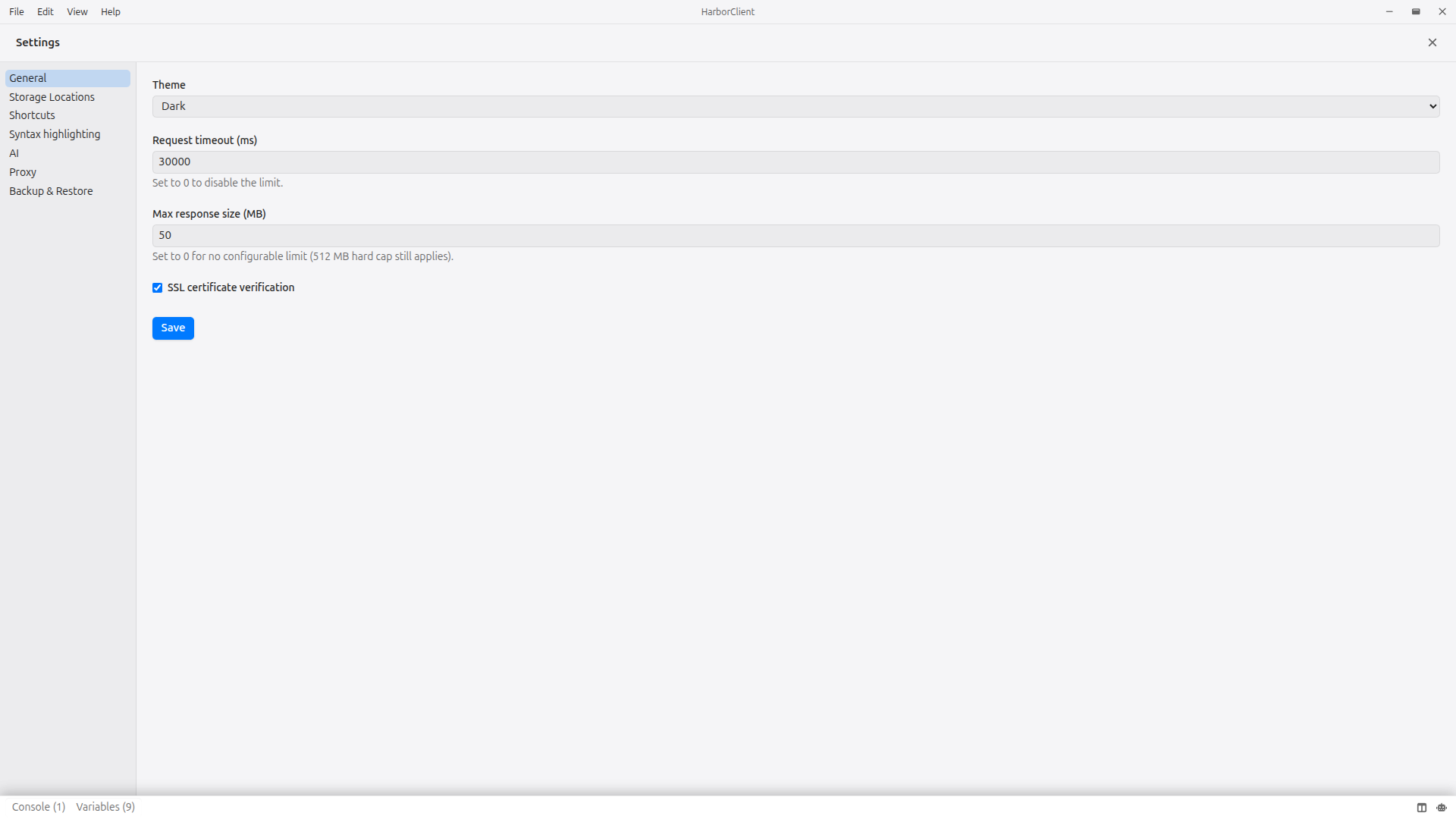
Theme
Choose how HarborClient looks:
| Option | Description |
|---|---|
| Light | Always use the light theme |
| Dark | Always use the dark theme |
| System | Match your operating system preference |
Theme changes apply immediately and do not require a restart or a save.
Request defaults
Control how HarborClient sends requests and handles responses:
| Field | Description |
|---|---|
| Request timeout (ms) | Abort a request after this many milliseconds. Set to 0 to disable the limit. |
| Script timeout (ms) | Maximum time for each pre- or post-request script. Default 5000. Set to 0 to disable. Applies per script in the run order (see Request scripts — Execution order). |
| Max response size (MB) | Stop reading a response larger than this size. Set to 0 for no configurable limit (512 MB hard cap still applies). |
| SSL certificate verification | When enabled, reject requests with invalid TLS certificates. |
| Follow redirects | When enabled, follow 3xx responses automatically. When disabled, return the redirect response without following Location. |
| Allow script network requests | When enabled, pre- and post-request scripts may call await hc.fetch(...) for outbound HTTP, and plugins with the network permission may call hc.host.fetch(...). Default off. Script- and plugin-initiated sends use the same timeout, SSL verification, proxy, and redirect settings as manual sends. When this setting is off, you can still allow individual plugins during install — see Using plugins — Network permission. See Request scripts — hc.fetch. |
| Allow script file read | When enabled, pre- and post-request scripts may call hc.fs read, exists, and stat APIs under the script file root. Default off. See Request scripts — hc.fs. |
| Allow script file write | When enabled, pre- and post-request scripts may call hc.fs write and append APIs under the script file root. Default off. See Request scripts — hc.fs. |
| Allow script live page access | When enabled, pre- and post-request scripts may call hc.livePage to open, focus, query, and close embedded browser tabs. Default off. Page load waits count against the script timeout. See Request scripts — hc.livePage and Live pages. |
| Script file access root | Directory that confines hc.fs paths for non-git collections. Leave empty to use your home directory. Git-backed collections are confined to their git repository directory instead. Use Browse to pick a directory. |
| Log file path | When set, HarborClient writes main-process diagnostic output to this rotating log file. Includes verbose startup/MCP diagnostics ([verbose]) and outbound HTTP request details ([request]). Logging to the file is independent of -v / -vv flags. Leave empty to disable. Use Browse to pick a path; the save dialog defaults to {userData}/logs/harborclient.log when the field is empty. Click Save to apply. |
Click Save to apply request defaults.
Unsaved changes and confirmations
Control whether HarborClient prompts before discarding unsaved request edits:
| Field | Description | Default |
|---|---|---|
| Warn when exiting the app with unsaved changes | When enabled, quitting or closing the app with unsaved request tabs shows a confirmation dialog. When disabled, HarborClient exits immediately and discards unsaved edits. | On |
| Warn when closing unsaved requests | When enabled, closing a request tab with unsaved edits shows a confirmation dialog. When disabled, request tabs close immediately without prompting. | On |
The exit warning applies to request tabs only — unsaved edits in page tabs such as collection or environment settings do not block quitting. The tab-close warning applies to request tabs only; closing page tabs with unsaved collection, environment, or folder settings still prompts when those settings are dirty.
Click Save to apply.
Diagnostic log file
When Log file path is set, HarborClient keeps a rotating log on disk:
- Rotation: daily files, 20 MB max per file, 14-day retention. A path like
/var/log/harborclient.logproduces dated files such asharborclient-2026-07-09.login the same directory. - Console vs file:
-v/-vvstill control terminal output only; see CLI — Verbose logging. - Privacy: request logs include method, URL, request headers, and request body; response headers and bodies are never logged.
- Search: the field is indexed in Settings search (
log,verbose,diagnostics).
Globals
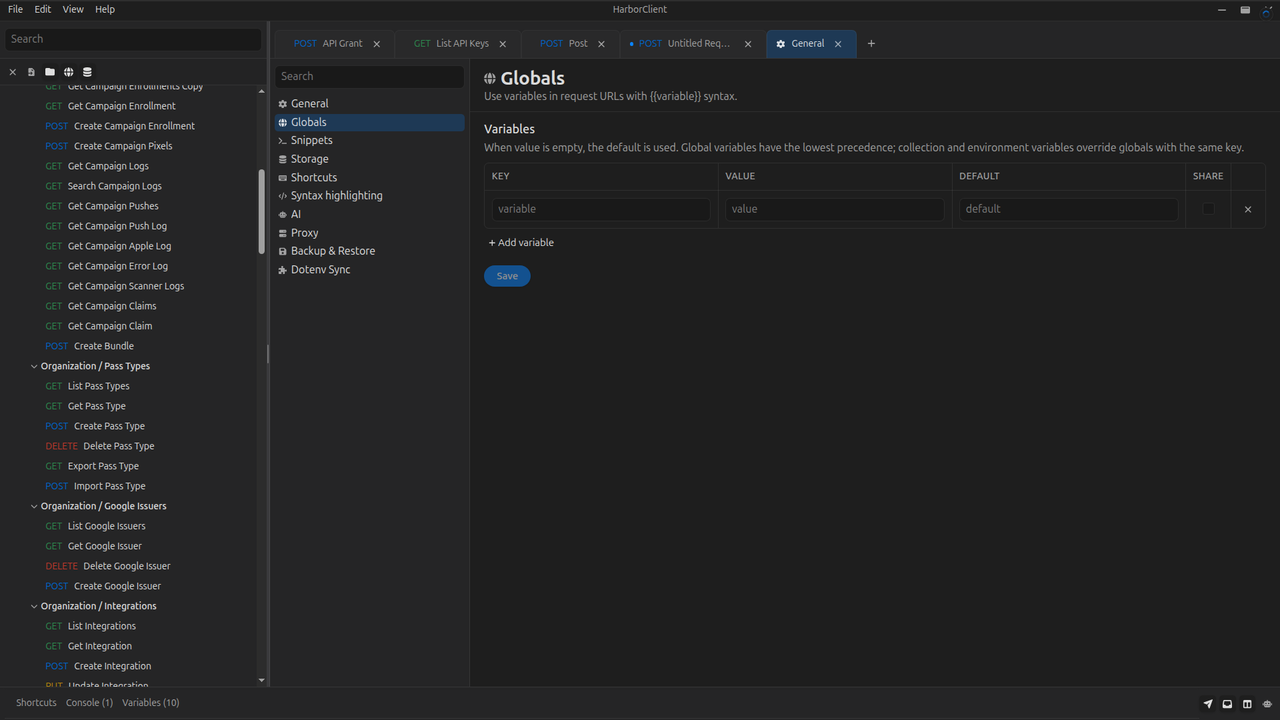
The Globals section manages app-wide variables available in every request. Use the same key/value/default/share table as collection and environment variables. Reference globals in URLs, headers, params, body, and scripts with {{key}} syntax.
Global variables have the lowest precedence in the variable chain. Collection and environment variables override globals when they define the same key. Values set with hc.globals.set in a pre- or post-request script are persisted to globals after the send completes. See Environments — Precedence and Request scripts — hc.globals.
Click Save to apply global variable changes.
Snippets
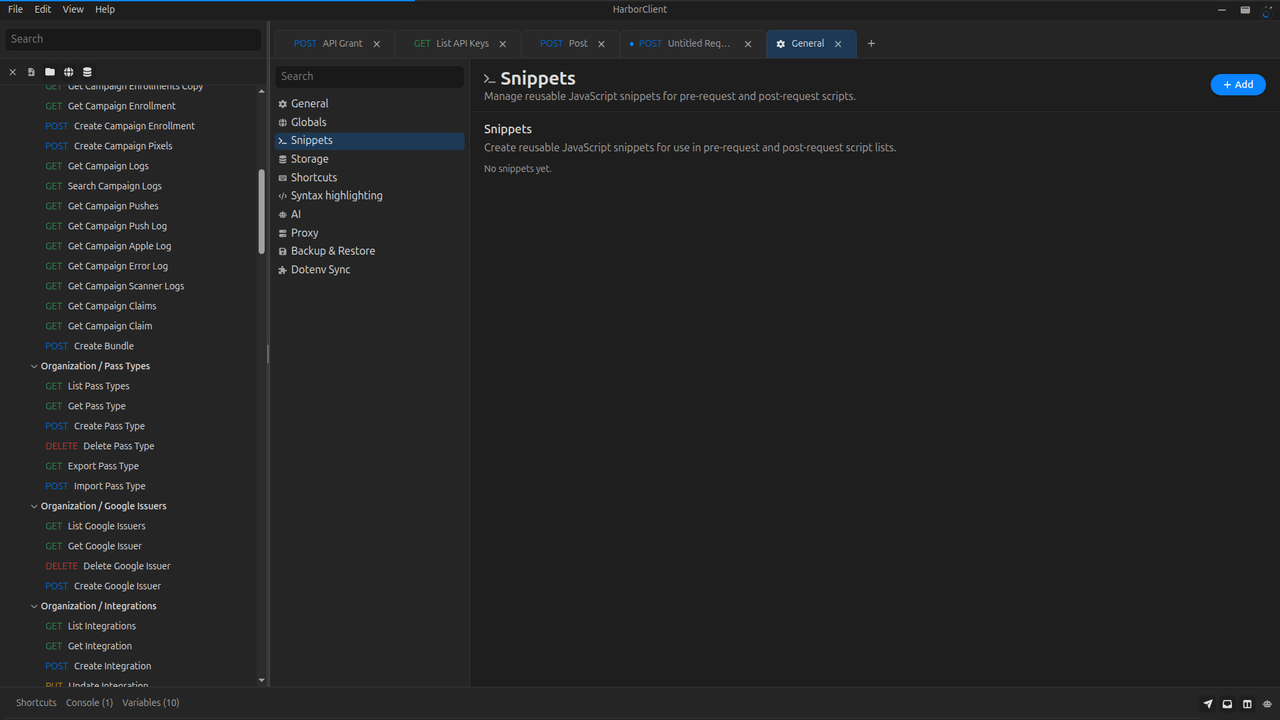
The Snippets section manages reusable JavaScript blocks for the pre-request and post-request stages. Create a snippet once, then reference it from any collection or request script list with Select snippet... instead of duplicating code, or import it from inline scripts when the name ends in .js (see Importing snippets from scripts).
| Action | Description |
|---|---|
| Add snippet | Create a new snippet with a name, Request stage, Stage, and JavaScript source. Use a .js filename (for example auth-token.js) to make the snippet importable with import … from './auth-token.js'. |
| Import | Pick a .js file, then review the snippet in the add dialog before saving (empty files are rejected) |
| Edit | Change the snippet name, scope, or code. Renaming an importable snippet may break scripts that import it by the old filename. |
| Delete | Remove the snippet after confirmation; requests referencing it show Missing snippet and skip that entry at send time |
Portable snippet JSON exports (harborclientExport: "snippet") — for example from git-backed storage — can be imported via File → Import. HarborClient deduplicates by portable uuid the same way as environments and collections.
Snippet references are live pointers — editing a snippet in Settings updates every script list that references it on the next send. Snippets are stored locally on your machine (in the app's local database), not in collection or request export files. After importing a collection elsewhere, recreate any needed snippets locally or use inline scripts instead.
Script rows that reference a snippet show read-only source in the request editor; use the Ask AI wand on those rows for sidebar help. The inline /ask slash command works in inline script editors only — see AI assistant — Inline /ask.
See Request scripts — Snippets for how snippet references work in script lists and at send time.
Shortcuts
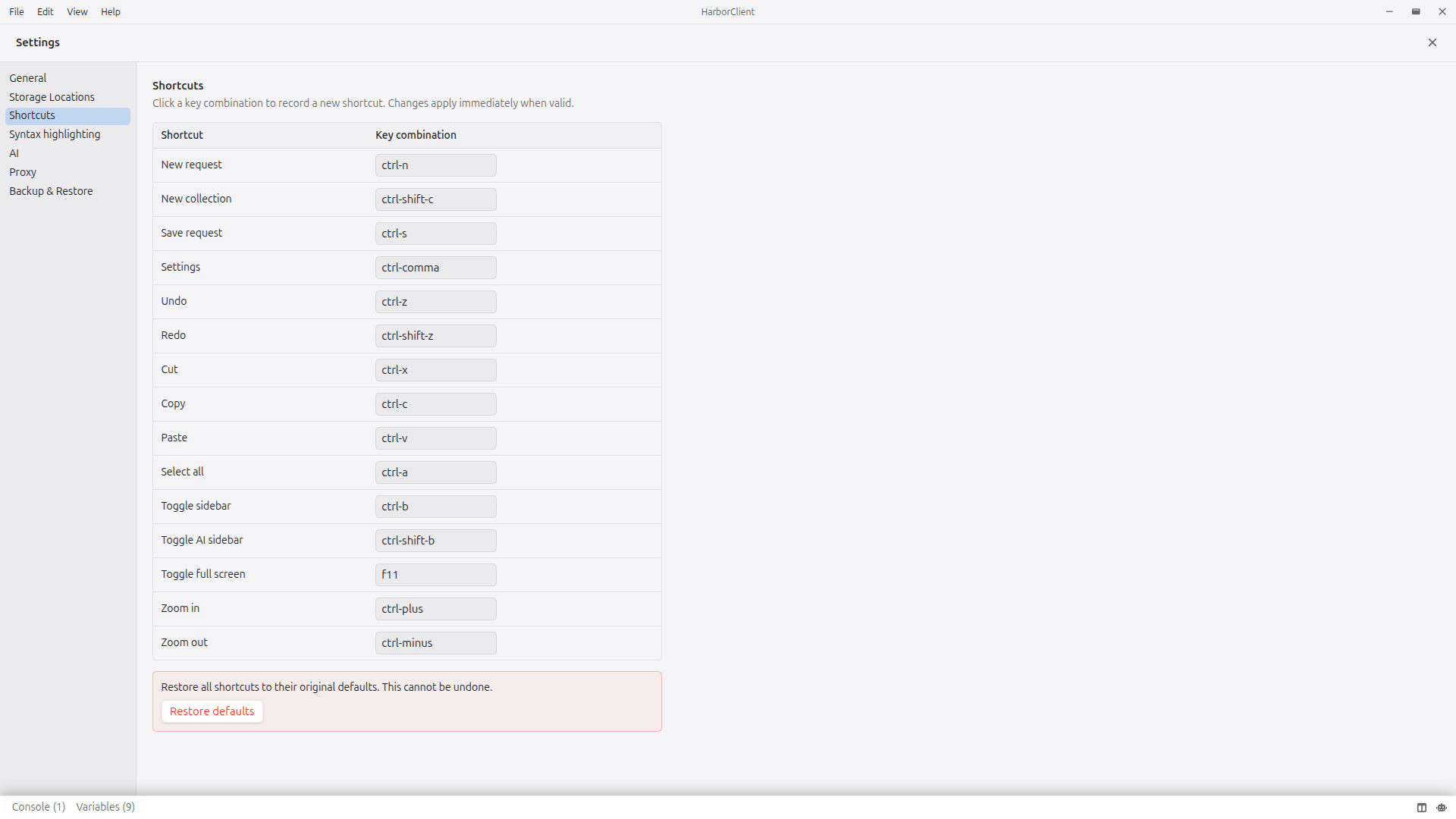
The Shortcuts section lists every configurable keyboard shortcut in HarborClient. Each row shows the action name and its current key combination.
| Action | Description |
|---|---|
| Click a key combination | Enter recording mode, then press the desired keys to assign a new shortcut |
| Restore defaults | Reset all shortcuts to their built-in defaults (requires confirmation) |
Shortcut changes apply immediately when valid. Duplicate or invalid combinations are shown inline and are not saved.
Configurable shortcuts include File menu actions (new request, save request, settings), Edit menu actions (undo, copy, paste), and View menu actions (Action menu, full screen, zoom). Some actions such as Send still use Enter when the URL field is focused and are not listed here.
The settings sidebar includes its own Search field for finding individual options without leaving Settings. See Search → Settings search.
Syntax highlighting
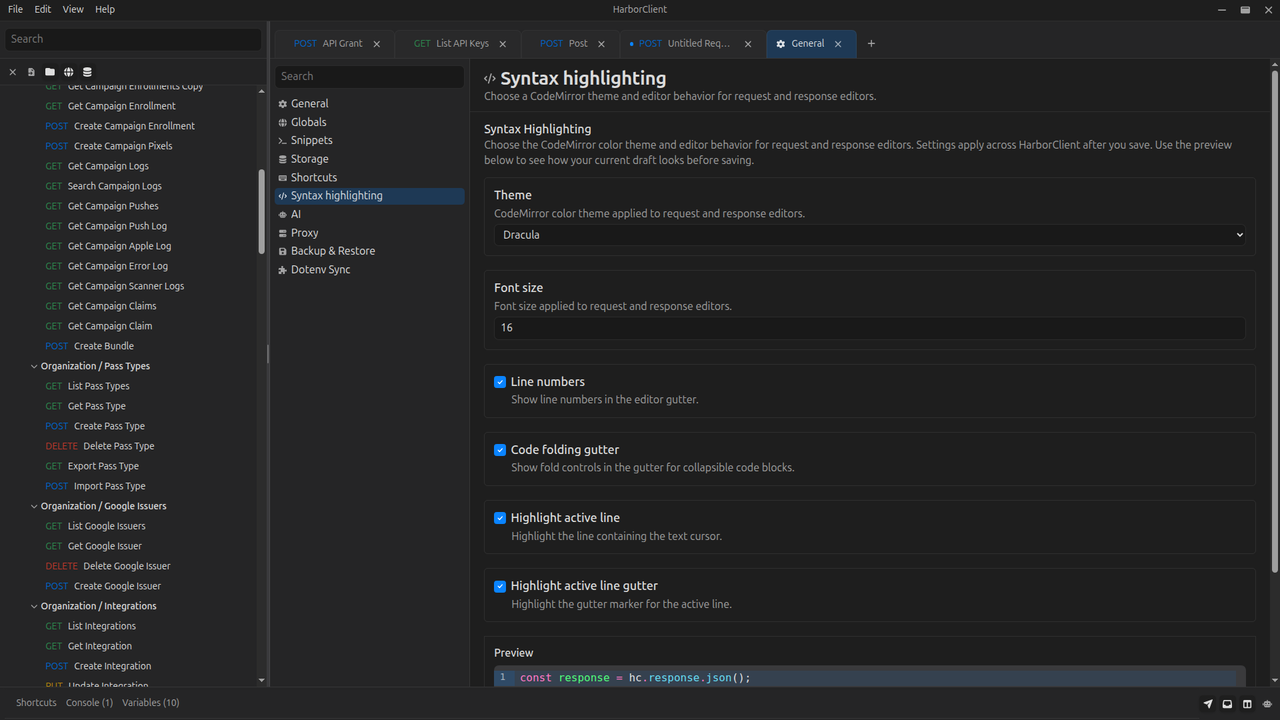
The Syntax highlighting section controls the CodeMirror editors used in request bodies, response bodies, and scripts. Choose a color theme and font size, toggle line numbers and code folding, and highlight the active line in the editor and gutter. A live preview shows how your choices look before you save.
Click Save to apply syntax highlighting settings.
Proxy
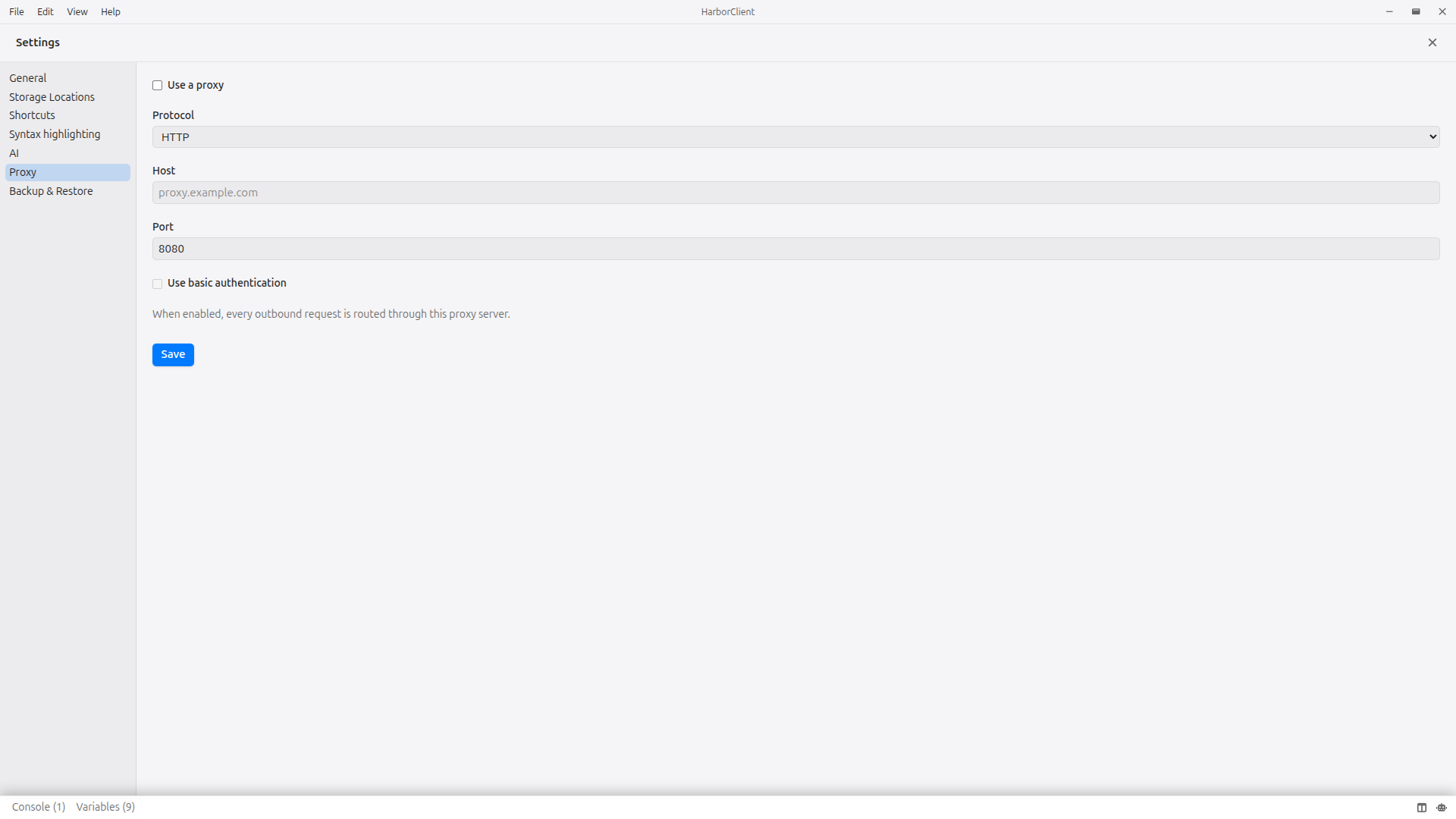
The Proxy section configures a global HTTP proxy applied to every outbound request.
| Field | Description | Default |
|---|---|---|
| Use a proxy | Route all requests through the configured proxy server | Off |
| Protocol | Protocol used to connect to the proxy (HTTP or HTTPS) | HTTP |
| Host | Proxy server hostname or IP address | (empty) |
| Port | Proxy server port | 8080 |
| Use basic authentication | Send HTTP Basic credentials to the proxy | Off |
| Username | Username for proxy authentication | (empty) |
| Password | Password for proxy authentication | (empty) |
Click Save to apply proxy settings. When the proxy is enabled but the host is empty, requests are sent directly without a proxy.
Storage Locations
See Storage for the conceptual guide — why remote storage matters for teams, how providers work, and how to assign collections, snippets, and run results to specific locations.
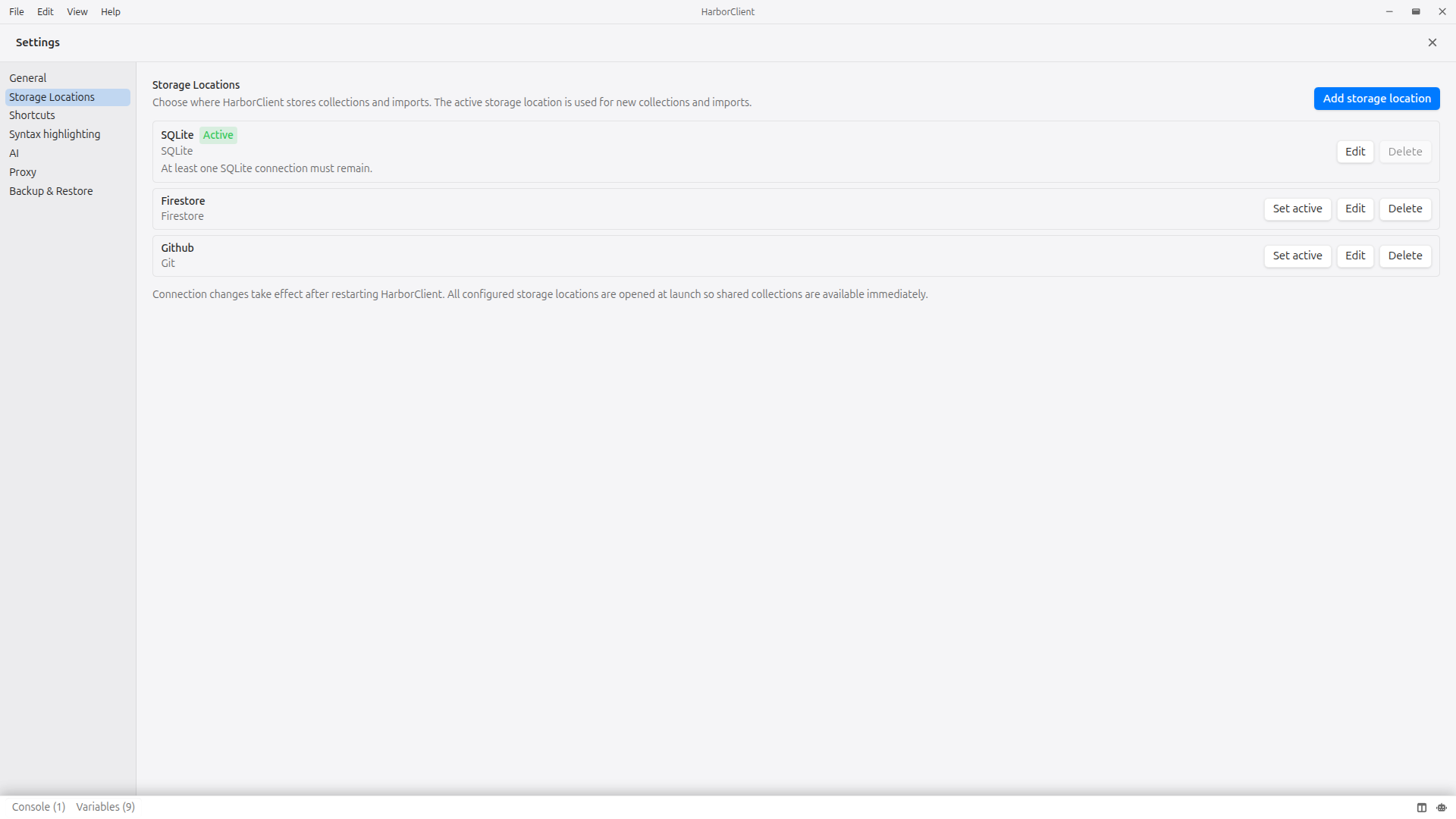
The Storage Locations section lists every named storage connection. The active storage location is used for new collections and imports. Individual collections can be moved to other storage locations from collection settings.
All configured storage locations are opened at launch, so shared collections from any connection are available immediately.
Team hubs are configured separately under File → Team Hub, not in this section. They connect to HarborClient Team Hub for token-based shared collections. See Team hubs for setup and sync behavior.
Managing connections
| Action | Description |
|---|---|
| Add storage location | Create a new connection. Choose a name and type, then configure its connection details. |
| Set active | Mark a connection as the active storage location for new data. |
| Edit | Change a connection's name and connection details. The type cannot be changed after creation. |
| Delete | Remove a connection. The last remaining connection cannot be deleted, and the last remaining SQLite connection cannot be deleted. Deleting the active storage location promotes another connection to active after restart. |
Connection changes take effect after restarting HarborClient.
Connection types
Each connection has a name and one of the following types. The type is chosen when the connection is created and is fixed afterward.
SQLite
A local database file stored in the HarborClient application data directory. This is the default type.
| Field | Description |
|---|---|
| Database filename | Filename of the database file within the application data directory |
Firestore
Stores data in a shared Firebase project. Use this type for cloud-backed storage or team access to the same data.
| Field | Description |
|---|---|
| API key | Firebase Web API key |
| Auth domain | Firebase Auth domain |
| Project ID | Firebase project ID |
| App ID | Firebase app ID |
| Email for Firebase Auth sign-in | |
| Password | Password for Firebase Auth sign-in |
MySQL
Stores data on a remote MySQL server. Use this type for self-hosted or team-shared storage.
| Field | Description | Default |
|---|---|---|
| Host | MySQL server hostname | 127.0.0.1 |
| Port | MySQL server port | 3306 |
| User | MySQL username | (empty) |
| Password | MySQL password | (empty) |
| Database | MySQL storage location name | (empty) |
PostgreSQL
Stores data on a remote PostgreSQL server. Use this type for self-hosted or team-shared storage.
| Field | Description | Default |
|---|---|---|
| Host | PostgreSQL server hostname | 127.0.0.1 |
| Port | PostgreSQL server port | 5432 |
| User | PostgreSQL username | (empty) |
| Password | PostgreSQL password | (empty) |
| Database | PostgreSQL storage location name | (empty) |
Git
Stores collections as files in a local git repository working tree. Use this type to version API collections with your team through normal git workflows. See Git provider for file layout, authentication, and the Git sidebar.
| Field | Description | Default |
|---|---|---|
| Repository path | Absolute path to the local repository clone | (empty) |
| Repository URL (HTTPS) | Remote URL for fetch/push (SSH not supported) | (empty) |
| Branch | Branch to track | main |
| HarborClient subdirectory | Directory inside the repo for collection files | .harborclient |
Authenticate private remotes with a personal access token or Authorize with GitHub (device flow). Tokens are stored encrypted, not in the connection JSON.
When you use a remote type such as Firestore, MySQL, or PostgreSQL, multiple HarborClient instances can point at the same database to share collections and saved requests across your team. Sidebar environments remain local on each machine. Changes from other users appear when you reload data (for example, after restarting the app or refreshing collections); HarborClient does not live-sync in the background. Git-backed connections reload from disk when you pull, when files change under the HarborClient subdirectory, or when the window regains focus.
AI
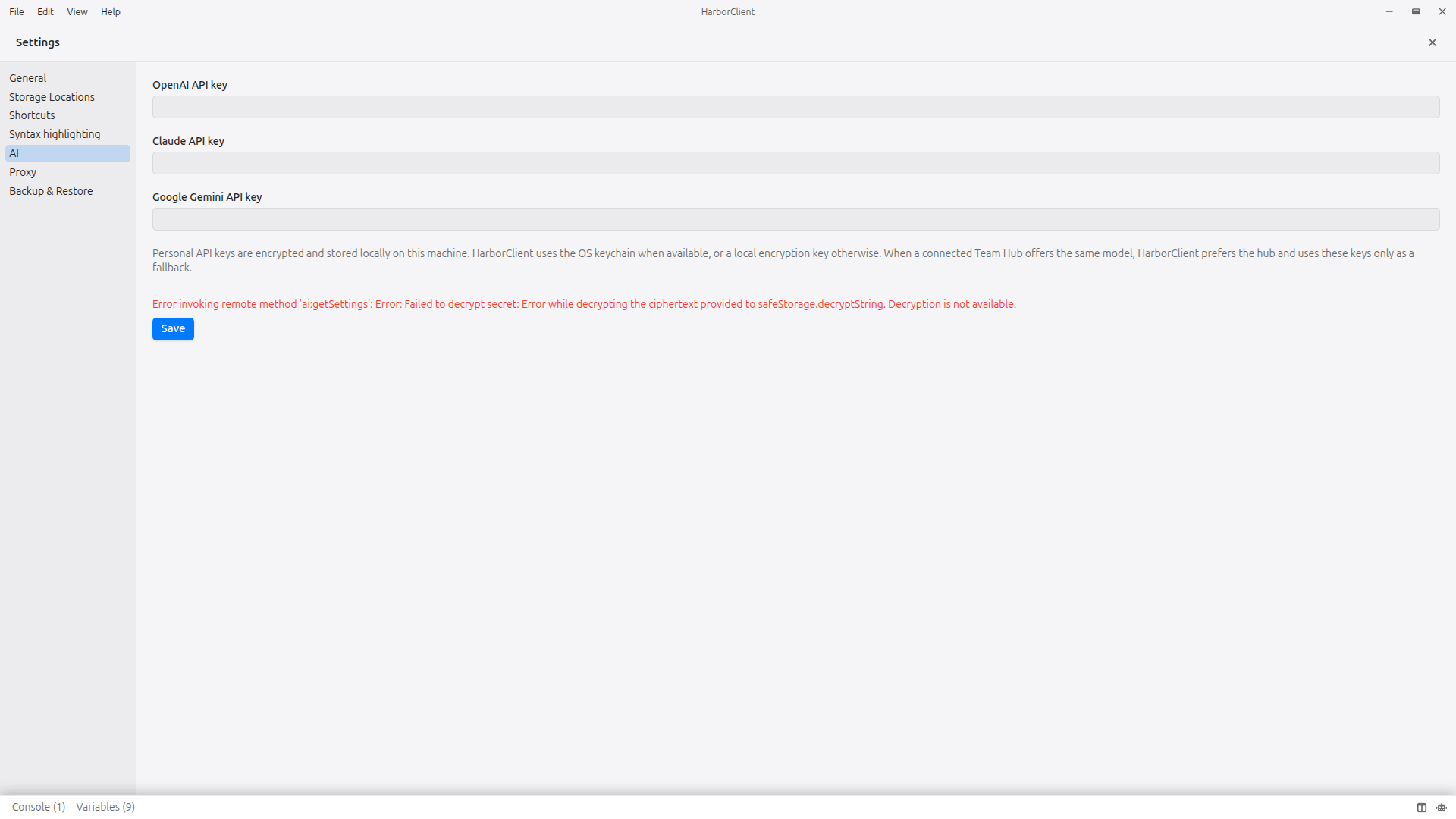
The AI section stores API keys for OpenAI, Claude, and Google Gemini. Keys are encrypted and saved locally on your machine. HarborClient uses the OS keychain when available; on systems without Secret Service support it falls back to a local encryption key in your application data directory. Saved keys power the AI sidebar chat. See AI assistant for setup and usage.
On Linux, OS-backed encryption typically requires GNOME Keyring or KWallet to be running.
| Field | Description |
|---|---|
| OpenAI API key | API key for OpenAI models |
| Claude API key | API key for Anthropic Claude models |
| Google Gemini API key | API key for Google Gemini models |
Click Save to persist API keys.
Backup & Restore
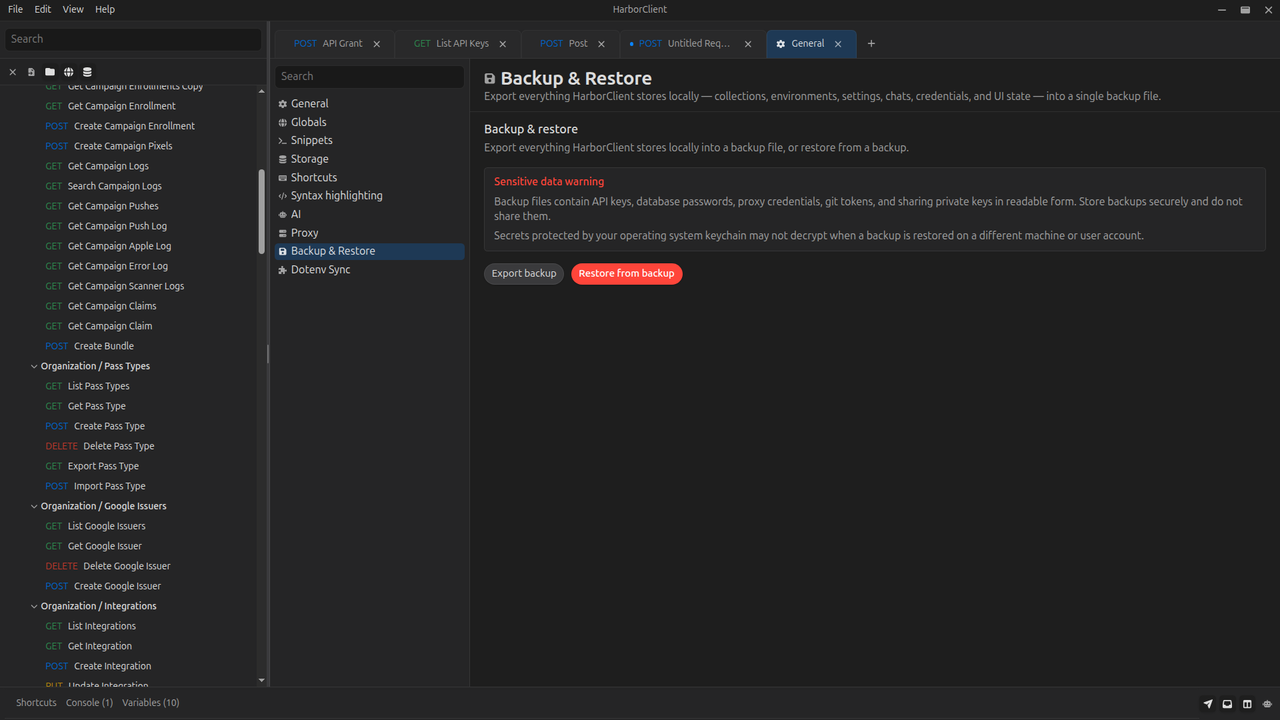
The Backup & Restore section exports everything HarborClient stores locally on your machine into a single HarborClient Backup file (.hcb), or restores your local data from such a file. Use it when moving to a new computer, before reinstalling, or to keep an offline snapshot of your workspace.
| Action | Description |
|---|---|
| Export backup | Opens a save dialog and writes a .hcb file containing your local HarborClient data |
| Restore from backup | Opens a file picker for .hcb files, replaces your current local data, and restarts the app |
Restore asks for confirmation first. It overwrites local data and may discard unsaved work in open request tabs. HarborClient restarts automatically when restore completes.
What is included
A backup captures local application data under HarborClient's user data directory, including:
- Local SQLite databases (registry, default provider database, and Team Hub ID maps) and their WAL sidecars
- Electron-store settings (panel layout, sidebar expansion, editor tabs, and similar UI state)
- Window position and size
- Storage connection definitions, environments, AI chat history, cookies, and collection routing stored in the registry
- Encrypted AI and git credentials, sharing identity keys, and the local encryption key file
- Git provider sidecar files (
git-index/,git-provider-settings/) - Renderer UI state such as open tabs, the active environment, and panel sizes
Backups are zip archives with a .hcb extension. They include secrets in readable form inside the archive—store backup files securely and do not share them.
What is not included
Restore replaces local HarborClient state only. It does not copy data that lives elsewhere:
- Remote storage locations (Firestore, MySQL, PostgreSQL) — only connection settings are backed up; server-side collections and environments are unchanged
- Team Hub servers — only local hub configuration and ID maps are backed up
- Git repository working trees — collection files in your repo are not inside the backup; only HarborClient sidecar files in user data are included
Secrets encrypted with your operating system keychain may not decrypt when you restore a backup on a different machine or user account. You may need to re-enter API keys, git tokens, or database passwords after restore.
What's next
- Plugins — browse the plugin marketplace
- Themes — browse the theme marketplace
- Using plugins — install and manage extension packages (File → Plugins)
- Using themes — install and manage appearance themes (File → Themes)
- Cookies — manage saved cookies by domain (File → Cookies)
- Plugin development — build, package, and extend HarborClient with plugins
- AI assistant — configure API keys and use the chat sidebar
- Collections — organize saved requests and manage storage and backup
- Environments — define global variable groups stored locally on each machine
- Storage — pluggable backends and team collaboration
- Features — overview of storage locations and team collaboration