
Search
HarborClient includes several focused search surfaces: sidebar filtering for collections and environments, in-panel search in Settings, and marketplace and installed search on the Plugins, Themes, and Snippets pages. These searches use warmed indexes so results appear quickly while you work.
For global navigation and command-style actions, use the Action menu.
Sidebar search
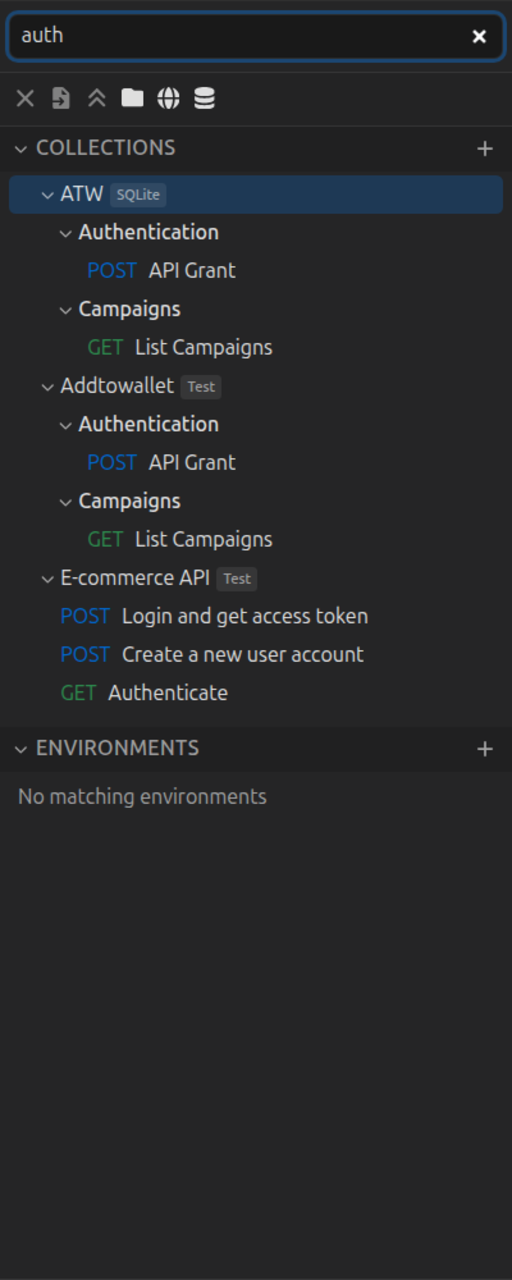
The search field at the top of the left sidebar filters Collections and Environments without leaving the main window. It matches collection names, folder names, saved request names, request URLs, HTTP methods, and environment names.
While a filter is active, HarborClient expands matching collections and folders so visible rows stay in context. Clear the field to restore the previous expansion state.
Press Cmd/Ctrl+F (default; customizable as Focus sidebar search in Settings → Shortcuts) to show the sidebar and focus the search field.
If you search before all collection contents have loaded, HarborClient fetches missing folders and requests in the background and shows Loading… until the index is complete.
See Collections → Sidebar guide for how the sidebar tree is organized.
Settings search
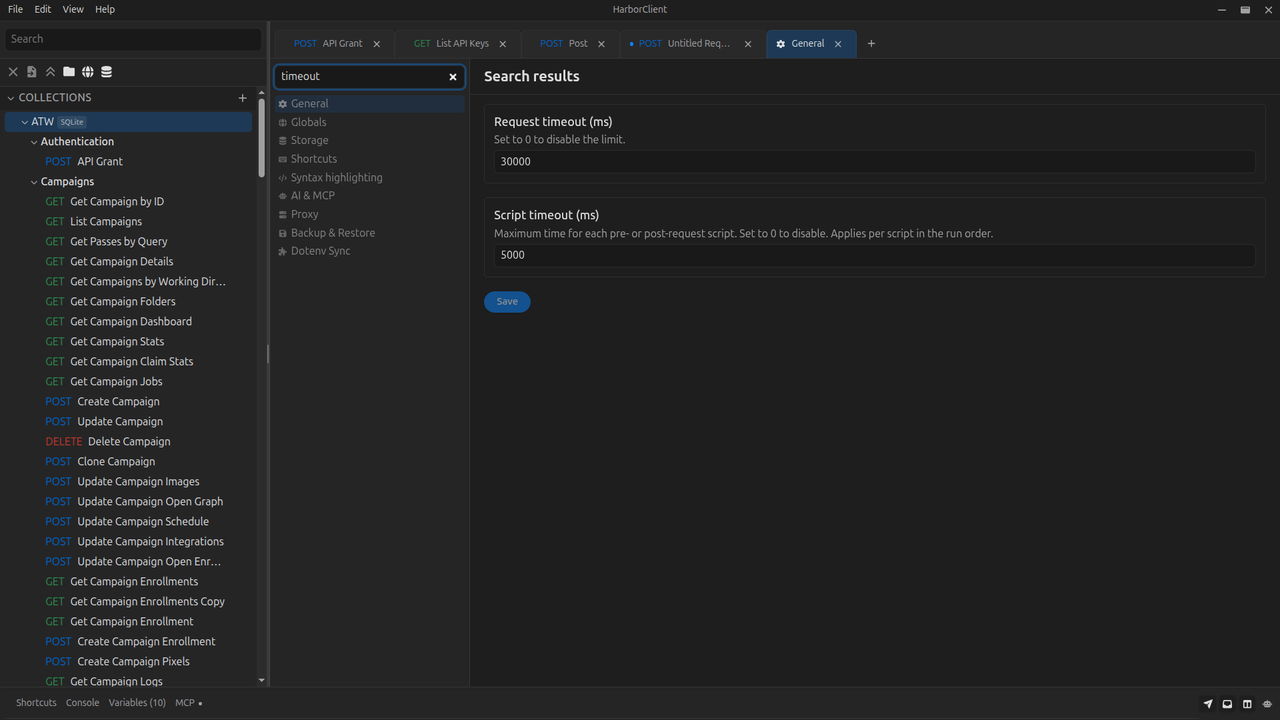
While Settings is open, use the search field at the top of the settings sidebar to find individual options and management sections (Globals, Snippets, Storage Locations, Shortcuts, Backup & Restore, and plugin-contributed sections).
Matching fields replace the main settings panel with a result list. Choose a row to open the section that contains that setting. Section rows jump directly to that management page.
Search matches field labels, descriptions, and catalog keywords — for example searching timeout finds request and script timeout fields under General, and searching log finds the diagnostic log file path field.
Plugin and theme search
Marketplace
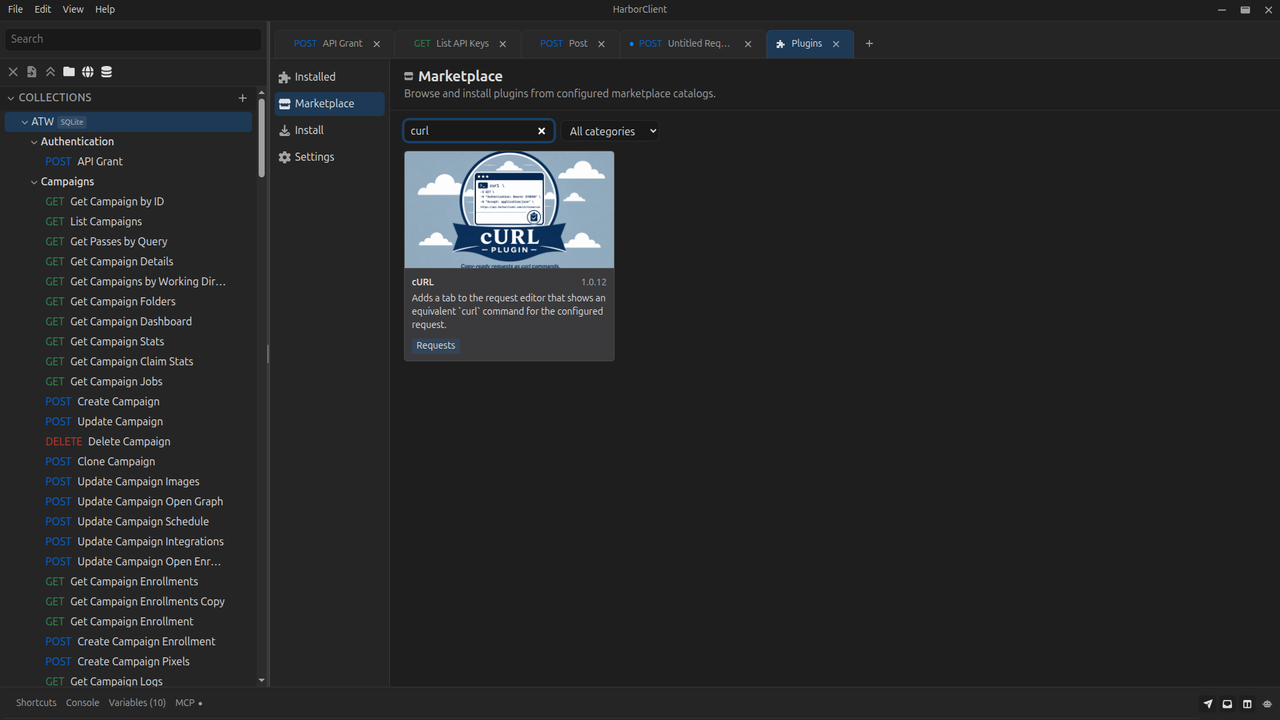
On File → Plugins → Marketplace, use Search plugins to filter the catalog by name, summary, and keywords. Category chips further narrow the list.
On File → Themes → Marketplace, use Search themes the same way for theme listings.
When you open a marketplace plugin or theme from the Action menu, HarborClient switches to the correct page and prefills the marketplace search field with the listing name.
Installed
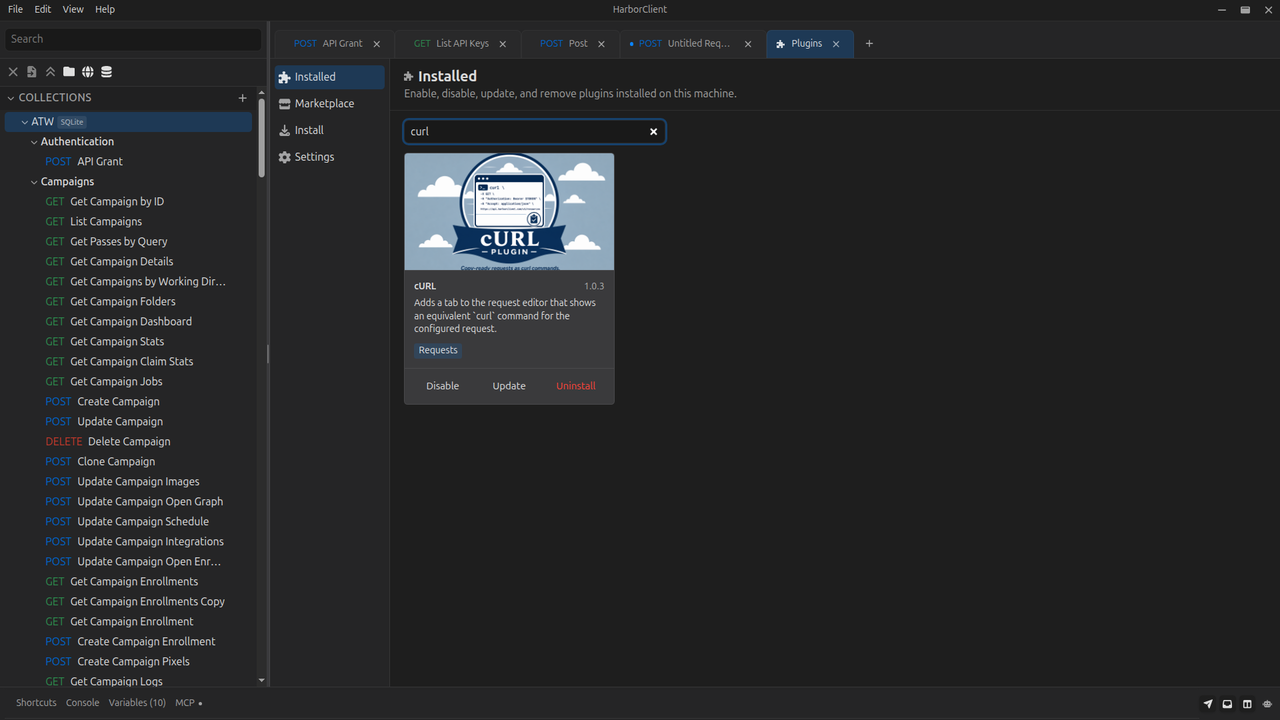
On File → Plugins → Installed, use Search installed plugins to filter plugins already on your machine.
On File → Themes → Installed, use Search installed themes to filter installed themes.
When you open an installed plugin or theme from the Action menu, HarborClient switches to the Installed section and prefills the installed search field.
See Using plugins and Using themes for installation and catalog sources. Browse the plugin marketplace and theme marketplace.
Keyboard shortcuts
| Action | Default shortcut | Customizable |
|---|---|---|
| Action menu | Cmd/Ctrl+Shift+P | Yes — Settings → Shortcuts |
| Plugins | Alt+Shift+P | Yes — Settings → Shortcuts |
| Themes | Cmd/Ctrl+Shift+T | Yes — Settings → Shortcuts |
| Focus sidebar search | Cmd/Ctrl+F | Yes — Settings → Shortcuts |
Other View menu shortcuts (full screen, zoom, and others) are also listed under Settings → Shortcuts.
What's next
- Collections — sidebar tree, folders, and saved requests
- Settings — appearance, storage, and shortcuts
- Plugins — browse and install plugins
- Themes — browse and install themes
- Using plugins — install and manage plugins in the app
- Using themes — install and manage themes in the app
- Features — overview of HarborClient capabilities