
Collections
Collections are named groups of saved HTTP requests. Each collection can define shared variables, headers, authorization, and pre-request and post-request stage script lists that apply to every request inside it.
The Collections section in the left sidebar sits above Environments. Both sections can be collapsed independently by clicking the section header.
Sidebar guide

The sidebar is the main place to browse and manage collections.
Search
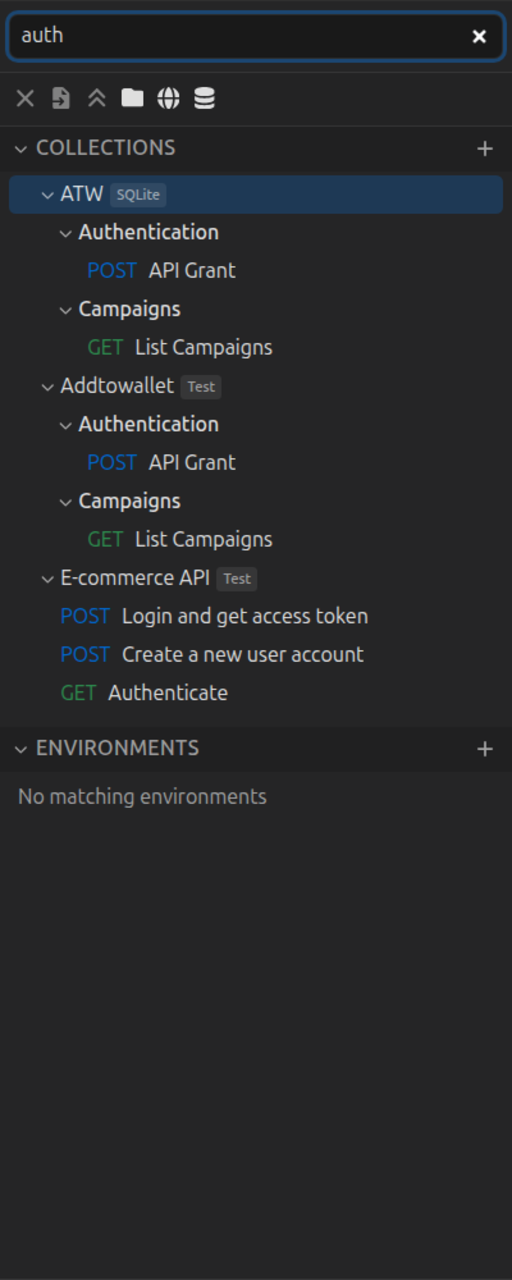
Use the Search field at the top of the sidebar to filter collections, folders, saved requests, and environments. Matching rows stay visible while non-matching rows are hidden; HarborClient expands collections and folders that contain matches.
Press Cmd/Ctrl+F (default) to focus sidebar search from anywhere in the app. For global navigation across settings and plugins too, use the Action menu (Cmd/Ctrl+Shift+P).
Expand and select
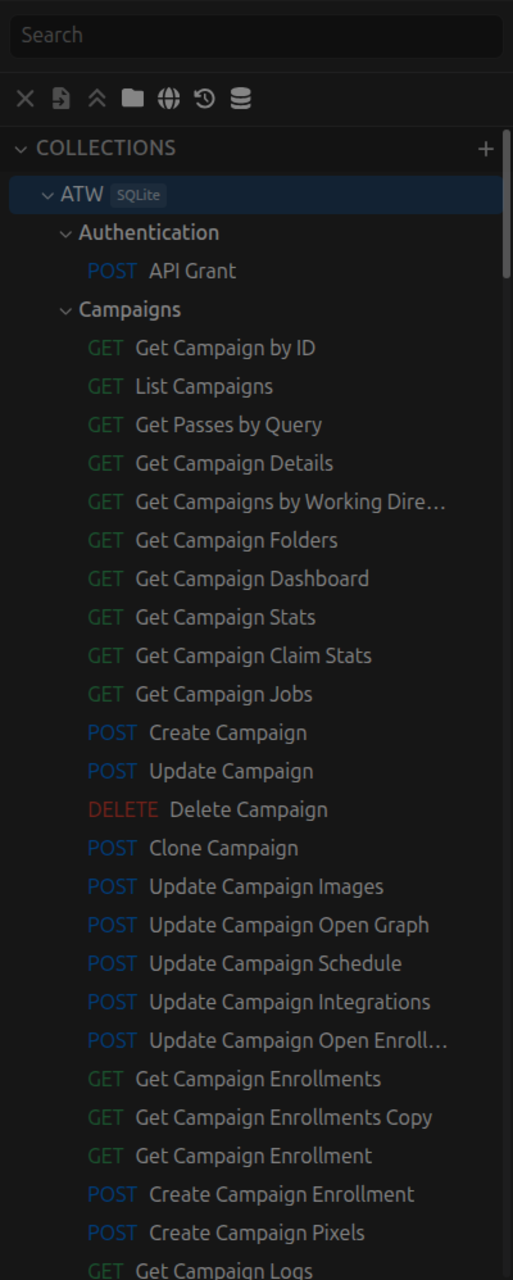
- Expand/collapse (▶/▼ chevron) — toggles the list of saved requests without changing which collection is selected. Requests load when a collection is expanded.
- Select (click the collection name) — highlights the row and loads its saved requests. If the collection was collapsed, it expands automatically.
- Settings — double-click the collection name to open Collection Settings.
Saved requests and folders
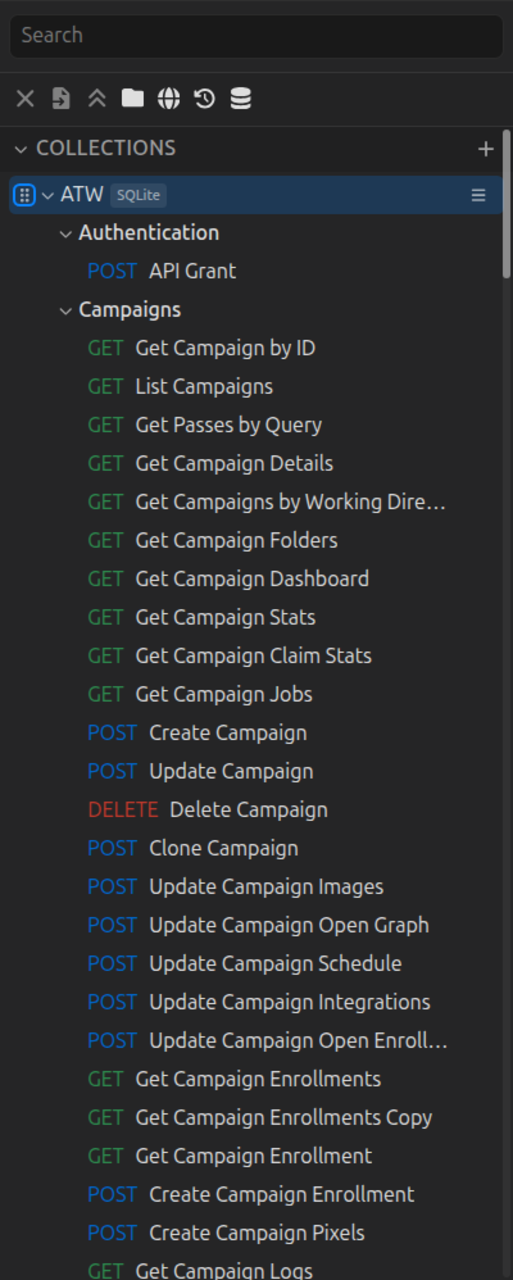
When a collection is expanded, folders (if any) appear first, followed by root-level saved requests. Click a folder's chevron to expand or collapse the requests inside it.
Each request row shows the HTTP method badge and request name.
- Click a request to open it in a tab. If the request is already open, HarborClient focuses that tab.
- The currently open saved request is highlighted in the sidebar.
- If a collection has no folders or requests, No saved requests is shown.
Color coding
Assign a color to any collection, folder, saved request, or markdown document from the row hamburger menu or right-click context menu → Set color. A small colored dot appears beside the item name so you can visually group related work.
The color picker offers two rows of preset swatches plus a third row of custom slots. Click an empty custom slot (or double-click a filled one) to open your operating system's color picker; chosen custom colors are remembered for next time.
- Clear color removes the dot from the menu when a color is already set.
- Colors are stored on the item itself and are included when you export a collection or request, or when you create a full backup.
- Runs, History, and Trash rows cannot be color-coded.
Environments and workspaces in their sidebar sections support the same Set color workflow.
Organizing with folders
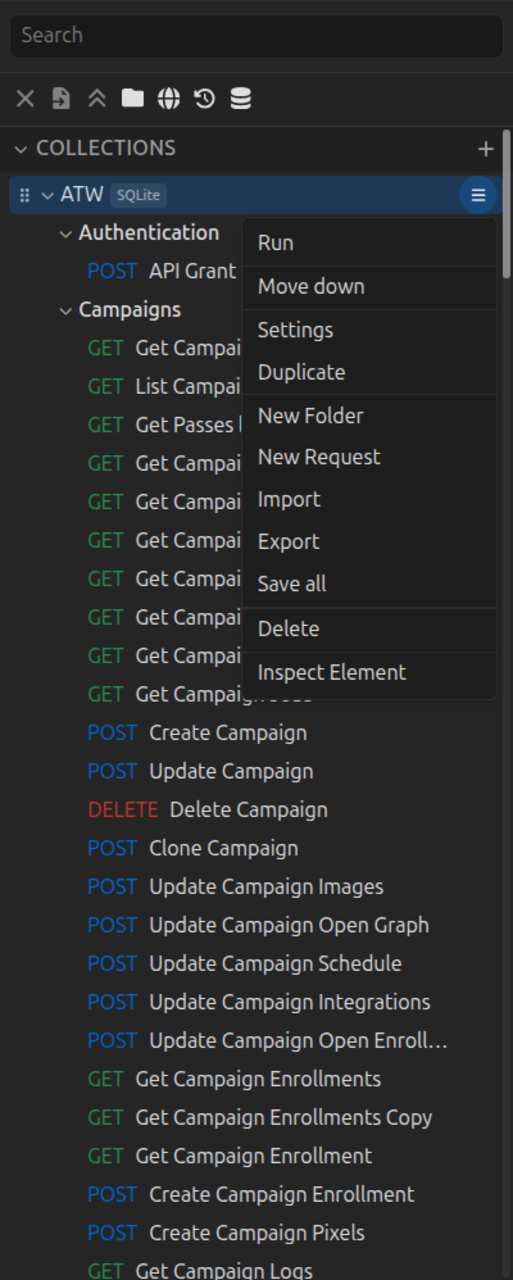
Folders can nest to any depth. Use New Folder in a collection's row menu to create a top-level folder, or New Folder on an existing folder to create a subfolder. You can also drag a folder onto another folder to nest it.
Folder actions:
| Action | How |
|---|---|
| Run | Row menu → Run — runs all saved requests in the folder and its subfolders (see Running collections) |
| New Folder | Row menu on a folder — creates a nested subfolder |
| New Request | Row menu on the folder — creates a saved request inside the folder |
| Rename | Row menu → Rename |
| Delete | Row menu → Delete — removes the folder, its subfolders, and all requests inside them |
Drag and drop to reorder collections, folders, and requests within a folder or at the collection root, move requests between folders and the root, and nest folders inside other folders. While dragging, the target folder or collection root is highlighted so you can see where it will land.
Folders created before nested-folder support may still use a single flat name such as Auth / Users from older imports. New imports and new folders create a real multi-level tree instead.
Empty state and ordering
- When you have no collections, the sidebar shows No collections yet.
- Collections are ordered by drag-and-drop position in the sidebar.
- Folders are ordered by drag-and-drop position among siblings that share the same parent (collection root or another folder).
- Saved requests are ordered by their position within a folder or at the collection root, then by name.
Selection persistence
The highlighted collection in the sidebar is remembered for the current session only — it is not restored after you restart the app. When HarborClient starts and collections exist, the first collection in the sidebar order is selected automatically.
Creating collections
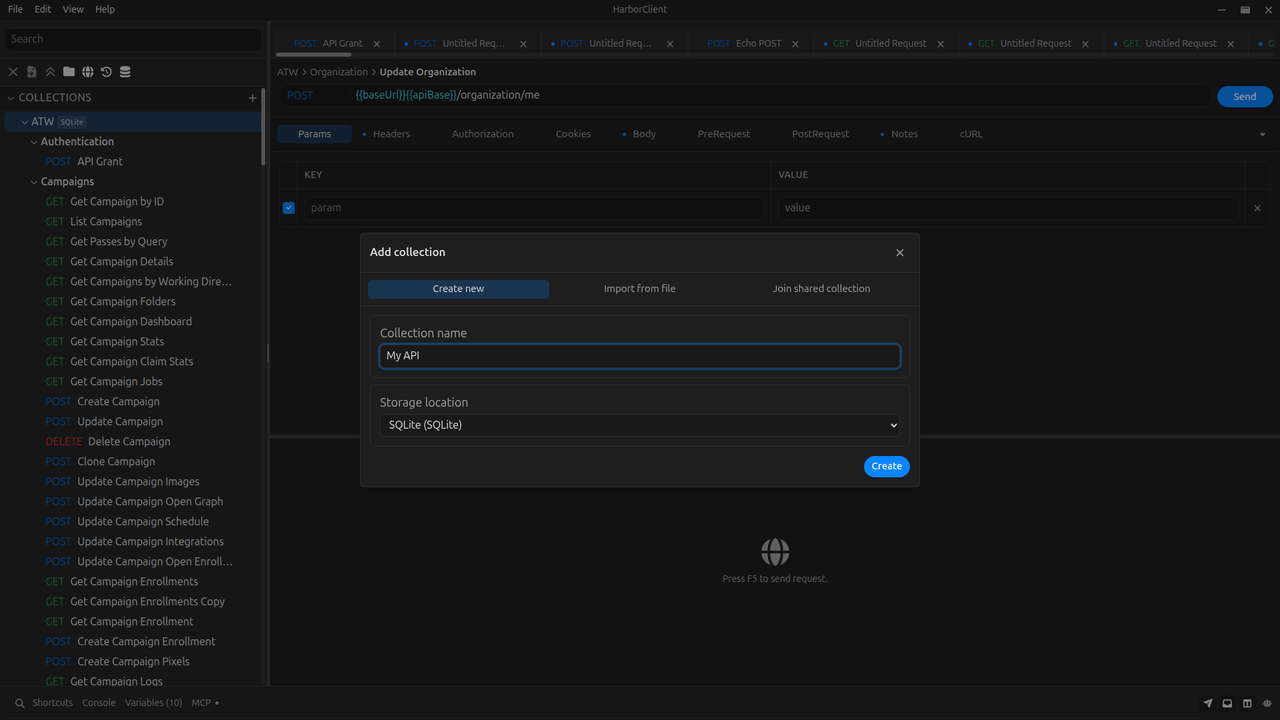
| Trigger | Result |
|---|---|
| Sidebar + button | Opens the Add collection modal |
| File → New Collection or Cmd/Ctrl+Shift+N | Same modal |
| File → Save Request with no collection selected | Opens Create & Save — create a collection, then save the active request into it |
In the Add collection modal you can:
- Storage — enter a name, choose a Storage location (SQLite, a remote storage location, or a team hub), and click Create
- Git — create a git-backed collection
- Import — import from a local file or from a remote URL (see Import and Import from URL)
- Join collection — paste a share token to connect to a shared remote collection (see Sharing collections)
- Public collections — search the apis.io catalog for public Open Collections and Postman collections, then import one (see Public collections (apis.io))
Renaming and deleting
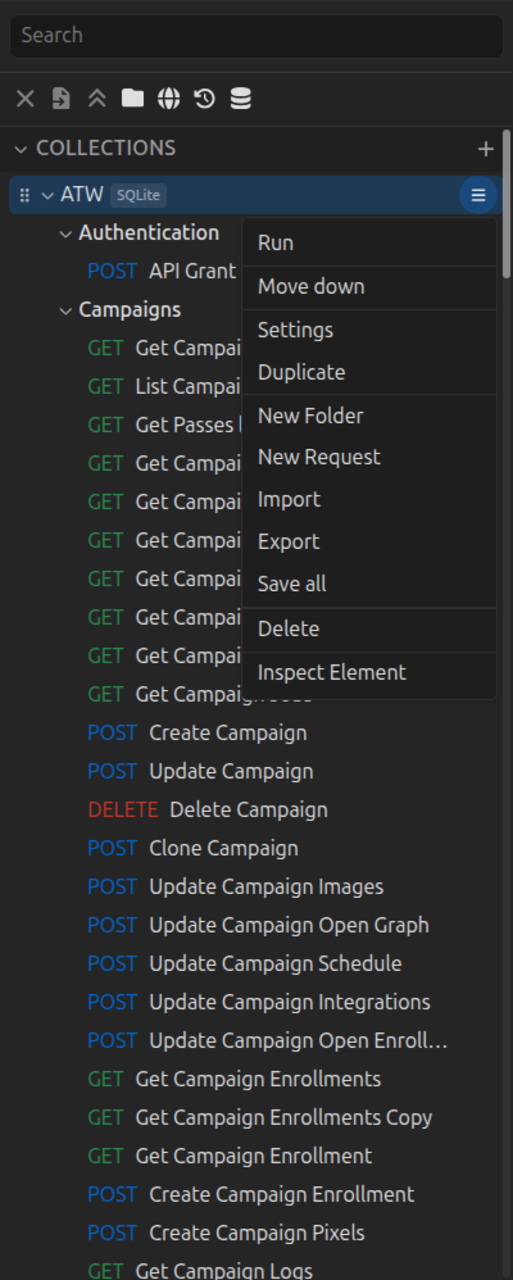
Rename a collection
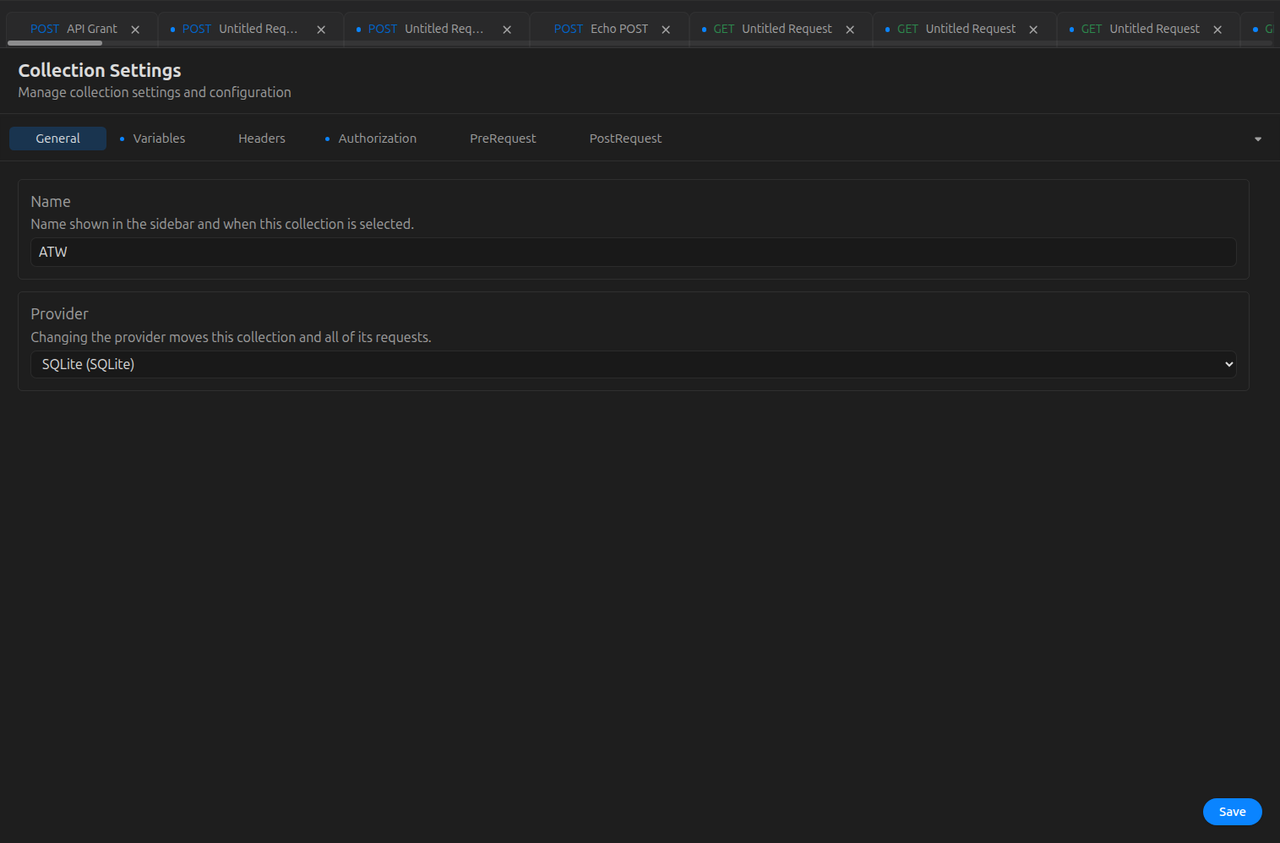
Renaming is done in Collection Settings → General. There is no Rename option in the sidebar row menu. Press Enter to confirm the name; press Escape to cancel.
Delete a collection
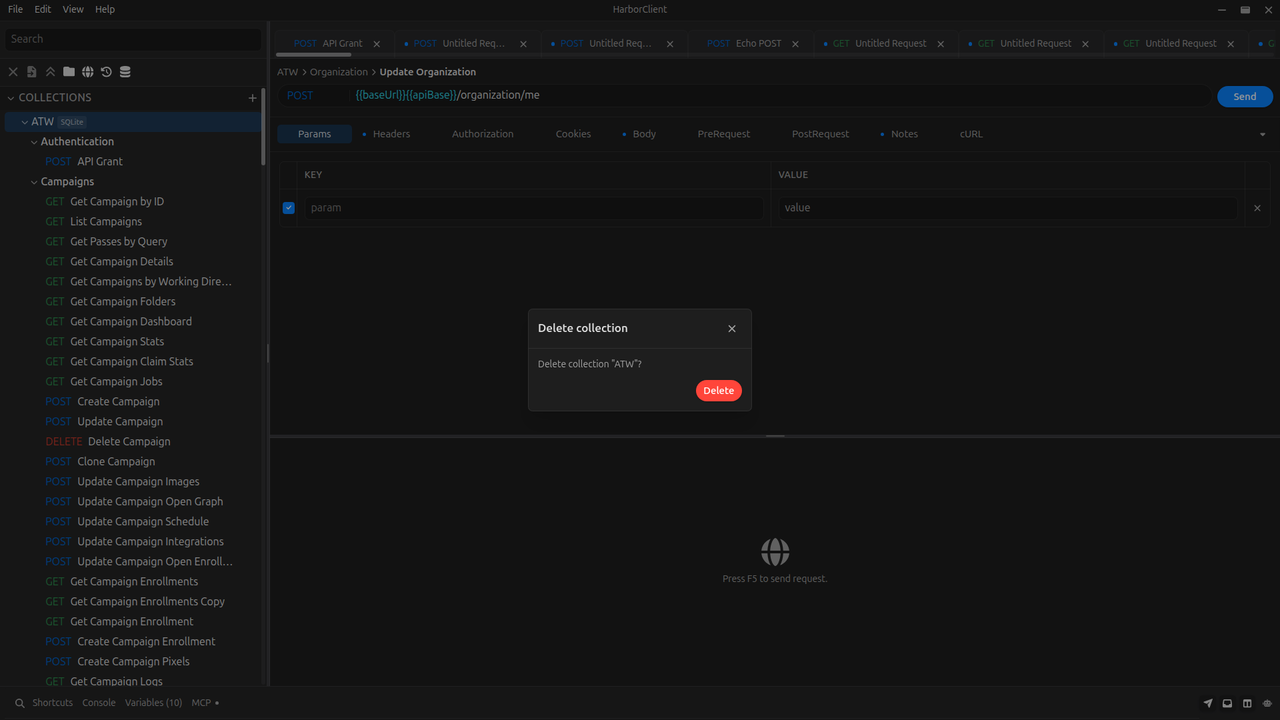
Choose Delete from the collection row menu (visible on hover). HarborClient asks you to confirm. Deleting a collection permanently removes it and all saved requests inside it.
Delete a saved request
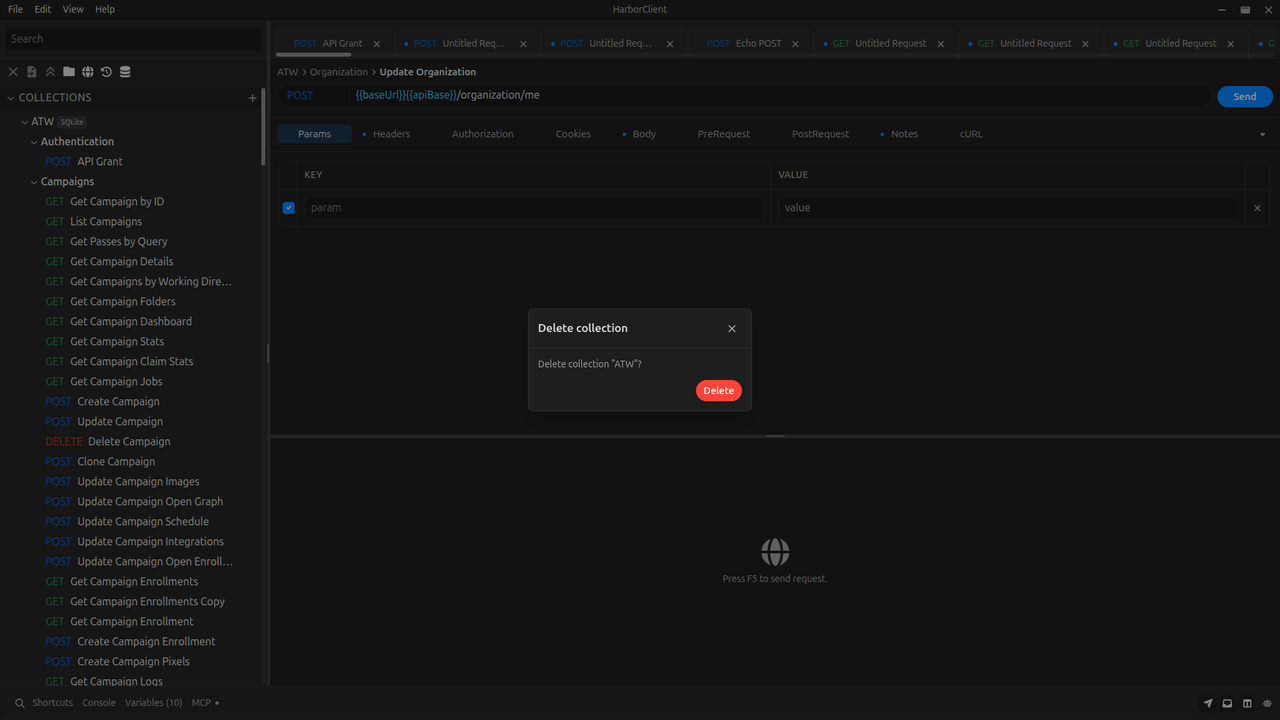
Choose Delete from the request row menu. Confirm the dialog to remove the request from the collection.
Duplicate a saved request
Choose Duplicate from the request row menu. HarborClient creates a copy in the same folder (or at the collection root) named {name} (copy), places it directly below the original, and opens the copy in a new tab. The original request is unchanged.
Duplicate a collection
Choose Duplicate from the collection row menu. HarborClient creates a copy named {name} (copy) on the same database, placed directly below the original in the sidebar. The copy includes collection settings (variables, headers, authorization, and scripts), all folders, and all saved requests. The original collection is unchanged.
Collection Settings
Collection Settings is a full-area view that replaces the request editor while it is open. Open it by:
- Double-clicking a collection in the sidebar
- Choosing Settings from the collection row menu
- Clicking Edit value on a
{{variable}}tooltip in the request editor (when a collection is active)
Settings tabs
| Tab | Purpose |
|---|---|
| General | Collection name |
| Variables | Shared variables for {{key}} substitution |
| Headers | Headers sent with every request in the collection |
| Authorization | Default Basic Auth or Bearer Token for every request in the collection |
| PreRequest | Ordered JavaScript scripts run before each request in the collection |
| PostRequest | Ordered JavaScript scripts run after each request in the collection |
Variables
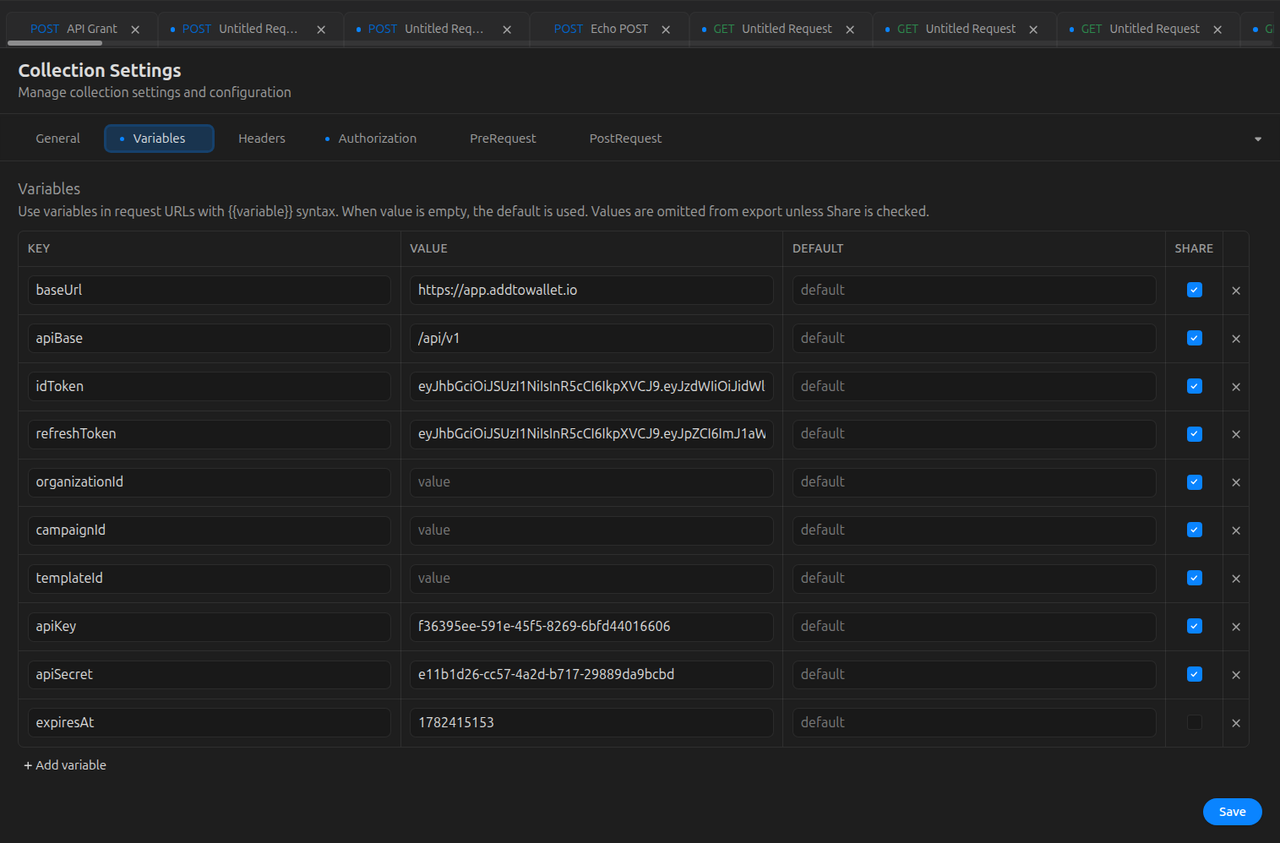
Each variable has four fields:
| Field | Description |
|---|---|
| Key | Variable name used in {{key}} placeholders |
| Value | Value substituted when the variable is resolved |
| Default | Used when Value is empty |
| Share | When checked, Value is included in collection exports |
Collection variables support {{key}} syntax in URLs, headers, params, body, and scripts. When Value is empty, HarborClient uses Default instead.
At send time, global variables are loaded first; collection variables are applied on top; folder variables override collection when the request is in a folder; the active environment’s merged inheritance chain overrides those scopes when it defines the same key. See Environments for details.
Headers
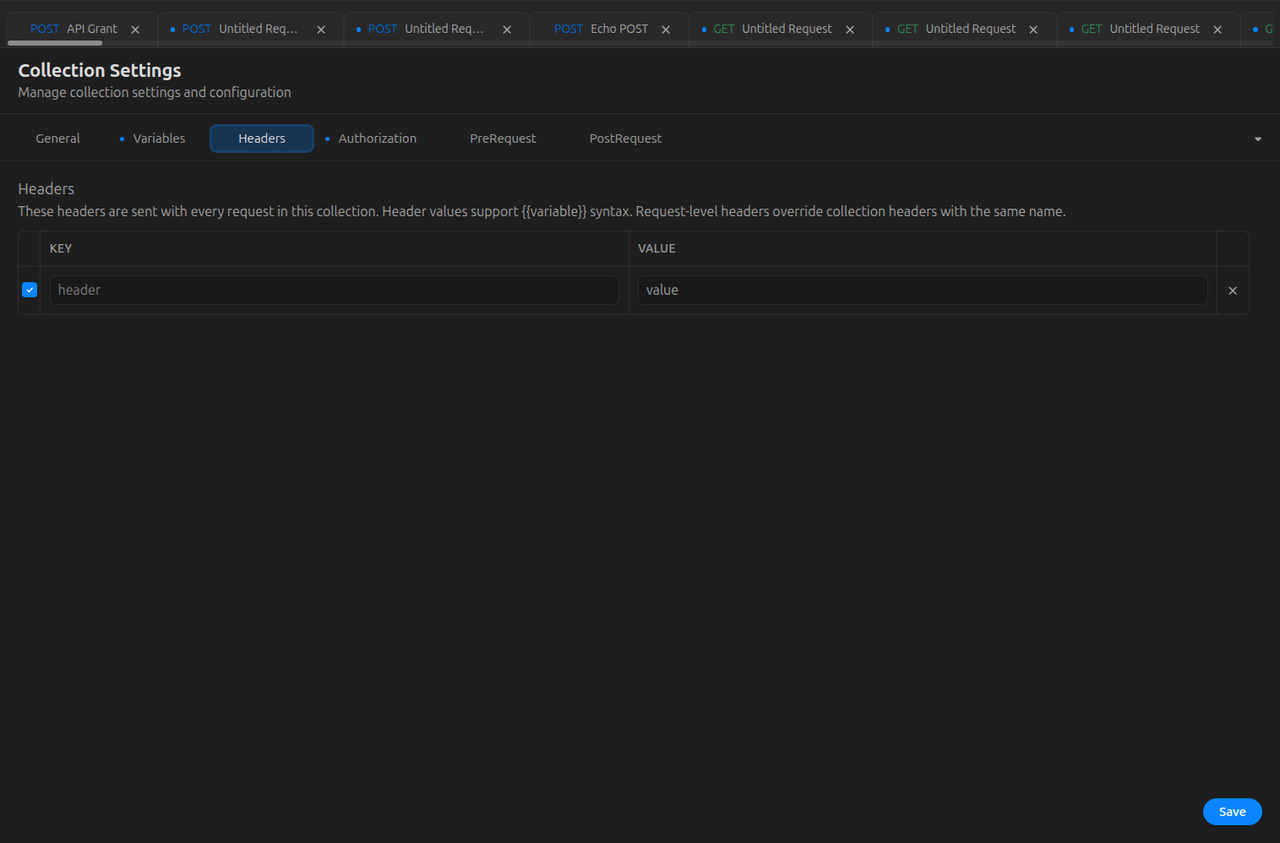
Collection headers are sent with every request in the collection. Header values support {{variable}} syntax. Each row has an enable checkbox — disabled rows are excluded.
Request-level headers override collection headers when both define the same header name (case-insensitive). See Making requests for merge rules.
Authorization
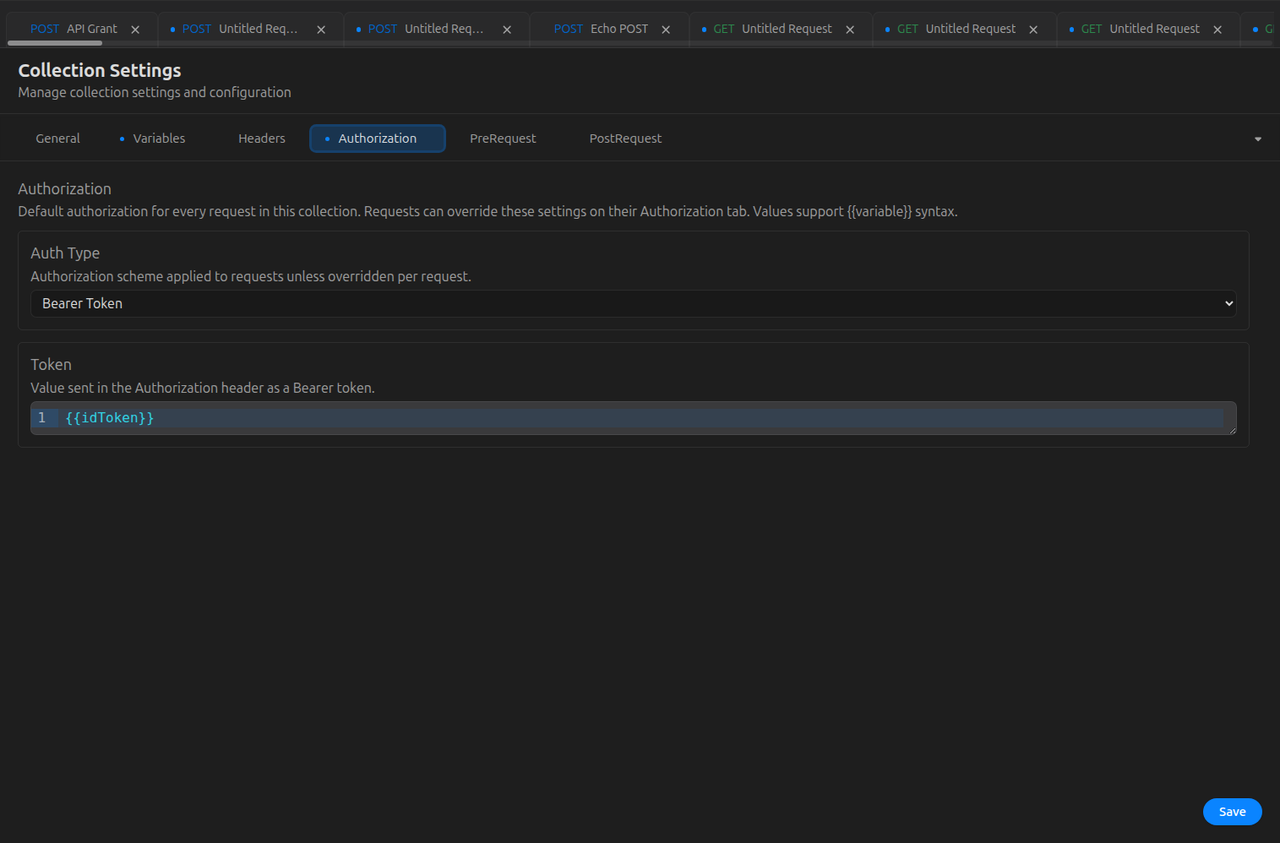
The Authorization tab configures default authentication for every request in the collection. Choose an Auth Type:
| Auth Type | Fields |
|---|---|
| None | No collection-level authorization is configured |
| Basic Auth | Username and password |
| Bearer Token | Token value |
All credential fields support {{variable}} syntax. At send time, HarborClient generates an Authorization header from the selected type (Basic … or Bearer …) after variables are resolved.
Request-level authorization overrides collection authorization when the request's Auth Type is Basic Auth or Bearer Token. When a request's Auth Type is None, the collection's authorization still applies.
A manually typed Authorization header (in the Headers tab, or set by a pre-request script) always wins over the Authorization tab. Pre-request scripts can also configure collection auth with hc.collection.auth.set() or hc.collection.auth.update(); changes persist to the collection when the send completes. See Making requests — Authorization and Request scripts — hc.collection.auth.
Scripts
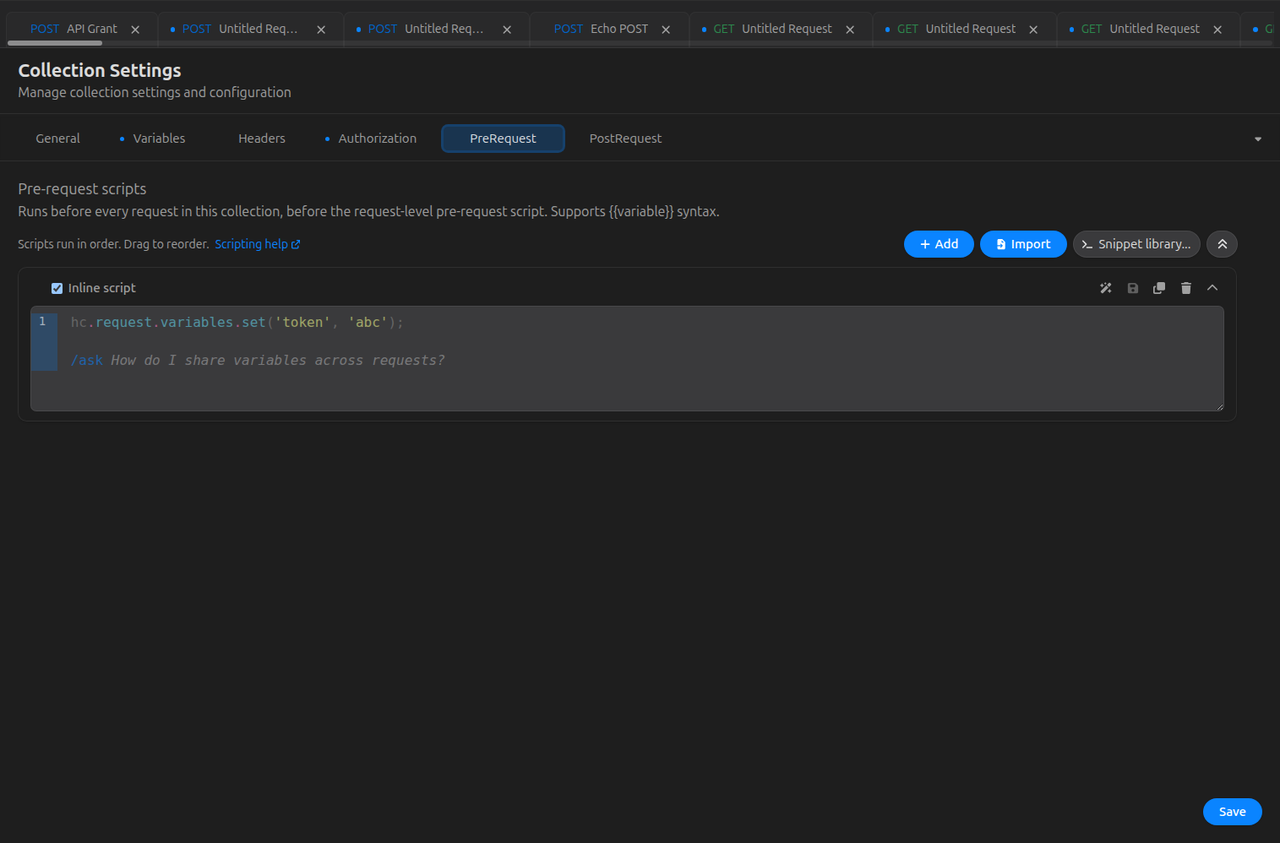
Collection PreRequest and PostRequest tabs each hold an ordered list of scripts that run for every request in the collection, before and after request-level scripts. You can add multiple inline scripts, reference snippets, enable or disable individual entries, and reorder them. See Request scripts for the hc API, execution order, and sandbox limits.
Save and cancel
- Click Save to persist changes. Empty variable and header rows are stripped automatically. A Collection updated toast confirms success.
- Click Cancel or X to close without saving. HarborClient does not prompt — unsaved edits are discarded.
- If you try to open a saved request from the sidebar while Collection Settings has unsaved changes, HarborClient warns you first.
Working with saved requests
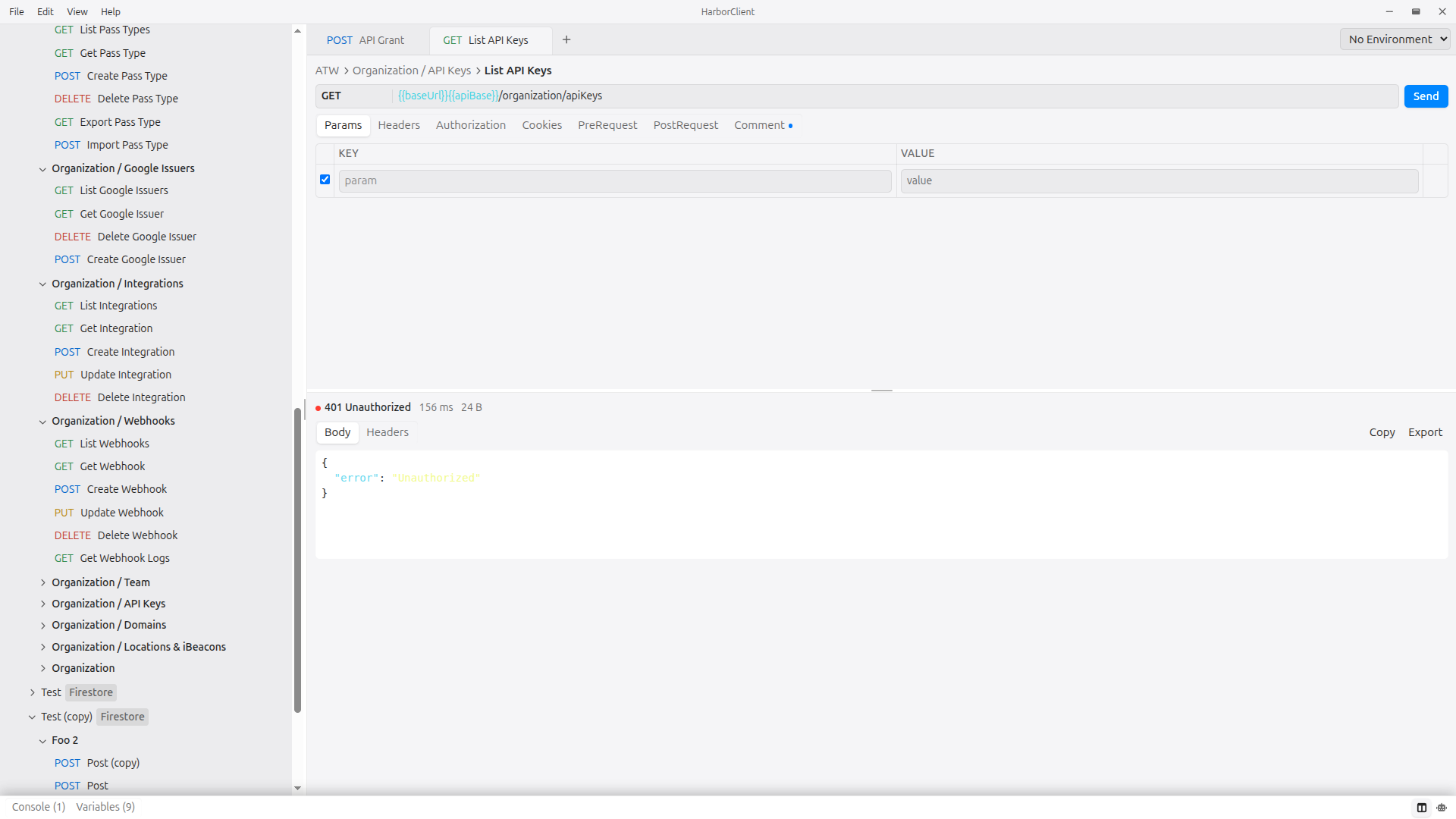
| Action | How |
|---|---|
| New Request in collection | Collection row menu → New Request. HarborClient immediately saves an Untitled Request and opens it in a new tab. |
| Open saved request | Click the request in the sidebar |
| Rename request | Click the request name in the request editor (not in the sidebar) |
| Save changes | File → Save Request or Cmd/Ctrl+S — saves to the sidebar-selected collection |
| Update vs copy | If the tab already belongs to the target collection, HarborClient updates the existing request. Otherwise it creates a new saved request. Saving while a different collection is selected in the sidebar creates a copy in that collection — there is no move action. |
| Run collection or folder | Collection or folder row menu → Run — see Running collections |
When a request belongs to a collection, the request editor shows a breadcrumb: CollectionName > Request name.
For building and sending requests, see Making requests.
Workspaces
Workspaces are named sets of saved request tabs stored in your local registry, along with a snapshot of your UI layout, active environment, and theme. Use them to reopen related workflows together — for example, all requests in an authentication or checkout flow — without hunting through collections each time.
The Workspaces section appears in the left sidebar when the section is visible (toggle it from the sidebar toolbar, same as Runs, History, and Environments). Each row shows the workspace name and how many saved requests it contains.
Creating a workspace
| Trigger | Result |
|---|---|
| File → New Workspace | Opens a name dialog; includes every open saved request tab |
| Workspaces section + button | Same create flow |
HarborClient snapshots whichever saved request tabs are currently open in the tab bar, plus the current panel layout, sidebar expansion, active environment, and theme. Unsaved new tabs and page tabs are not included. If no saved request tabs are open, New Workspace is disabled.
Opening a workspace
Click a workspace row in the sidebar to open each saved request in the workspace and restore the saved layout, theme, and active environment (when that environment still exists). HarborClient does not duplicate tabs that are already open. If a saved request in the workspace no longer exists or cannot be resolved, HarborClient reports how many requests could not be opened.
Editing a workspace
Choose Edit from a workspace's row menu (hamburger button or right-click context menu) to enter edit mode:
- HarborClient opens any missing workspace members as tabs.
- Tabs that were already open but are not in the workspace are temporarily hidden from the tab bar (they stay open in memory and reappear when you cancel or save).
- Visible saved request tabs in the workspace highlight like active tabs.
- A message bar appears above the footer with instructions and Save / Cancel buttons.
While editing:
| Action | How |
|---|---|
| Add a request | Open a saved request tab from the sidebar (new tabs stay visible and are included on save) |
| Remove a request | Close its tab |
| Reorder | Drag tabs in the tab bar |
Click Save to persist membership and order. Click Cancel to exit without saving; hidden tabs reappear and no changes are written.
Renaming, cloning, exporting, and deleting
| Action | How |
|---|---|
| Rename | Row menu → Rename |
| Clone | Row menu → Clone — creates a copy with the same members |
| Export | Row menu → Export — saves a portable .json file |
| Delete | Row menu → Delete — confirm to remove the workspace |
Workspace export format
Workspace export files require harborclientExport: "workspace". They contain the workspace name and an ordered requestUuids array — not full request bodies. Request details remain in their original collections; re-opening a workspace resolves each uuid against your loaded collections.
harborclientVersion | Contents |
|---|---|
1 | Name and requestUuids only (legacy exports) |
2 | Same fields, plus an optional layout snapshot (panels, theme, environment) |
Example (version 2, abbreviated):
{
  "harborclientVersion": 2,
  "harborclientExport": "workspace",
  "name": "Auth flows",
  "requestUuids": ["uuid-1", "uuid-2"],
  "layout": {
    "panels": { "sidebar": true, "ai": false },
    "activeEnvironmentUuid": "env-uuid",
    "theme": "dark"
  }
}
Workspaces are stored locally and are not included in collection export/import.
Markdown documents
Collections can include markdown documents — standalone .md files for READMEs, API notes, runbooks, and other collection-level documentation. Documents live beside saved requests in the sidebar and open in a dedicated editor tab (not inside the request editor).
Creating documents
| Trigger | Result |
|---|---|
| Collection row menu → New Markdown | Opens a create dialog prefilled with README.md at the collection root |
| Folder row menu → New Markdown | Same dialog, creating the document inside that folder |
Click Create to save the document and open it in a new tab. Edit the filename in the dialog before creating if you want a different name.
Renaming and deleting
| Action | How |
|---|---|
| Rename | Double-click the document name in the sidebar, or choose Rename from the row menu |
| Delete | Row menu → Delete — HarborClient asks you to confirm |
Rename accepts any display name; HarborClient ensures the stored filename ends with .md.
Editor and saving
Click a document in the sidebar to open it in a full-tab markdown editor. The TabBar shows a file icon and the document name, with a dirty dot when there are unsaved changes.
- Autosave — edits persist automatically shortly after you stop typing
- Save now — Cmd/Ctrl+S while the document tab is active saves immediately
If the document is already open, HarborClient focuses that tab. The currently open document is highlighted in the sidebar.
Collection variables support {{key}} highlighting and tooltips in the editor, same as request notes in the Discuss tab. See Making requests — Discuss for how request notes and Team Hub discussions differ from collection markdown files.
Sidebar placement
When a collection or folder is expanded, markdown documents appear in the same list as saved requests, each with a file icon and the document filename. Root-level requests are listed first, followed by root-level documents; inside a folder, folder requests appear first, then folder documents.
Use Move up and Move down in the document row menu to reorder documents within their folder or at the collection root.
Import and export
Markdown documents are included in collection Export and Import alongside folders and saved requests. Portable collection export files (.json with harborclientExport: "collection") include a documents array with each document's uuid, name, markdown content, sort order, and optional folder placement (folder_uuid / folder_name).
When you import a collection export whose portable uuid matches an existing collection, document rows are merged by uuid the same way saved requests are — Update existing updates matching documents; Import as new copy assigns fresh uuids.
Git-backed storage
When a collection uses a git-backed storage connection, markdown documents are written as .md files under documents/ inside the collection directory (alongside collection.json and requests/). Each file stores YAML frontmatter (uuid, folder placement, sort order) followed by the markdown body.
Running collections
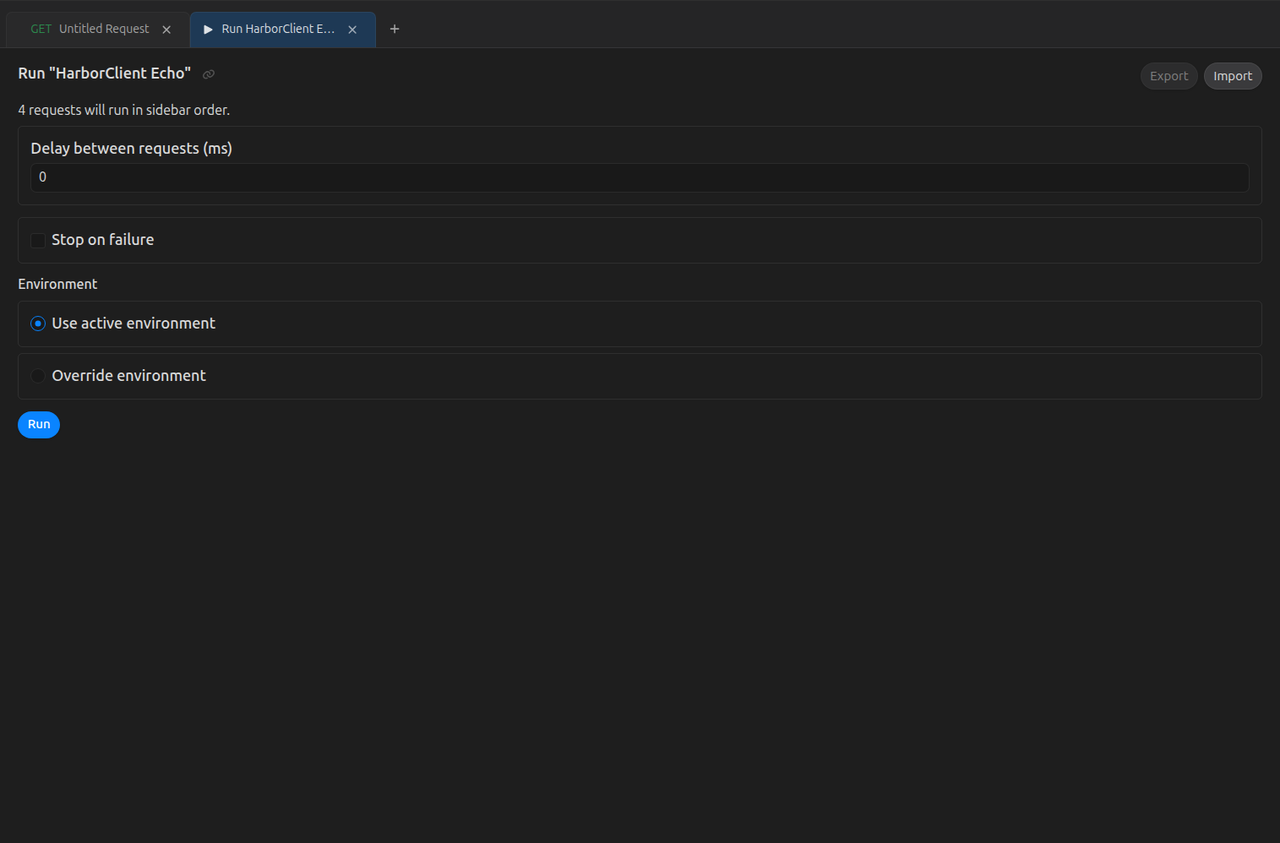
Use the collection runner to send every saved request in a collection or folder sequentially — useful for smoke tests and regression checks without opening and sending each request by hand. For recorded multi-step sessions (load, draft, send, environment switches, optional UI actions), see Workflows.
Opening a run
| Target | How |
|---|---|
| Entire collection | Collection row menu → Run (near the top, after Move up/down) |
| Single folder | Folder row menu → Run |
If the target has no saved requests, Run is disabled and the modal explains that nothing can run.
Run order
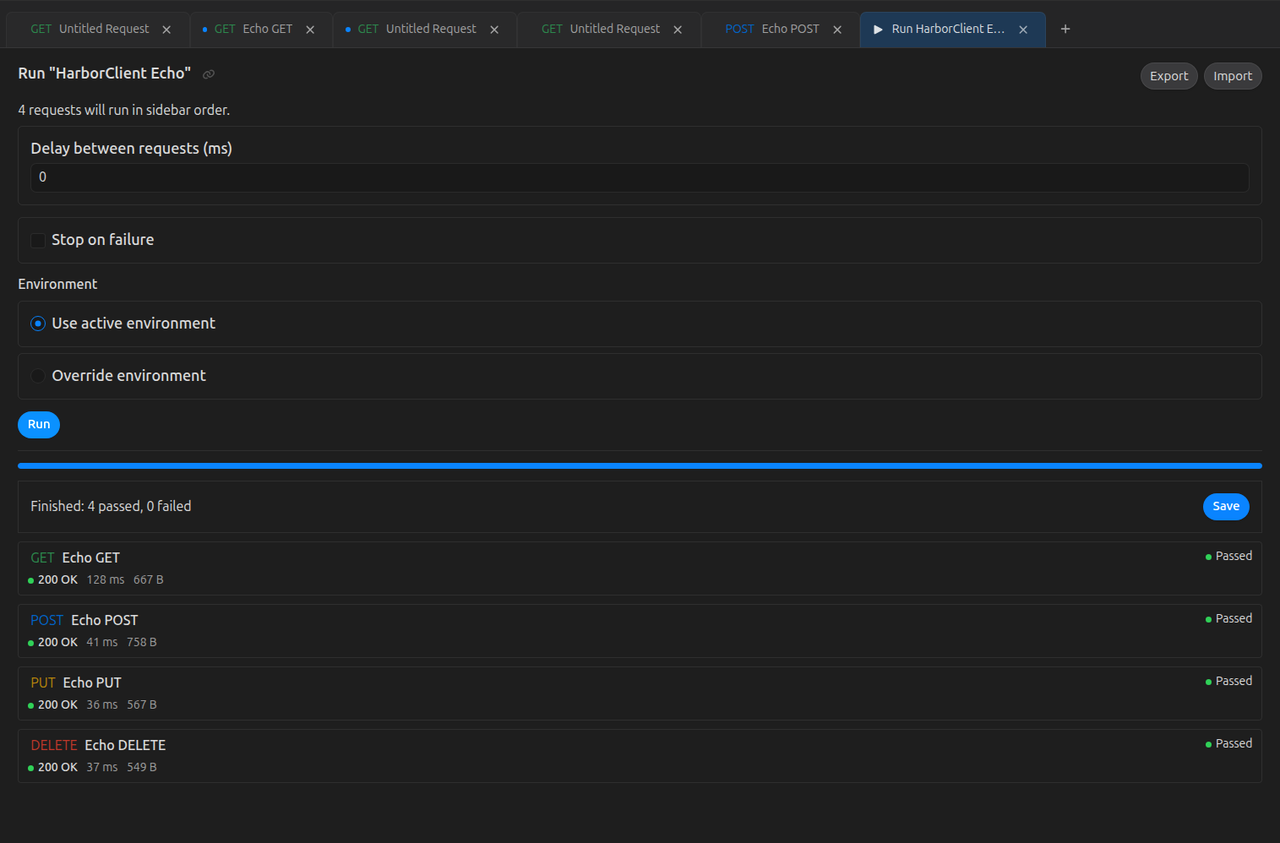
HarborClient runs requests in sidebar order:
- Collection — root-level requests first (by position in the sidebar, then by name), then each folder in sidebar order, with requests inside each folder ordered the same way
- Folder — only that folder's requests, in sidebar order
This matches the ordering described under Empty state and ordering in the sidebar guide.
Configuration
Choosing Run opens a modal where you set options and click Run to start. HarborClient remembers your last-used settings and restores them the next time you open the runner. Settings are saved when you click Run.
| Setting | Description |
|---|---|
| Delay between requests (ms) | Pause after each send completes before loading the next request (0 = no delay) |
| Stop on failure | Stop the run after the first failed request |
| Environment | Use active environment (the environment selected in the TabBar) or Override with a specific environment for the duration of the run |
Request timeout, SSL verification, and proxy settings still come from Settings → General — the same values used for manual sends.
During and after the run
The modal switches to a progress view:
- A progress bar and a list of each request with status (Running, Passed, Failed, or Skipped)
- Stop — cancels before the next request loads; the current send finishes first
- When the run completes, a summary shows pass/fail counts and a toast confirms the result
- While a run is in progress, you cannot dismiss the modal with Escape or by clicking outside it
After a run completes, use Save in the runner toolbar to persist a snapshot to a storage location (Storage location modal), Export to save results as a portable .json file, or Import to load a previously exported run into a detached read-only view. Saved run results appear in the sidebar Run results section. Team Hub saves support deep-link sharing from the runner. You can also import run results via File → Import (see File → Import (all export types)). Run result files use harborclientExport: "collection-run-results" or "request-run-results". See Storage for choosing where snapshots are stored.
Pass and fail
A request passes when the send completes without any of the following:
- A transport or script error on the response
- An HTTP status code ≥ 400
- A failing
hc.test(...)assertion from a pre- or post-request script
See Request scripts for writing tests with hc.test.
When Stop on failure is enabled, HarborClient marks all remaining requests as Skipped after the first failure.
Script execution flow
During a collection run, pre- and post-request scripts can control what happens next with hc.execution:
| API | Effect |
|---|---|
hc.execution.setNextRequest(name) | After the current request finishes (including post-request scripts), jump to the saved request with that name in the run order. If no name matches, HarborClient falls back to the next request in order. |
hc.execution.setNextRequest(null) | Stop the run after the current request finishes. |
hc.execution.skipRequest() | Skip the HTTP send for the current request. Pre-request scripts still run; post-request scripts still run against a skipped placeholder response. The runner marks the step Skipped. |
The last script in the send pipeline that sets a directive wins. These APIs are intended for collection runs — on a manual single send, skipRequest() still skips the HTTP request, but setNextRequest has no effect outside the runner.
See Request scripts — hc.execution.
Send pipeline
Each request in a run is loaded into a tab and sent through the full pipeline — collection and request variables, headers, authorization, and pre/post scripts. The runner does not bypass collection settings or scripts. For details, see How collections affect sends.
Import and export
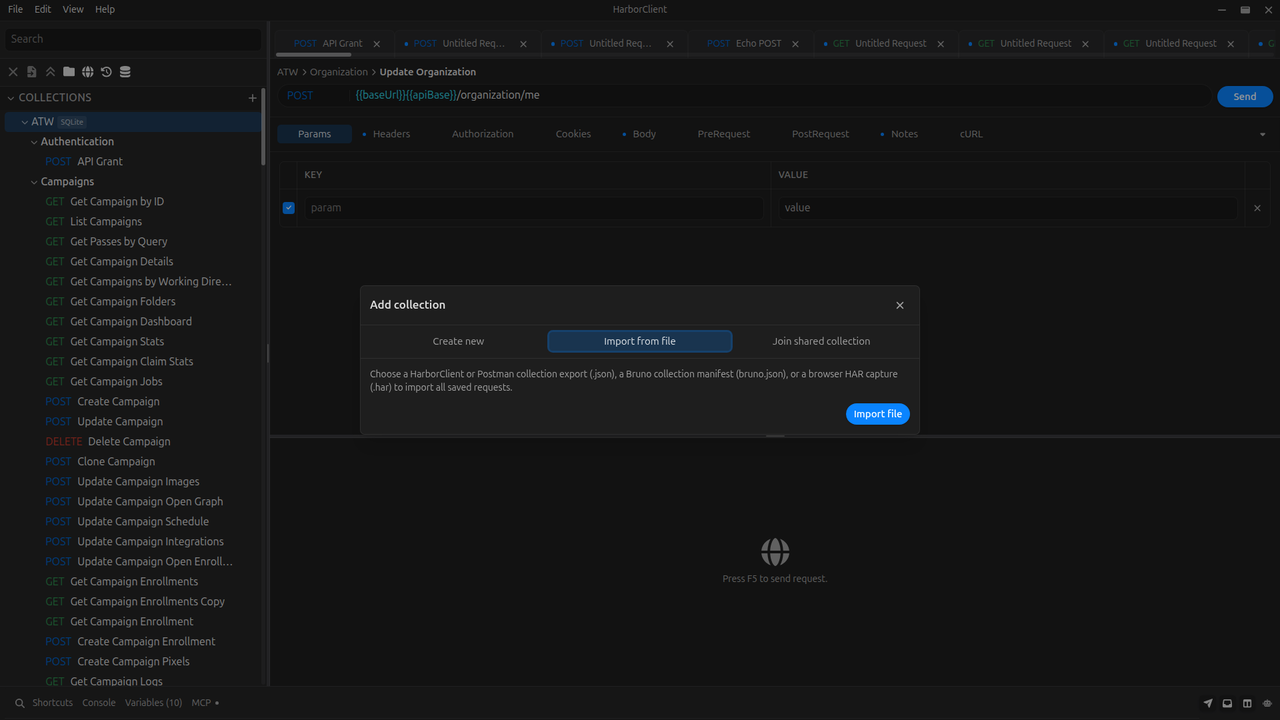
Export
Choose Export from the collection row menu. HarborClient opens a save dialog with a default filename of {collection-name}.json. After a successful export, a Collection exported toast appears.
Variables with Share unchecked have their Value cleared in the export file. Key, Default, and the Share flag are kept so you can share exports without exposing secrets.
Import
Import a collection from a file using either:
- File → Import (auto-detects HarborClient export types and third-party formats — see File → Import (all export types))
- Add collection → Import → Import file
For native HarborClient collection exports, if a collection with the same portable uuid already exists, HarborClient prompts you to Update existing, Import as new copy (fresh uuids), or Cancel. Postman, Bruno, OpenCollection, OpenAPI, HAR, and apis.io imports always create a new collection. On success, HarborClient selects the imported collection and shows a Collection imported or Collection updated toast.
If the file is invalid, HarborClient shows an alert with a descriptive error (for example, unsupported format version, missing collection name, or malformed request). Canceling the file dialog does nothing.
Import from URL
You can import a collection by downloading it from an http:// or https:// URL instead of picking a local file.
| Step | Action |
|---|---|
| 1 | Click the sidebar + button (or File → New Collection) |
| 2 | Open the Import tab |
| 3 | Click Import URL to reveal the URL field |
| 4 | Paste an absolute URL (for example https://example.com/collection.json) and click Import |
HarborClient downloads the document, detects the format, and imports it the same way as a file import. Supported URL payloads:
- HarborClient portable collection exports (
.json) - Postman v2.1 collection exports (
.json) - OpenCollection documents (
.jsonor.yaml/.yml) - HAR archives (
.har/.json)
Bruno collections cannot be imported from a URL — they need a local collection directory. Use Import file and select bruno.json (or the collection folder on macOS) instead. OpenAPI specs also require File → Import / Import file so you can confirm the preview.
HarborClient remembers the source URL on the imported collection so you can refresh it later. Downloads honor Settings → General Verify SSL certificates (disable verification only if you trust the host, for example a self-signed local server). Invalid URLs, failed downloads, empty responses, and unsupported formats show an error in the modal.
Refresh a URL-imported collection
Collections imported from a URL show a Refresh action in the collection row menu (hamburger or right-click). Collections imported only from a local file do not.
| Step | Action |
|---|---|
| 1 | Open the collection row menu on a URL-imported collection |
| 2 | Choose Refresh |
| 3 | HarborClient re-downloads the stored URL and merges remote changes into your copy |
Refresh updates collection settings (name, variables, headers, authorization, scripts), folders, and saved requests that match by portable uuid (or by folder/request identity when the remote format regenerates uuids, such as some Postman exports). Local requests and folders that are not present in the remote document are kept — refresh merges updates; it does not wipe extras you added locally.
On success, HarborClient shows a Collection refreshed toast. If the download fails or the URL no longer returns a supported collection, HarborClient shows an alert and leaves your local copy unchanged.
File → Import (all export types)
File → Import opens one file picker and auto-detects the export type from the harborclientExport field (or from Postman, Bruno, HAR, OpenCollection, or OpenAPI heuristics when that field is absent):
Export type (harborclientExport) | Behavior |
|---|---|
collection (HarborClient .json) | Creates or updates a collection by portable uuid; Postman, Bruno, OpenCollection, OpenAPI, and HAR files are also accepted |
request | Imports into the currently selected collection at the root; requires a selected collection; uuid dedup within that collection |
environment | Creates or updates an environment by portable uuid and activates it |
snippet | Creates or updates a snippet in your local library by portable uuid; opens File → Snippets |
theme | Creates or updates a custom theme by title; opens File → Themes |
collection-run-results | Opens a read-only collection runner view with the exported run |
request-run-results | Opens a read-only single-request runner view with the exported run |
workspace | Creates a workspace in your local registry from name + request uuids (and layout when present) |
HarborClient recognizes these harborclientExport values: collection, request, environment, snippet, theme, collection-run-results, request-run-results, and workspace.
When a native HarborClient export uuid (or theme title) matches an existing item, HarborClient shows the same Update existing / Import as new copy / Cancel prompt used for collections.
If you import a request file with no collection selected, HarborClient shows an alert asking you to select a collection first.
Postman collections
HarborClient also accepts Postman v2.1 collection exports (.json files exported from Postman). Postman files are detected automatically by info._postman_id in the JSON.
When you import a Postman collection, HarborClient shows a warning that not all Postman features are supported. Choose Import anyway to continue.
HarborClient imports:
- Collection name, variables, Basic Auth, and Bearer Token authorization
- Saved requests (method, URL, headers, body, and description)
- Folders (nested Postman folders are preserved as a multi-level tree)
- Pre-request and post-request script text (imported verbatim as one inline script per request stage)
The following Postman features are ignored or converted:
| Postman feature | HarborClient behavior |
|---|---|
| API Key, OAuth 2, and other auth types | Dropped (request uses no auth override) |
| GraphQL and file request bodies | Body omitted (none) |
| Saved example responses | Ignored |
URL path variables (:id) | Kept in the URL string only |
| Collection/folder descriptions | Ignored |
| Disabled query params in the URL object | URL uses the raw string as exported |
Scripts imported from Postman use the pm.* API in Postman but run in HarborClient's hc sandbox — they may not behave the same way after import.
Bruno collections
HarborClient accepts Bruno on-disk collections by selecting the collection's bruno.json manifest in the import file picker (File → Import or Add collection → Import from file). Bruno files are detected automatically by { "type": "collection", "name": "..." } in the JSON.
On macOS you can also select the collection folder directly in the same picker. HarborClient reads bruno.json from that folder and imports the full request tree.
HarborClient imports:
- Collection name (from
bruno.jsonand optionalcollection.bru) - Collection variables, headers, Basic Auth, Bearer Token, and OAuth 2 Client Credentials authorization
- Saved HTTP requests (method, URL, headers, query params, body, and description)
- Folders (nested Bruno folders are preserved as a multi-level tree)
- Pre-request and post-request script text (imported verbatim as one inline script per request stage)
The following Bruno features are ignored or converted:
| Bruno feature | HarborClient behavior |
|---|---|
Environment files (environments/) | Not imported |
| GraphQL, gRPC, and WebSocket requests | Skipped |
| API Key, AWS SigV4, Digest, NTLM, and other auth types | Dropped (request uses no auth override) |
| File request bodies | Body omitted (none) |
| Saved example responses | Ignored |
When a Bruno collection includes scripts, HarborClient shows the same script security warning as native HarborClient imports. Bruno scripts use Bruno's req/res API; HarborClient scripts use hc — rewrite scripts after import as needed. See Request scripts — Migrating from Postman for the general script migration approach.
OpenCollection
HarborClient accepts OpenCollection v1.x exports (.json or .yaml / .yml). Files are detected by an opencollection version that starts with 1. and a non-empty info.name.
Use File → Import or Add collection → Import from file. Nested folders are preserved as a multi-level tree.
HarborClient imports:
- Collection name and HTTP requests (method, URL, headers, params, body, and description)
- Folders with nesting
- Basic Auth, Bearer Token, and OAuth 2 Client Credentials when present
- Pre-request and post-request script text (imported as inline scripts)
The following OpenCollection features are ignored or converted:
| OpenCollection feature | HarborClient behavior |
|---|---|
| gRPC, GraphQL, and WebSocket requests | Skipped |
| API Key, Digest, AWS SigV4, OAuth 1, and similar auth | Dropped (request uses no auth override) |
| Environments | Not imported |
OpenAPI
HarborClient imports OpenAPI 3.x specifications (JSON or YAML) via File → Import. Specs are parsed locally — nothing is uploaded. Swagger / OpenAPI 2.0 documents are rejected.
After you choose a file, HarborClient opens an Import OpenAPI preview that groups operations by the first OpenAPI tag (untagged operations land in an Untagged folder). Confirm to create a new collection with one saved request per operation. The spec must include at least one HTTP operation.
Public collections (apis.io)
The Add collection modal includes a Public collections tab for searching the apis.io catalog. Search for public Open Collection and Postman Collection artifacts, open a result for details, then Import to create a new HarborClient collection. Nested folders from those formats are preserved the same way as local file imports.
Artifact downloads are limited to HTTPS hosts under raw.githubusercontent.com, apis.io, and *.apis.io.
Export file format
HarborClient collection export files require harborclientExport: "collection" and harborclientVersion: 1. They contain the collection name, variables, headers, authorization, scripts, folders, all saved requests, and markdown documents (documents[]). Storage IDs are not included.
Each folder in folders[] may include an optional parent_folder_uuid — the portable uuid of its parent folder, or omitted/null for a collection-root folder — so nested structure round-trips on import.
Script data uses two field shapes:
pre_request_script/post_request_script— legacy string fields. Each holds the concatenation of enabled inline scripts (joined with blank lines). Snippet references are not included in these strings.pre_request_scripts/post_request_scripts— optional ordered arrays of script entries. When present and non-empty, these take precedence on import. Each entry is an inline script or a snippet reference:
{
  "id": "550e8400-e29b-41d4-a716-446655440000",
  "enabled": true,
  "kind": "inline",
  "name": "Set token",
  "code": "hc.request.variables.set('token', 'abc');"
}
Snippet references use "kind": "snippet" and "snippetUuid": "..." instead of "code". Snippet source code is not embedded in export files — only the reference uuid. Recreate snippets locally after import, or replace references with inline scripts.
When an export file includes only the legacy string fields, importing may collapse multiple inline scripts into a single list entry. Prefer exports that include the script arrays when sharing multi-script collections.
Example (abbreviated):
{
  "harborclientVersion": 1,
  "harborclientExport": "collection",
  "name": "My API",
  "variables": [
    {
      "key": "baseUrl",
      "value": "https://api.example.com",
      "defaultValue": "",
      "share": true
    }
  ],
  "headers": [
    { "key": "Accept", "value": "application/json", "enabled": true }
  ],
  "auth": {
    "type": "bearer",
    "basic": { "username": "", "password": "" },
    "bearer": { "token": "{{token}}" }
  },
  "pre_request_script": "",
  "post_request_script": "",
  "pre_request_scripts": [
    {
      "id": "550e8400-e29b-41d4-a716-446655440000",
      "enabled": true,
      "kind": "inline",
      "name": "Set base URL",
      "code": "hc.request.variables.set('baseUrl', 'https://api.example.com');"
    }
  ],
  "post_request_scripts": [],
  "folders": [],
  "requests": [
    {
      "name": "Get status",
      "method": "GET",
      "url": "{{baseUrl}}/v1/status",
      "params": [],
      "headers": [],
      "auth": {
        "type": "none",
        "basic": { "username": "", "password": "" },
        "bearer": { "token": "" }
      },
      "body_type": "none",
      "body": "",
      "pre_request_script": "",
      "post_request_script": "",
      "pre_request_scripts": [],
      "post_request_scripts": [],
      "sort_order": 0
    }
  ]
}
Common validation errors:
| Error | Cause |
|---|---|
unsupported format version | harborclientVersion is not 1 |
not a HarborClient collection export | harborclientExport is not "collection" |
collection name is required | Name is missing or blank |
requests must be an array | requests field is missing or wrong type |
request N has an invalid method | Method is not a supported HTTP method |
request N has an invalid body type | body_type is not none, json, text, multipart, or urlencoded |
request N is missing a name | Request name is blank |
Request export format
Individual requests can be exported from the request row menu in the sidebar. Request export files require harborclientExport: "request" and harborclientVersion: 1. They contain request fields only (name, method, URL, headers, params, auth, body, scripts, comment). Folder information is not included.
Import a request export via Import Request in a collection or folder row menu, or via File → Import when a collection is selected in the sidebar. If a request with the same portable uuid already exists in that collection, HarborClient prompts you to update or import as a new copy. Collection root imports place the request at the root; folder imports place it inside that folder.
Example (abbreviated):
{
  "harborclientVersion": 1,
  "harborclientExport": "request",
  "name": "Get status",
  "method": "GET",
  "url": "{{baseUrl}}/v1/status",
  "params": [],
  "headers": [],
  "auth": {
    "type": "none",
    "basic": { "username": "", "password": "" },
    "bearer": { "token": "" }
  },
  "body_type": "none",
  "body": "",
  "pre_request_script": "",
  "post_request_script": "",
  "pre_request_scripts": [],
  "post_request_scripts": [],
  "comment": ""
}
Snippet export format
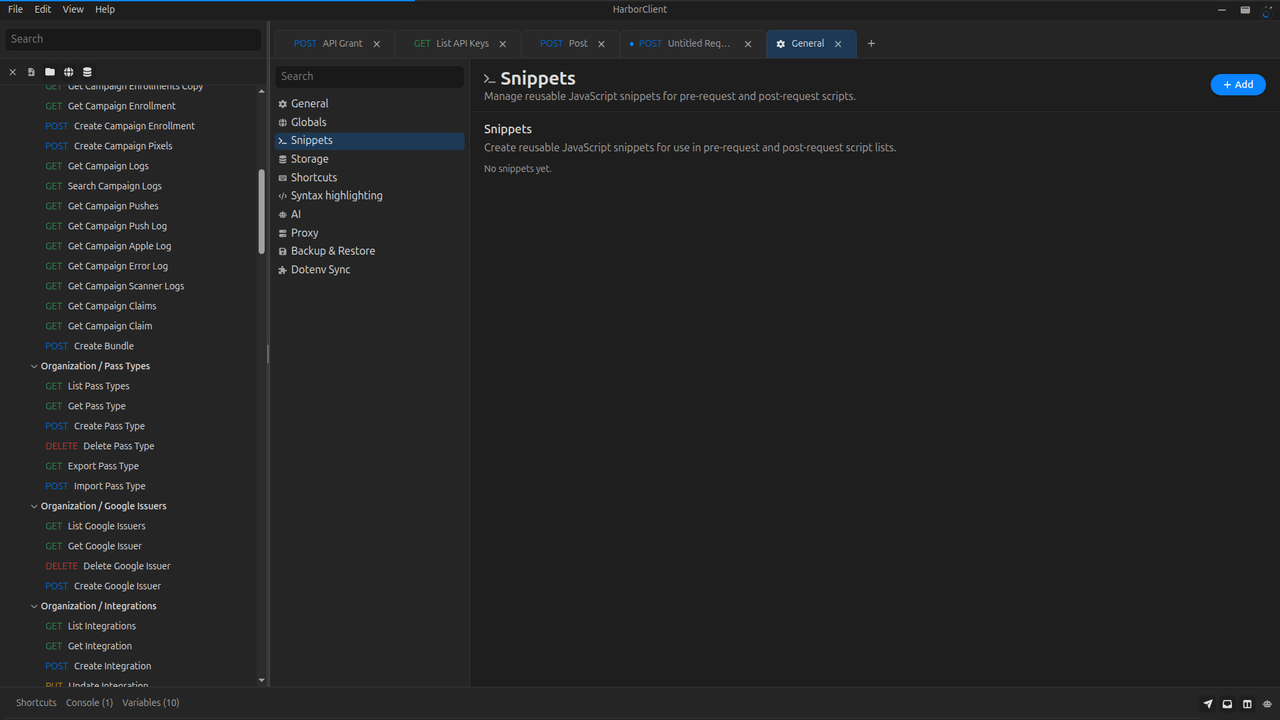
Portable snippet files require harborclientExport: "snippet" and harborclientVersion: 1. They contain the snippet uuid, name, JavaScript source, Request stage, and Stage. Git-backed storage connections write these files under snippets/ in the repository. Import via File → Import or create snippets from raw .js files in Settings → Snippets and script editors.
Theme export format
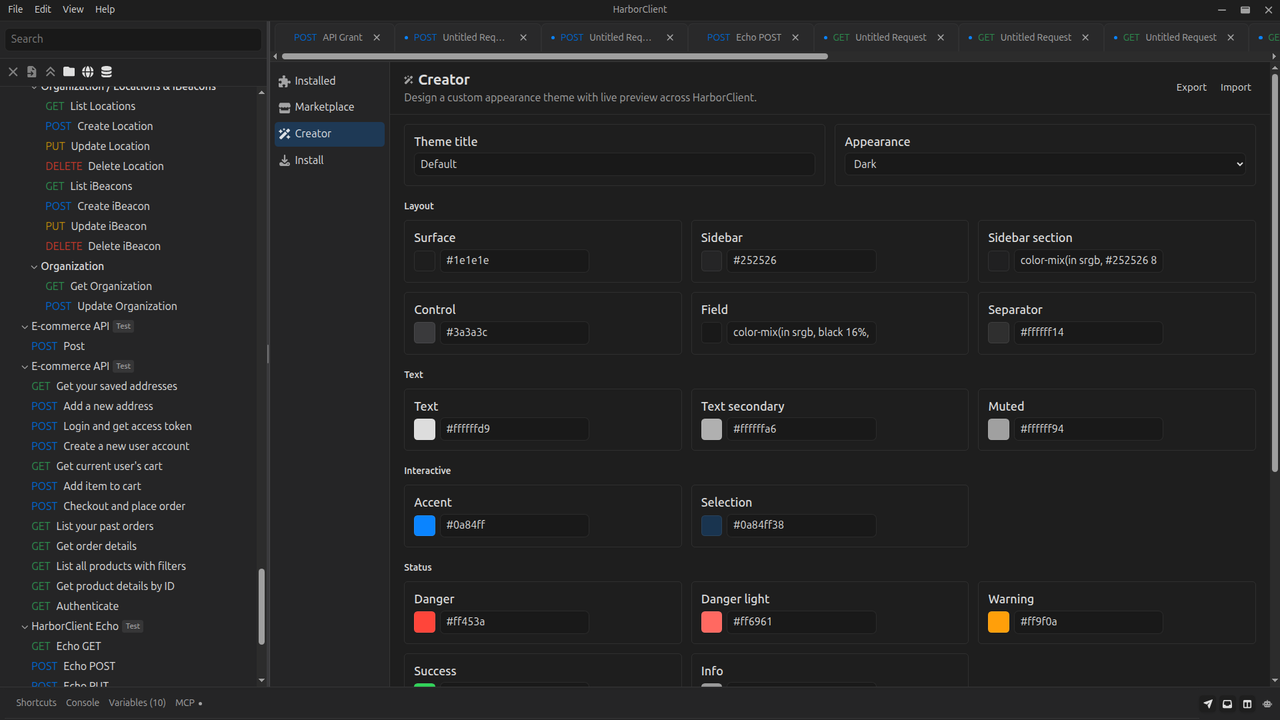
Custom theme exports require harborclientExport: "theme" and harborclientVersion: 1. They contain the theme title, appearance mode (light, dark, or high-contrast), and color token overrides. Export from File → Themes → Designer, or import via File → Import to add the theme to your installed custom themes.
Run results export format
Collection runner exports require harborclientExport: "collection-run-results" or "request-run-results" and harborclientVersion: 1. They capture run settings (delay, stop-on-failure, environment), optional collection or request metadata, and per-request outcomes (status, HTTP code, test results, script logs, and response summaries). Import via File → Import or the runner Import button to open a read-only results view.
Sharing collections
Use Export/Import when you want a portable snapshot of a collection — a .json file you can version, email, or archive. Use a git-backed storage connection when collections should live as version-controlled files in a repository with in-app commit/push/pull. Use shares when you want another HarborClient user to connect to the same live collection on a remote storage location. Use team hubs when your team shares collections through HarborClient Team Hub with API tokens instead of shared storage location credentials. Shared and hub-backed collections stay in sync with the shared backend; changes from other users appear when data is reloaded (for example, after restarting the app). Git-backed collections sync when you pull, when the working tree changes on disk, or when the window regains focus. See Settings → Storage Locations for how remote backends work.
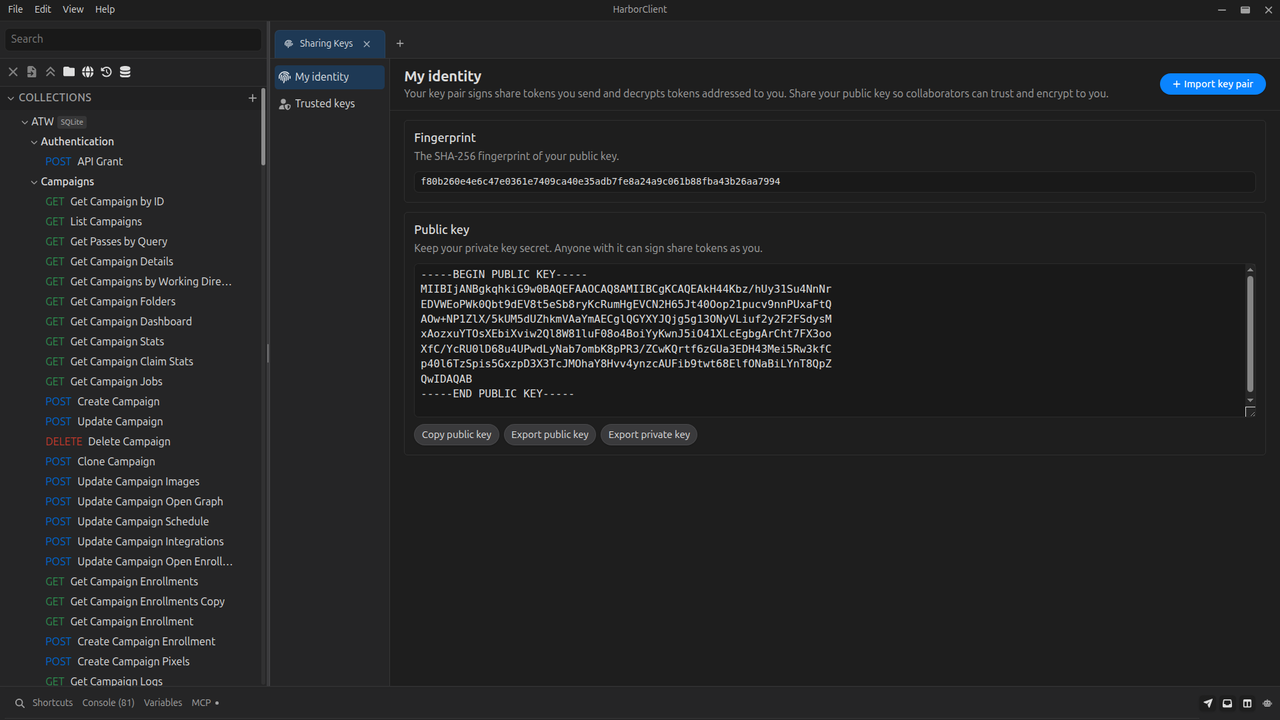
Before sending or accepting shares, exchange public keys with your colleague — see Sharing Keys.
Sharing access
| Step | Action |
|---|---|
| 1 | Ensure the collection is stored on a remote database (Firestore, MySQL, or PostgreSQL), not SQLite |
| 2 | Open the collection row menu → Share access |
| 3 | Copy the generated token and send it to the recipient over a trusted channel |
HarborClient opens a Share collection access modal and generates a token for the selected collection. Click Copy to put the token on the clipboard.
The Share access menu item is hidden for collections stored in SQLite — only remote storage locations can be shared this way.
The token embeds storage connection credentials. Treat it like a secret and share it only with people who should have access to that database and collection.
Tell recipients they must restart HarborClient after joining the shared collection.
Joining a shared collection
| Step | Action |
|---|---|
| 1 | Click the sidebar + button (or File → New Collection) |
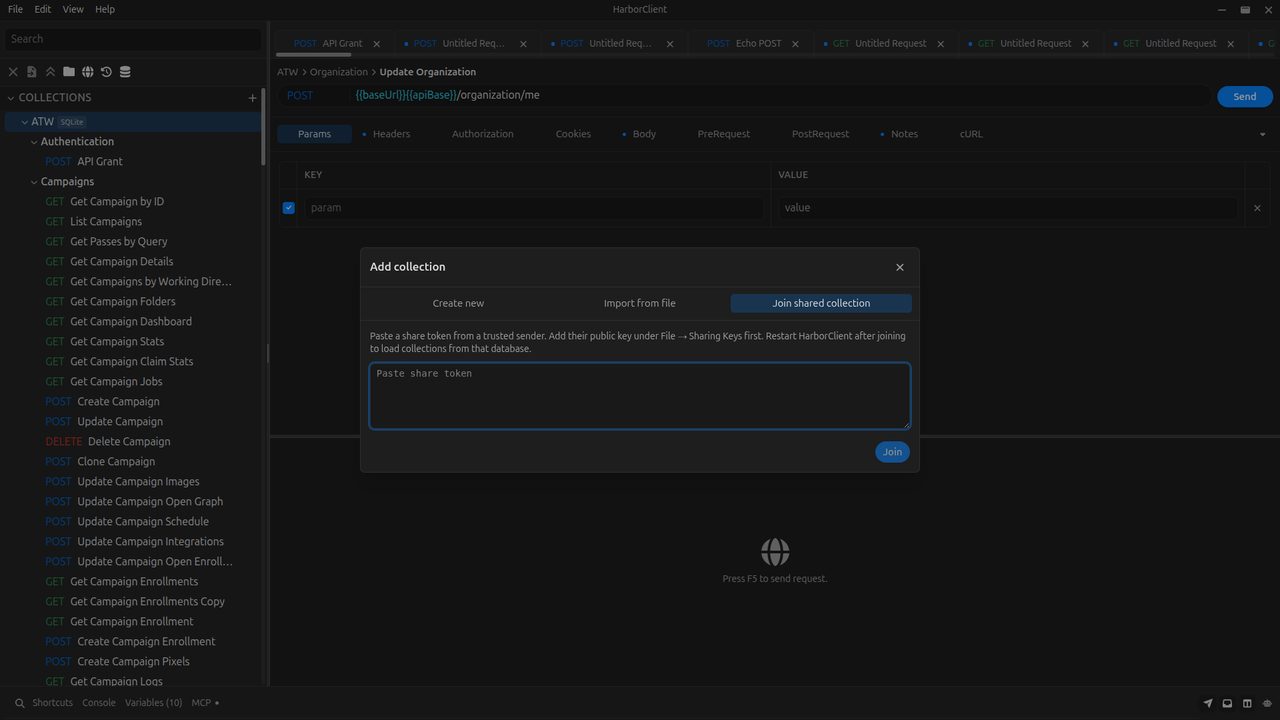
| 2 | In Add collection, open the Join shared collection tab |
| 3 | Paste the token and click Join |
| 4 | Restart HarborClient |
On success, HarborClient shows a Shared connection added toast. The new connection appears under Settings → Storage Locations, and the shared collection appears in the sidebar. When a collection is stored on a non-active storage location, its row shows a connection badge with the storage location name.
Joining a shared collection is not the same as import — it adds a live storage connection and registers the shared collection, not a new local copy from a .json file.
If the token is invalid, HarborClient shows an alert with a descriptive error (for example, malformed token, unsupported version, or missing connection).
Share vs manual storage setup
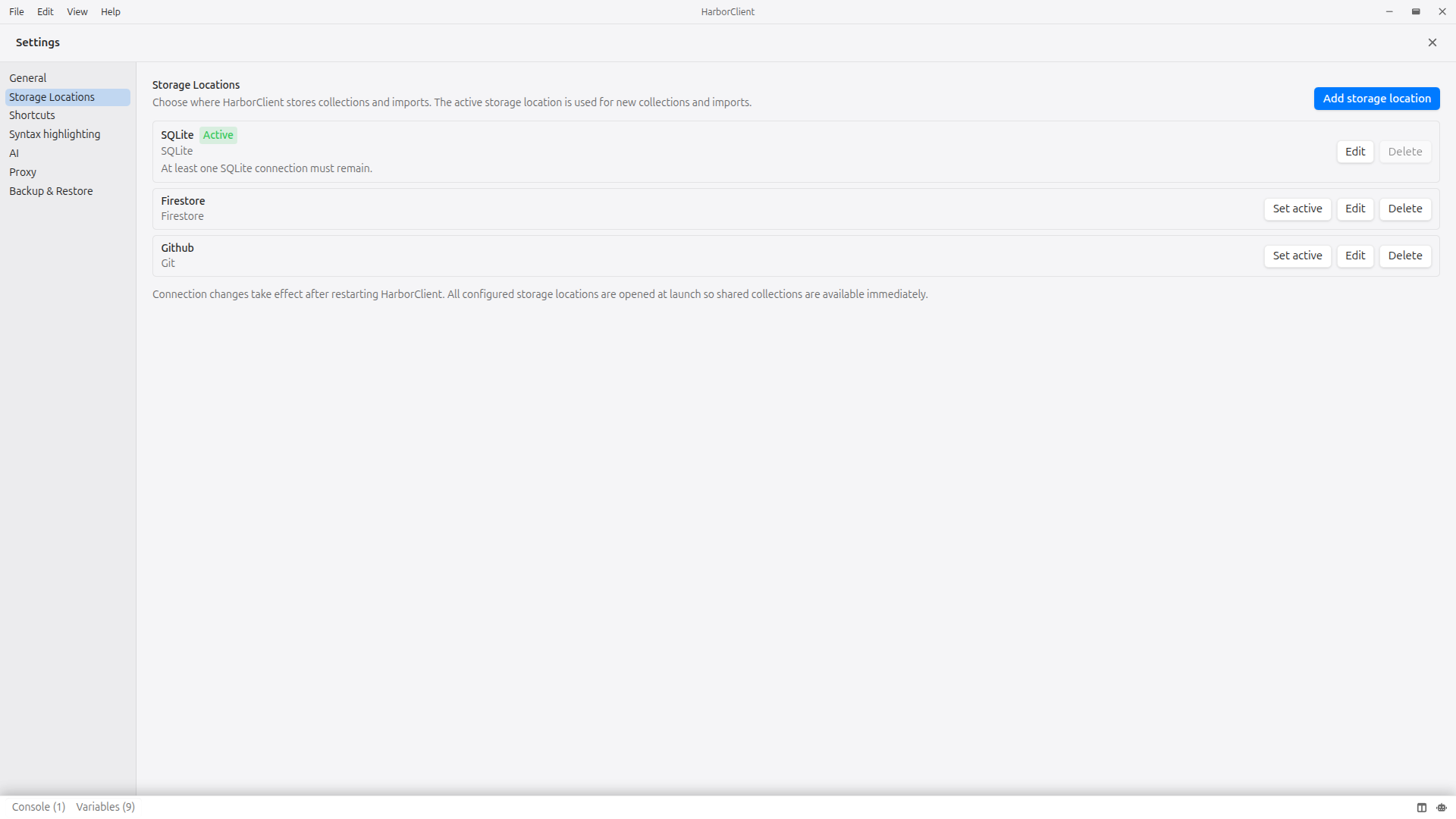
Teammates can also share access by configuring the same remote storage location manually in Settings → Storage Locations. Shares bundle the connection details and collection mapping in one step so the recipient does not have to enter credentials by hand.
How collections affect sends
When you send a request, HarborClient determines which collection applies:
- Saved request — the collection the request belongs to
- Unsaved tab — the collection currently selected in the sidebar
That collection provides variables, headers, authorization, and scripts for the send:
- Variables — collection variables load first; the active environment’s merged inheritance chain overrides duplicate keys. See Environments.
- Headers — collection headers merge with request headers; request headers win on duplicates.
- Authorization — when configured, HarborClient generates an
Authorizationheader unless the request or scripts already set one manually. Request-level Basic or Bearer overrides collection auth; request None inherits collection auth. - Scripts — each enabled collection pre-request script (in list order), then each enabled request pre-request script (in list order), then the HTTP request, then each enabled collection post-request script (in list order), then each enabled request post-request script (in list order).
For the full send pipeline and response handling, see Making requests.
Storage and backup
Collections and saved requests are stored in your chosen provider:
- SQLite (default) —
{userData}/harborclient.db. The database filename can be changed in Settings → SQLite (restart required). - Firestore, MySQL, PostgreSQL — remote storage when selected in Settings → Storage Locations (restart required).
- Team hubs — collection data on HarborClient Team Hub; configured under File → Team Hub, not in Settings.
See Storage for storage types and how to assign collections to providers. See Settings for connection field reference and Team hubs for hub-backed collections.
Open tab drafts are stored separately in browser localStorage. The selected collection in the sidebar is not persisted.
To back up a collection, use Export to save a portable JSON file. Deleting a collection from the sidebar permanently removes it and all its requests from storage.
Keyboard shortcuts
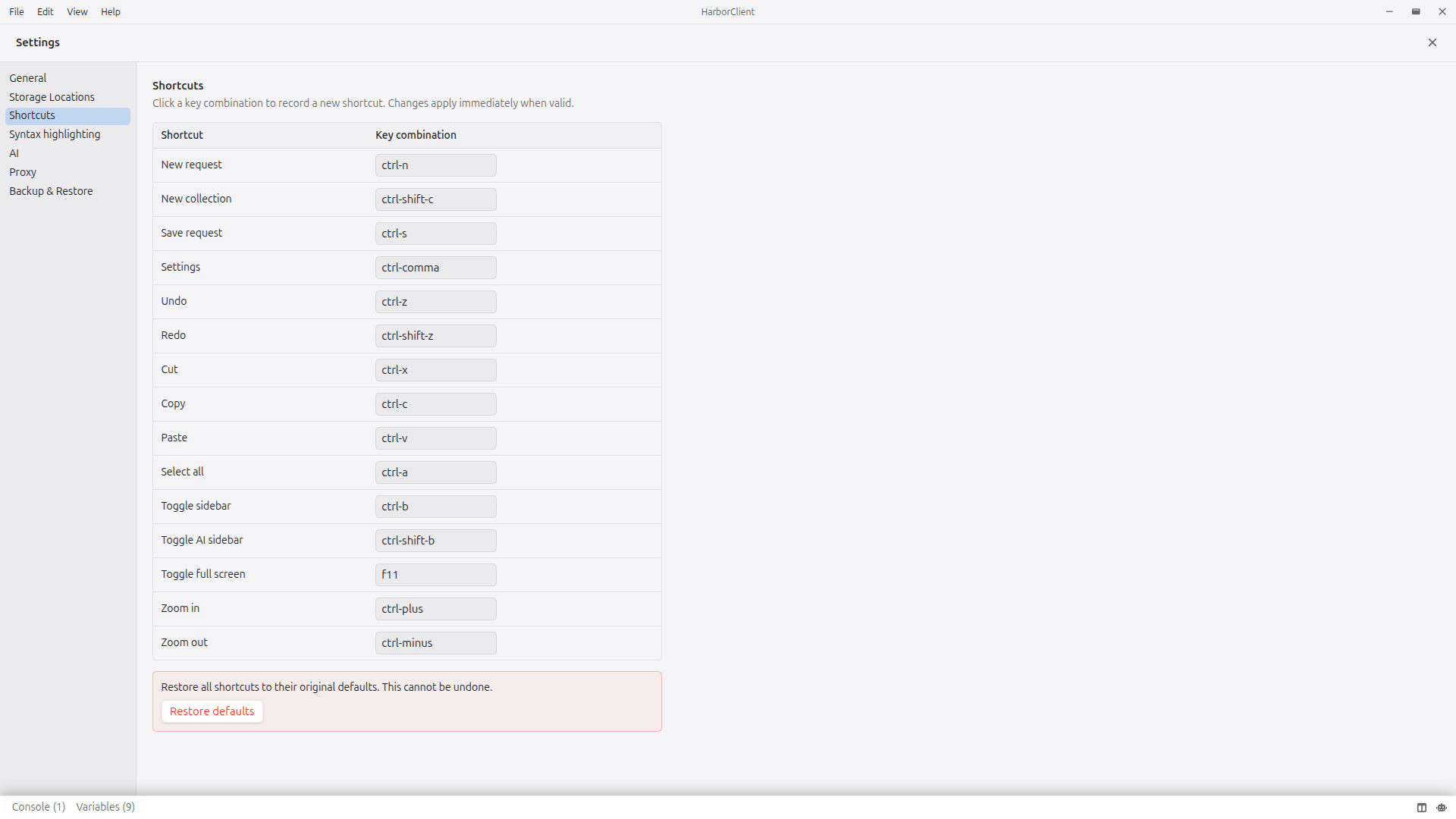
| Action | Shortcut |
|---|---|
| New collection | Cmd/Ctrl+Shift+N |
| Save request | Cmd/Ctrl+S |
| Focus sidebar search | Cmd/Ctrl+F (customizable) |
| Action menu | Cmd/Ctrl+Shift+P (customizable) |
| Plugins | Alt+Shift+P (customizable) |
| Import | File → Import (no keyboard shortcut) |
What's next
- Making requests — build, send, and inspect HTTP requests
- Environments — global variable groups that override collection variables
- Request scripts — collection and request scripts, tests, and the
hcAPI