
Using plugins
Browse the plugin marketplace for installable packages. Each listing includes an Install in HarborClient button that opens the desktop app via a harborclient://plugin/install?id=… link and asks you to confirm before installing from the official marketplace catalog.
Using plugins in the app
Open File → Plugins or press Alt+Shift+P (default; customizable in Settings → Shortcuts). The sidebar has four sections:
| Section | Description |
|---|---|
| Installed | Plugins already on your machine |
| Marketplace | Curated catalog from harborclient.com/plugins and other sources |
| Install | Install from a .hcp file, git URL, or unpacked source directory |
| Settings | Catalog and trusted-publisher endpoints (see Catalog sources) |
Contributed settings sections from enabled plugins appear in the Settings sidebar alongside built-in sections.
Marketplace (in-app)
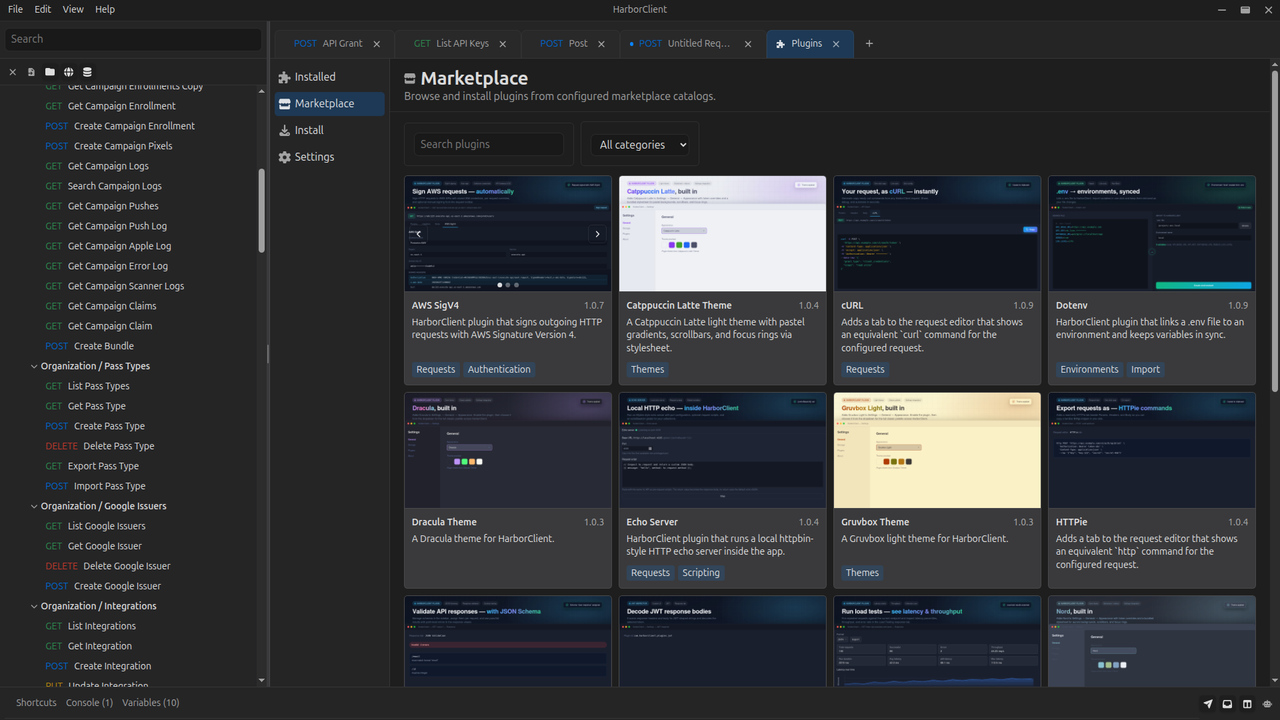
Click Marketplace to load merged catalog sources. Each listing appears as a card with a summary, publisher, categories, and links to the plugin's GitHub repository. Use Search plugins to filter by name, summary, and keywords; category chips further narrow the list.
Click Install on a card to clone the repository with the same git install flow as Install from Git…. Git-installed marketplace plugins show Update when already installed.
You can also open File → Plugins or press Alt+Shift+P, or open a plugin match from the Action menu in the desktop app.
Installing plugins
| Action | Description |
|---|---|
| Install from file | Select a .hcp plugin package. Review name, version, icon, permissions, and publisher metadata, then confirm in the permissions dialog. |
| Install from Git… | Paste a public https:// (or http://) repository URL and optionally a branch or tag. HarborClient shallow-clones the repo into your plugins directory, validates manifest.json, and shows the same permissions dialog as a file install. The repository must ship prebuilt entry files at the repo root (no build step runs in the app). |
HarborClient validates each manifest, shows the permissions the plugin requests, and unpacks file or git installs to your local plugins directory.
Network permission
Plugins that declare the network permission in manifest.json may call hc.host.fetch(...) for outbound HTTP from the renderer. The same Allow script network requests setting in Settings → General gates plugin network access as well as hc.fetch in request scripts.
When you enable a plugin or theme that requests network while Allow script network requests is off, the permissions dialog offers three choices:
| Action | Result |
|---|---|
| Discontinue install | Cancels enablement and removes the pending install. |
| Turn on script network requests | Enables the global setting, then enables the plugin. All scripts and allowlisted plugins may use outbound HTTP. |
| Turn on for just this plugin / Turn on for just this theme | Keeps the global setting off but adds this package to a per-plugin allowlist so only it may call hc.host.fetch. |
If the global setting is already on, or the plugin is already on the allowlist, the normal Enable plugin / Enable theme flow applies with no extra network prompt.
Managing installed plugins
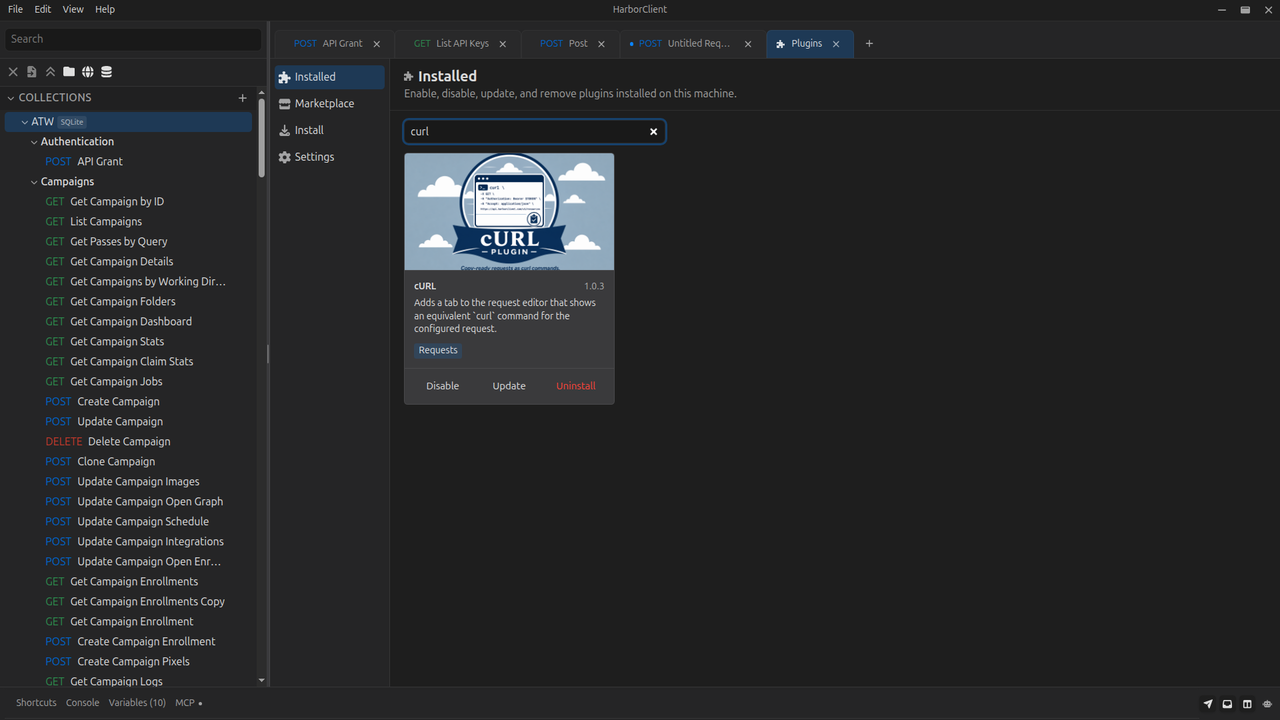
Installed plugins appear in a card grid. Use Search installed plugins to filter by name, summary, publisher, and keywords. Click a card to open a detail modal with the Markdown description, permissions, links (including Report issue when declared), and an Installation row that shows whether the plugin came from Git, a development load, or a file install.
| Action | Description |
|---|---|
| Enable / disable | Use the Enable or Disable button on the card. Disabled plugins do not activate. |
| Reload | Unpacked dev plugins show a Reload button to re-read the manifest and entry bundles from disk. |
| Update | Git-installed plugins show an Update button that re-clones the stored repository URL (and optional ref) and replaces the installed copy. Use this to pull the latest version from the default branch or a pinned tag. |
| Uninstall / Remove | Delete installed or git-installed plugins from userData/plugins/, or remove unpacked dev registrations without deleting your source folder. |
Development loading
While building a plugin, use these actions on Install instead of packaging a .hcp file for every change:
| Action | Description |
|---|---|
| Load unpacked… | Select a plugin source directory (the folder that contains manifest.json). HarborClient loads the plugin in place for development — no .hcp packaging step. Confirm permissions when prompted. |
| Reload | Re-read the manifest and entry bundles for an unpacked plugin after you rebuild (also triggered automatically when file watching is enabled). |
Unpacked plugins keep running from your source path, so the next bundle write can be picked up without reinstalling. The detail modal shows Installation: Development for these plugins.
If reload fails (syntax error, invalid manifest), the previous activation is torn down and an inline error is shown on the plugin card. For project setup, bundling, hot reload, and startup options, see Dev workflow in the plugin development guide.
Catalog sources
In File → Plugins → Settings, you can add your own catalog and trusted-publisher endpoints. HarborClient ships with the official endpoints enabled by default:
- Catalog:
https://harborclient.com/plugin_catalog.json - Trusted publishers:
https://harborclient.com/plugins/trusted.json
You can disable or remove the defaults, add additional endpoints, and use Reset defaults to restore the HarborClient URLs. Enabled endpoints are fetched in list order; when the same plugin id or signing key appears in more than one source, the first source wins.
Third-party endpoints are supported, but only add catalogs and trusted-key registries from sources you trust.
Team Hub sources
Connected Team Hubs can provide additional plugin source URLs through their server.yaml configuration. HarborClient fetches these automatically and shows them in File → Plugins → Settings as read-only rows labeled From {hub name}. Team Hub endpoints cannot be removed or disabled in the app; update or remove them on the Team Hub server.
See also
- Themes — browse and install appearance themes
- Using themes — install and manage themes in the app
- Action menu — global navigation, actions, and slash commands
- Search — sidebar, settings, and marketplace search
- Plugin development — build and package plugins