
Using themes
Browse the theme marketplace for appearance packages. Each listing includes an Install in HarborClient button that opens the desktop app via a harborclient://theme/install?id=… link, opens File → Themes, and asks you to confirm before installing from the official marketplace catalog.
Using themes in the app
Open File → Themes or press Cmd/Ctrl+Shift+T (default; customizable in Settings → Shortcuts). The sidebar has four sections:
| Section | Description |
|---|---|
| Installed | Custom themes you created and theme plugins already on your machine |
| Marketplace | Theme listings from merged catalog sources |
| Designer | Build and preview custom appearance themes with live editing |
| Install | Install from a .hcp file, git URL, or unpacked source directory |
Catalog source configuration lives under File → Plugins → Settings — see Catalog sources on the Using plugins page.
Marketplace (in-app)
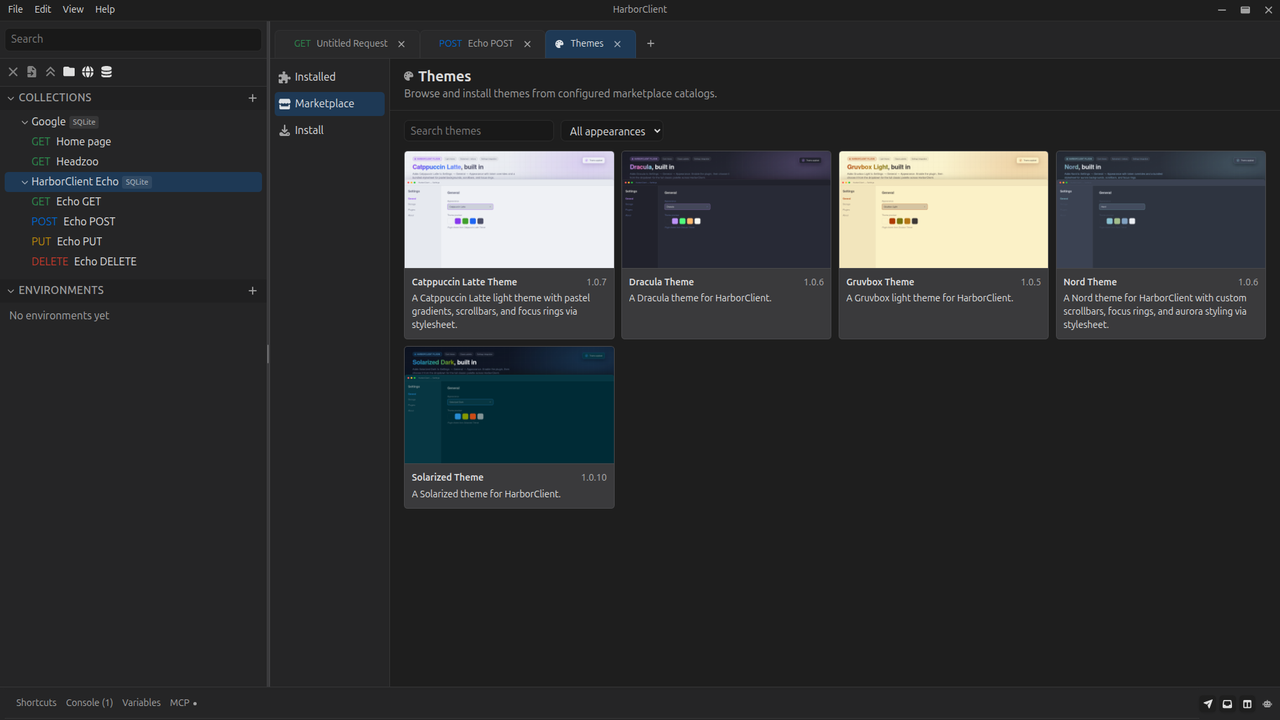
Click Marketplace to load merged catalog sources. Theme listings appear as cards with a summary, publisher, and links to the theme's GitHub repository. Use Search themes to filter by name, summary, and keywords. Use the appearance filter to narrow the list to light, dark, or high-contrast themes. On the web catalog, each theme listing also shows its appearance (Light, Dark, or High Contrast) in the metadata.
Click Install on a card to clone the repository with the same git install flow as Install from Git…. Git-installed marketplace themes show Update when already installed.
You can also open File → Themes or press Cmd/Ctrl+Shift+T, or open a theme match from the Action menu in the desktop app.
Designer
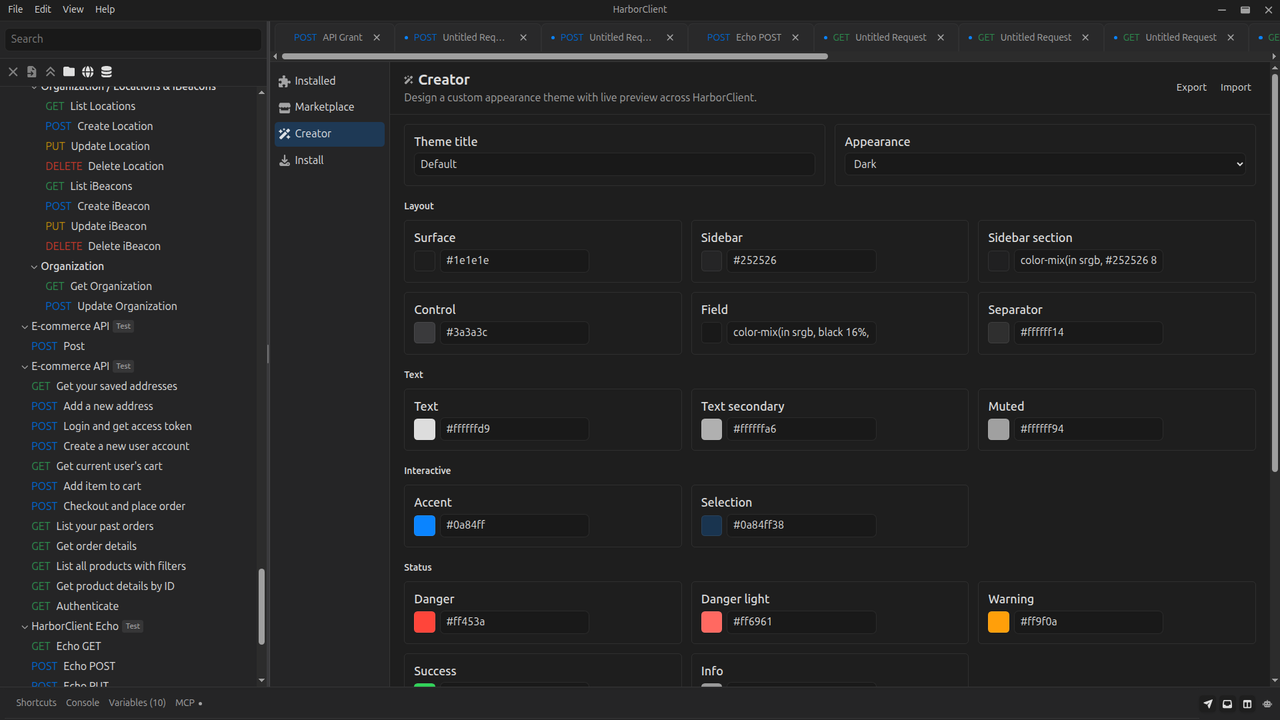
Open File → Themes → Designer to design a custom appearance theme with live preview across HarborClient.
| Control | Description |
|---|---|
| Theme title | Human-readable name shown on Installed cards and in View → Theme |
| Appearance | Base mode: light, dark, or high contrast (sets color-scheme and seeds defaults) |
| Color tokens | Pick colors for layout, text, interactive, status, and HTTP method tokens |
| Export | Save the current draft as a portable .json theme file (harborclientExport: "theme") |
| Import | Load a theme export into the Designer draft without saving or activating it |
| Discard | Restore the last loaded or saved snapshot and revert the live preview |
| Save | Write the theme to disk and make it the active appearance immediately |
When you start a new theme, color pickers and the appearance dropdown seed from your currently active theme (built-in, plugin, or custom). Changing Appearance on a new draft reseeds from built-in defaults for that mode.
When you edit an existing custom theme, the Designer loads its saved palette and title.
Renamed save prompt
If you edit a saved theme and change its title, Save asks whether to:
| Choice | Result |
|---|---|
| Update existing | Rename the saved theme in place (same file; also persists color and appearance edits) |
| Save as new theme | Create a new theme file with the new name; the original theme is left unchanged |
| Cancel | Dismiss the prompt without saving |
Custom themes
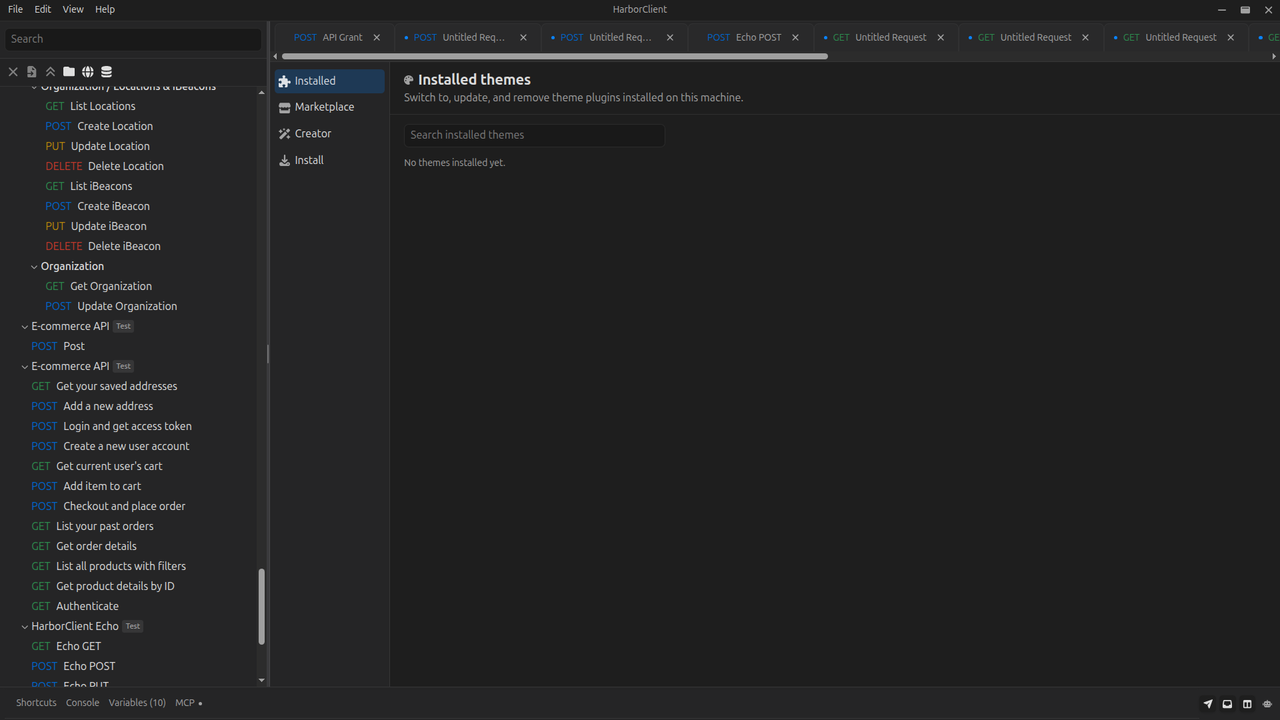
Saved custom themes appear on Installed under Custom themes, above theme plugin cards. Each card shows a 4×4 color swatch preview, the theme title, its appearance label, and an Active theme indicator when that theme is selected.
| Action | Description |
|---|---|
| Use | Switch appearance to this custom theme |
| Edit | Open the theme in Designer |
| Uninstall | Remove the theme after confirmation; if it was active, HarborClient reverts to System |
Custom themes are stored at {userData}/custom_themes/<id>.json. They are included when you export a backup from Settings → Backup & Restore.
Import a portable theme JSON file via File → Import to save it to your custom theme library (not just the Designer draft). If a custom theme with the same title already exists, HarborClient prompts you to Update existing, Import as new copy, or Cancel. On success, HarborClient opens File → Themes and shows a Theme imported or Theme updated toast.
Installing themes
| Action | Description |
|---|---|
| Install from file | Select a .hcp theme package. Review name, version, icon, permissions, and publisher metadata, then confirm in the permissions dialog. |
| Install from Git… | Paste a public https:// (or http://) repository URL and optionally a branch or tag. HarborClient shallow-clones the repo into your plugins directory, validates manifest.json, and shows the same permissions dialog as a file install. The repository must ship prebuilt entry files at the repo root (no build step runs in the app). |
HarborClient validates each manifest, shows the permissions the theme requests, and unpacks file or git installs to your local plugins directory. Themes that request the network permission follow the same install-time network prompt as plugins — see Using plugins — Network permission.
Managing installed theme plugins
Installed theme plugins appear in a card grid below your custom themes. Use Search installed themes to filter by name, summary, publisher, and keywords. Click a card to open a detail modal with the Markdown description, permissions, links, and an Installation row that shows whether the theme came from Git, a development load, or a file install.
| Action | Description |
|---|---|
| Use | Switch appearance to that theme. Theme plugins with multiple variants (for example light and dark) open a picker so you can choose which variant to apply. Disabled theme plugins are enabled automatically when you click Use. |
| Reload | Unpacked dev themes show a Reload button to re-read the manifest and entry bundles from disk. |
| Update | Git-installed themes show an Update button that re-clones the stored repository URL (and optional ref) and replaces the installed copy. |
| Uninstall / Remove | Delete installed or git-installed themes from userData/plugins/, or remove unpacked dev registrations without deleting your source folder. |
View → Theme in the menu bar lists built-in themes (Light, Dark, System, High contrast), installed plugin themes, and your custom themes. You can also switch from Use on an Installed card or from Designer when you save a custom theme.
Development loading
While building a theme, use these actions on Install instead of packaging a .hcp file for every change:
| Action | Description |
|---|---|
| Load unpacked… | Select a theme source directory (the folder that contains manifest.json with categories: ["themes"]). HarborClient loads the theme in place for development. Confirm permissions when prompted. |
| Reload | Re-read the manifest and entry bundles for an unpacked theme after you rebuild (also triggered automatically when file watching is enabled). |
Unpacked themes keep running from your source path. The detail modal shows Installation: Development for these themes.
If reload fails (syntax error, invalid manifest), the previous activation is torn down and an inline error is shown on the theme card. For project setup, bundling, hot reload, and startup options, see Dev workflow in the plugin development guide.
Catalog sources
Theme listings come from the same merged marketplace catalogs as plugins. HarborClient filters entries with the themes category slug for the Themes page.
Configure catalog and trusted-publisher endpoints under File → Plugins → Settings. See Catalog sources on the Using plugins page for defaults, custom endpoints, and Team Hub-provided sources.
See also
- Plugins — browse and install non-theme plugins
- Using plugins — install and manage plugins in the app
- Action menu — global navigation, actions, and slash commands
- Search — in-app theme search
- Plugin development — build theme packages and publish to the marketplace
- Theme development — Designer workflow and every
--mac-*token reference - Settings → Backup & Restore — export and restore custom themes with your local data