
Using snippets
Browse the snippet marketplace for installable snippet bundles. Each listing includes an Install in HarborClient button that opens the desktop app via a harborclient://snippet/install?id=… link, opens File → Snippets, and asks you to confirm before installing from the official marketplace catalog.
Snippet bundles are different from the hand-written snippets you manage under Settings → Snippets. Settings snippets are created and edited locally in the app. Marketplace bundles are curated packages published to GitHub that install multiple reusable JavaScript snippets into your local library at once.
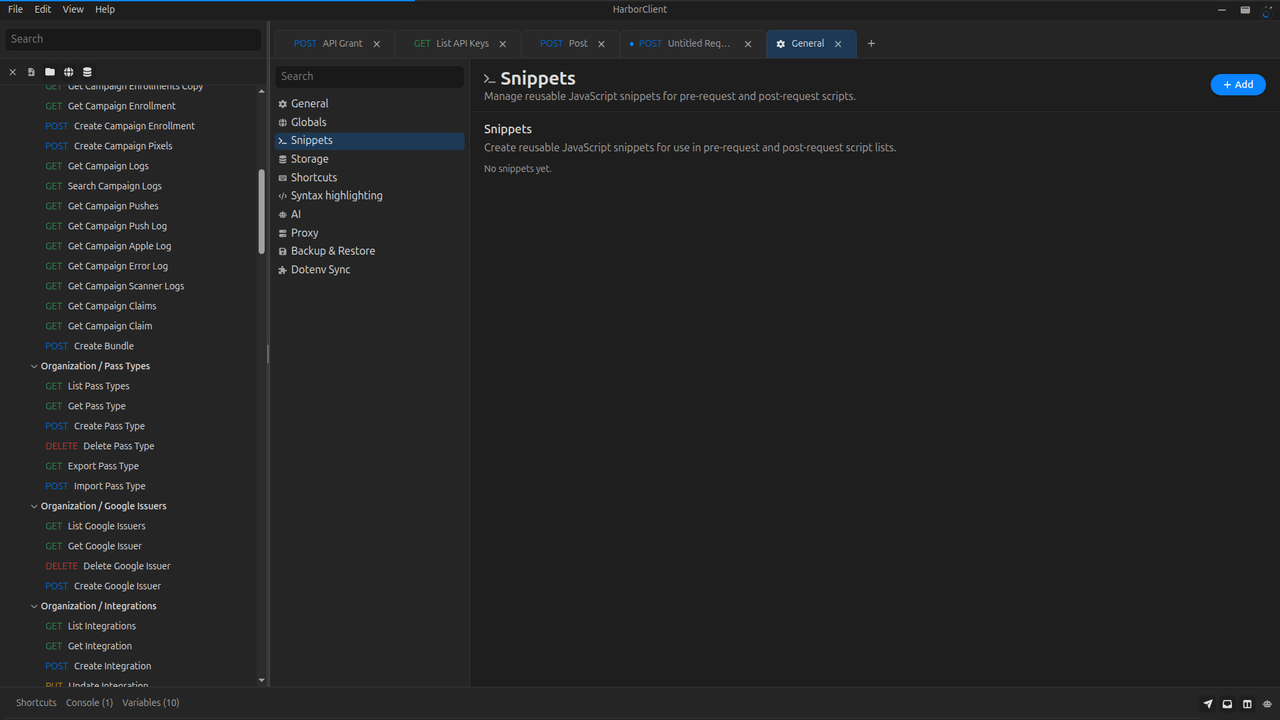
Local snippets you create under Settings → Snippets are separate from marketplace bundle rows. Installed bundle snippets appear in the Installed section of File → Snippets and are read-only until you Clone them.
Using snippets in the app
Open File → Snippets or press Alt+Shift+S (default; customizable in Settings → Shortcuts). The sidebar has three sections:
| Section | Description |
|---|---|
| Installed | Snippet bundles already on your machine and all snippet rows in your library |
| Marketplace | Curated catalog from harborclient.com/snippets |
| Install | Install from a .hcs file, git URL, or unpacked source directory |
You can also open File → Snippets or press Alt+Shift+S, or open a snippet match from the Action menu in the desktop app.
Marketplace (in-app)
Click Marketplace to load the snippet catalog. Each listing appears as a card with a summary, publisher, categories, and links to the bundle's GitHub repository. Use Search snippets to filter by name, summary, and keywords; category chips further narrow the list.
Click Install on a card to clone the repository with the same git install flow as Install from Git…. Git-installed marketplace bundles show Update when already installed.
Installing snippet bundles
| Action | Description |
|---|---|
| Install from file | Select a .hcs snippet bundle package. HarborClient validates snippets.json, imports the declared snippets into your local library, and records the bundle as installed. |
| Install from Git… | Paste a public https:// (or http://) repository URL and optionally a branch or tag. HarborClient shallow-clones the repo, validates snippets.json, and imports the declared snippets. The repository must ship the manifest and snippet files at the repo root (no build step runs in the app). |
| Install from directory | Select a folder containing snippets.json and the declared snippet files. HarborClient imports the bundle in place without cloning. |
Each entry in snippets.json must declare a phase request-stage key (pre-request, post-request, or any) and a stage script-stage key (before-all, before-each, main, after-each, or after-all). HarborClient imports those values as each snippet's default Request stage and Stage settings.
Managing installed snippet bundles
Installed bundles appear under Installed snippets in the Installed section. Use Search installed snippets to filter the full snippet list by name. Expand a bundle row to see the snippets it imported.
| Action | Description |
|---|---|
| Update | Git-installed bundles show an Update button that re-clones the stored repository URL (and optional ref) and replaces the installed copy. |
| Uninstall | Removes the bundle and deletes the marketplace snippet rows it imported. Local snippets you created yourself are not affected. |
| Clone | Creates an editable local copy of a marketplace snippet row so you can customize it without changing the installed bundle. |
Marketplace snippet rows are read-only in the installed list — use Clone to make an editable copy. Local snippets you created under Add or Import (.js in Settings or script editors) can be edited and deleted freely. Portable snippet JSON exports (harborclientExport: "snippet") can also be imported via File → Import; HarborClient opens File → Snippets after a successful import.
Using installed snippets in requests
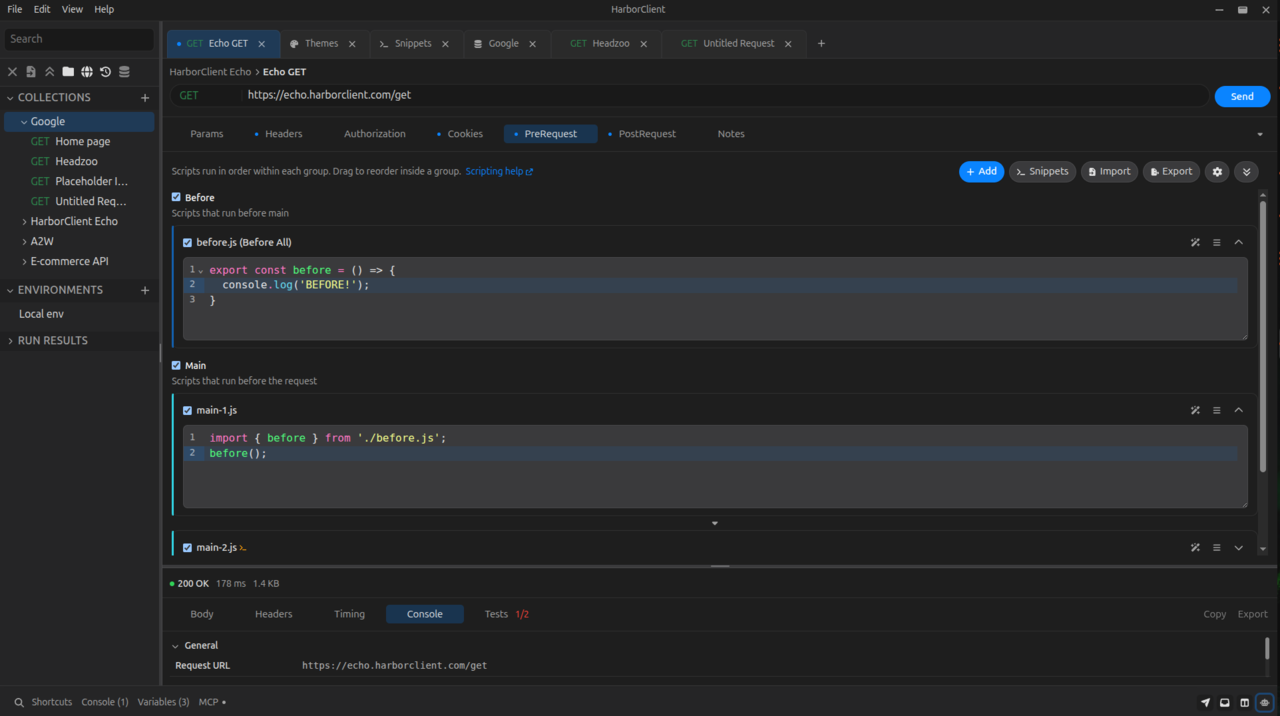
After installing a bundle, its snippets appear in your library and are available from Select snippet… in collection and request script lists. Each snippet stores a default Stage (Before all, Before each, Main, After each, or After all) and a Request stage (pre-request, post-request, or any). When you add a snippet to a script list, HarborClient places it in the matching group using the snippet's default stage. Snippet references are live pointers — updating a bundle via Update refreshes the imported rows on the next send.
See Request scripts — Snippets for how snippet references work in script lists and at send time.
Importing snippets from scripts
In addition to Select snippet…, inline scripts can import snippets by filename when the snippet Name ends in .js — for example auth-token.js or utils/helpers.js. Import with a relative path:
import { getToken } from "./auth-token.js";
import { formatDate } from "./utils/helpers.js";
Use a .js filename when creating snippets you plan to import. Human-readable names such as Auth token work with Select snippet… only. Script editors autocomplete ./ import paths (files and folder segments like utils/).
Marketplace-installed snippets follow the same naming rules: if the bundle publisher used importable names, you can import those snippets without adding them to a script list. Marketplace rows remain read-only until you Clone them; cloning does not change the name.
If two snippets share the same importable name, HarborClient reports an ambiguous import error when a script tries to import that filename. Give each importable snippet a unique name.
See Request scripts — Importing snippets for export syntax, runtime behavior, and limits.
See also
- Plugins — browse and install non-theme plugins
- Themes — browse and install appearance themes
- Using plugins — install and manage plugins in the app
- Using themes — install and manage themes in the app
- Action menu — global navigation, actions, and slash commands
- Search — in-app snippet search
- Settings — Snippets — manage hand-written local snippets