
Requests
HarborClient is built around the request editor: you compose an HTTP request, send it, and inspect the response. The main window is split into a sidebar (collections and environments), a TabBar across the top, the request editor in the middle, and the response panel below. An optional Console slides up from the footer to log every send in the current session.
Each open tab holds one editable request draft and, after you send, the response for that tab. Only the active tab's response is shown in the response panel. To save and reopen sets of related saved request tabs together, see Workspaces.
The request editor
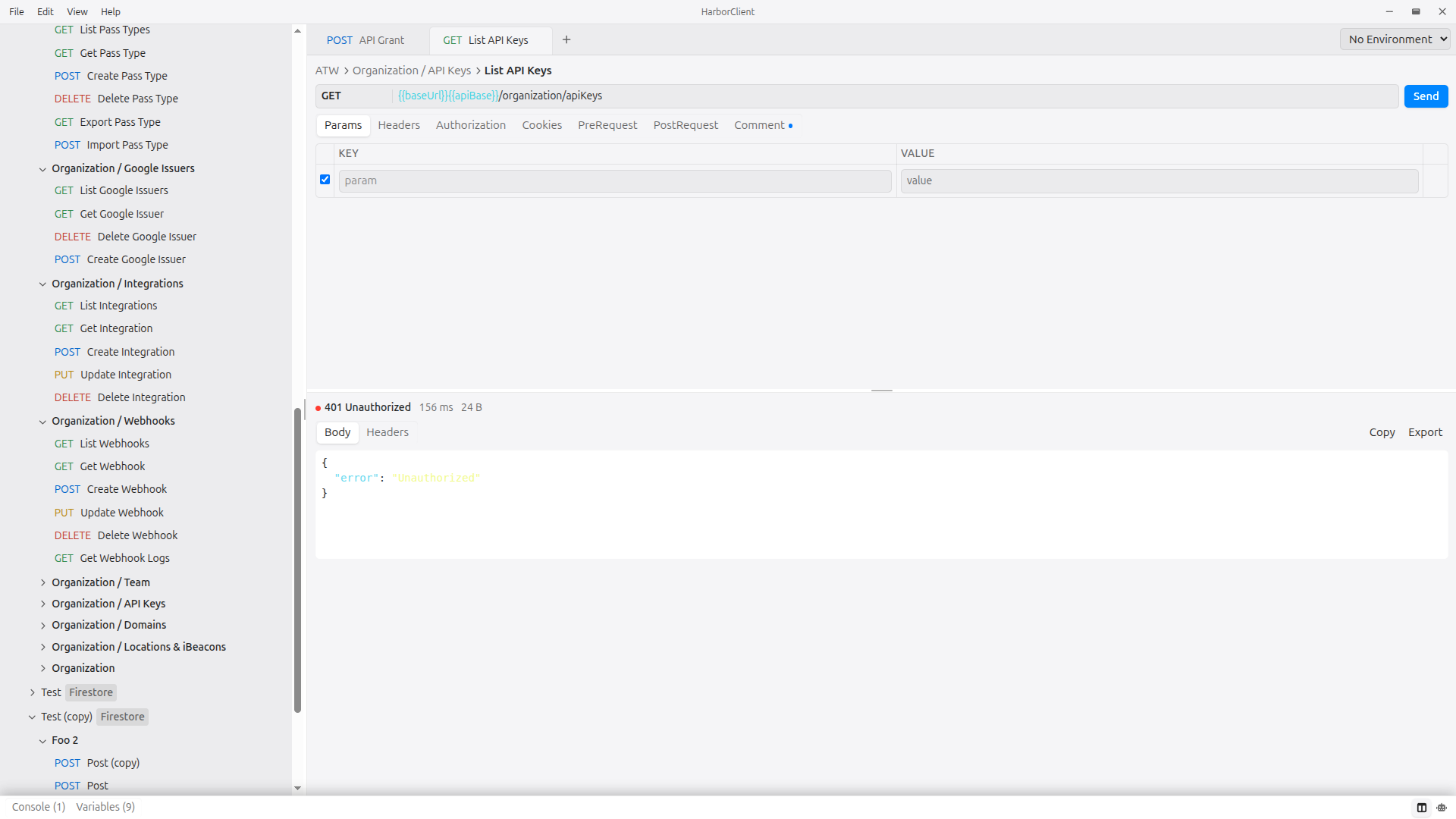
The request editor is where you build a request before sending it.
Request name
Click the request name to edit it inline. When the request belongs to a collection, the name shows as a breadcrumb: CollectionName > Request name. New tabs default to Untitled Request. Press Enter or Escape to finish editing the name.
Method, URL, and Send
- Method — Choose from GET, POST, PUT, PATCH, DELETE, HEAD, or OPTIONS.
- URL — Enter the request URL. Supports
{{variable}}placeholders (see Variables in requests). Press Enter in the URL field to send the request. - Send — Click Send to dispatch the request. The button shows Sending… and is disabled while the request is in flight.
TIP
With Send focused, press Down to jump focus into the response panel — handy after Tabbing to Send without walking through every request editor control.
Editor tabs
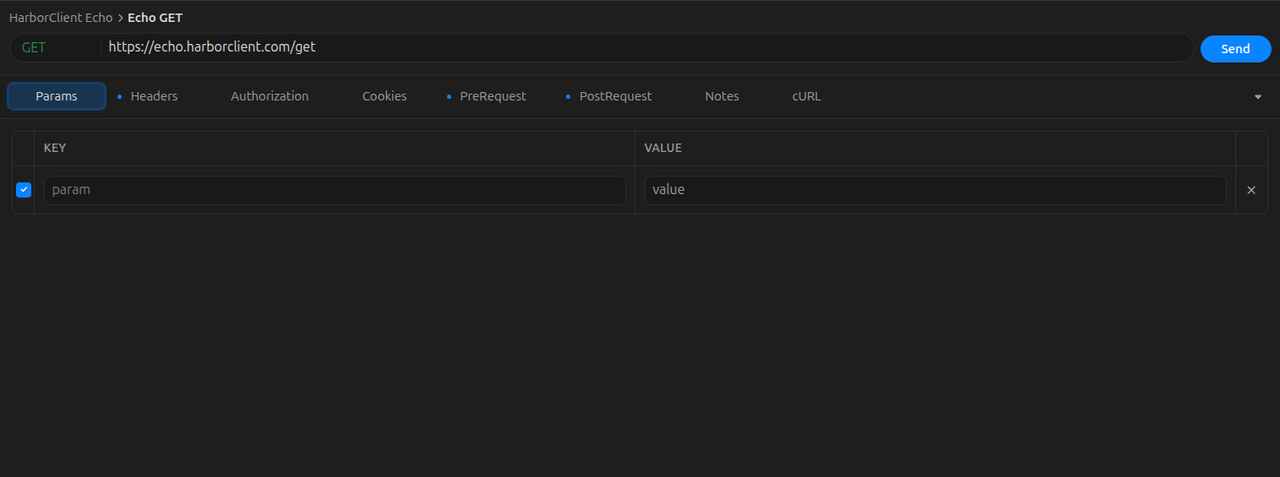
Below the URL bar, tabs configure the request:
| Tab | Purpose |
|---|---|
| Params | Query string parameters; scripts can set them for the current send with hc.request.params |
| Headers | Request-level headers; scripts can set them for the current send with hc.request.headers |
| Authorization | Basic Auth or Bearer Token for the outgoing request |
| Cookies | Edit cookies for the request URL host (stored in the cookie jar) |
| Body | Request body (hidden for GET and HEAD) |
| PreRequest | Ordered JavaScript scripts to run before the request is sent |
| PostRequest | Ordered JavaScript scripts to run after the response is received |
| Discuss | Request notes and tags, or Team Hub threaded discussion (not sent with the request); scripts can update local notes with hc.request.notes |
Discuss vs collection markdown: The Discuss tab is for collaboration around a single saved request — content here is not sent over HTTP. On local collections (and Team Hub collections without communication support), it shows free-form notes and tags that travel with the request in export/import. On a Team Hub collection with discussions enabled, it shows a threaded discussion so teammates can comment and reply in context. Collection markdown documents are separate .md files attached to the collection or a folder (for example a shared README). They open in their own editor tab, appear in the sidebar with a file icon, and are not tied to any one request.
For a cross-domain view of every saved host, use File → Cookies. See Cookies for jar behavior, automatic capture from Set-Cookie headers, and domain management.
Query parameters
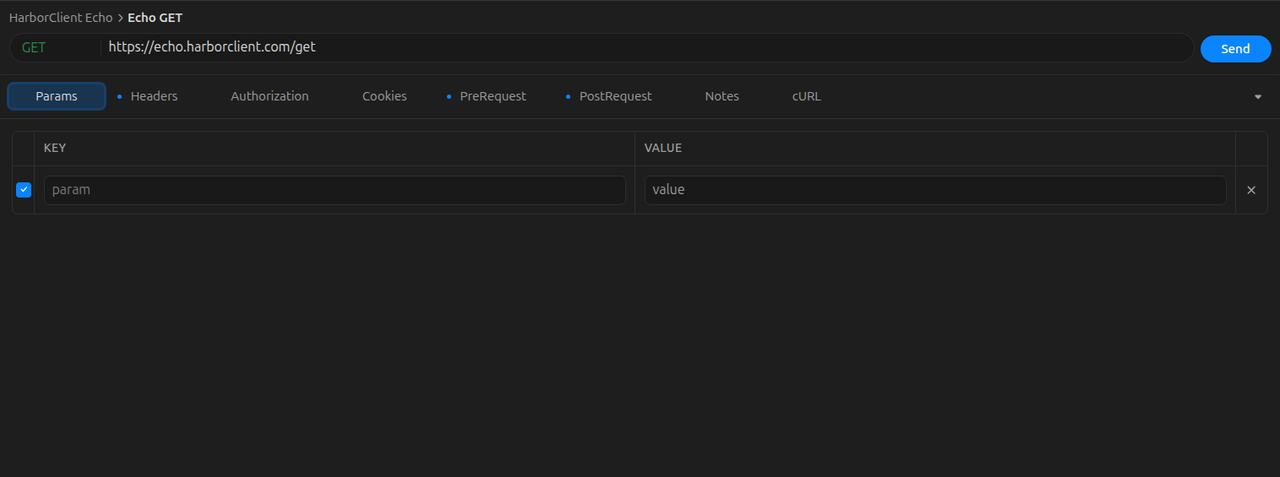
The Params tab uses a key-value editor. Each row has an enable checkbox, a key, and a value.
- Enabled rows with a non-empty key are appended to the URL at send time.
- If the URL already contains a parameter with the same name, the Params tab value overwrites it.
- A blank row is added automatically when you fill in the last row's key.
- Uncheck a row's enable box to exclude it from the send without deleting it.
- Values support
{{variable}}substitution.
Pre-request scripts can add or replace params for the current send with hc.request.params.set(). Changes are not persisted to the saved request.
hc.request.params.set({ page: "2", limit: "50" });
hc.request.params.set("q", hc.request.variables.get("query"));
See Request scripts — hc.request.params.
Example: URL https://api.example.com/search plus param q = {{query}} becomes https://api.example.com/search?q=hello when query resolves to hello.
Headers
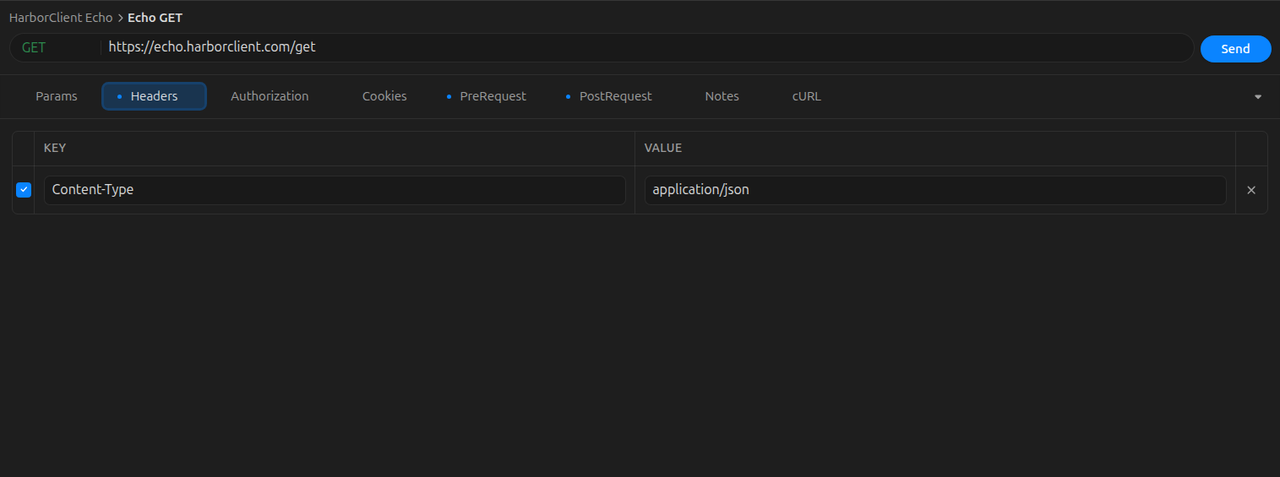
Request headers
The Headers tab uses the same key-value editor as Params. Add headers such as Authorization, Accept, or custom API keys. Disabled rows and rows with blank keys are excluded at send time. Header values support {{variable}} substitution.
Pre-request scripts can add or replace headers for the current send with hc.request.headers.set(). Changes are not persisted to the saved request. See Request scripts — hc.request.headers.
Example:
| Header | Value |
|---|---|
| Authorization | Bearer {{token}} |
| Accept | application/json |
Collection headers
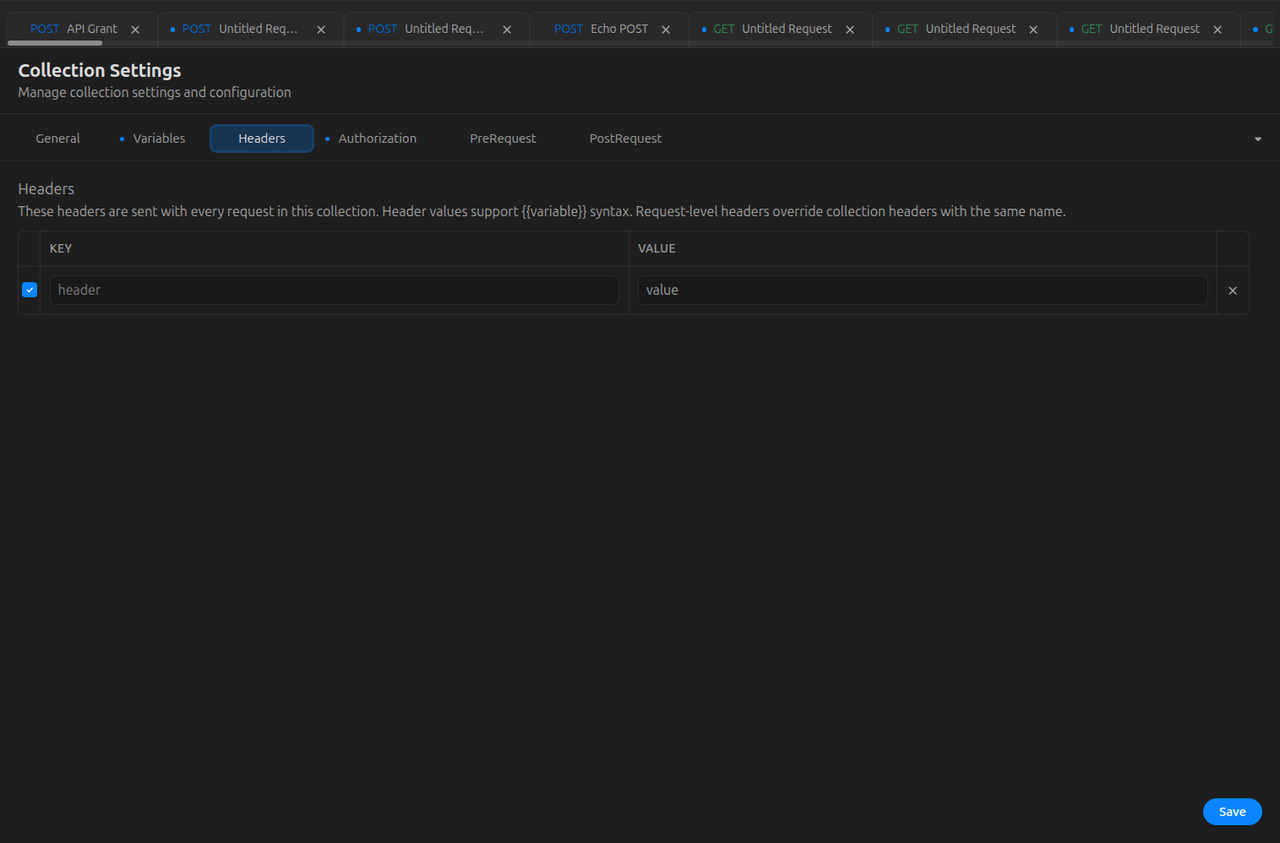
Every collection can define headers in Collection Settings → Headers. These headers are sent with every request in that collection.
Merge rule: collection headers are applied first, then request headers. If both define the same header name (case-insensitive), the request-level header wins.
Open Collection Settings by double-clicking a collection in the sidebar, or choose Settings from the collection row menu.
Authorization
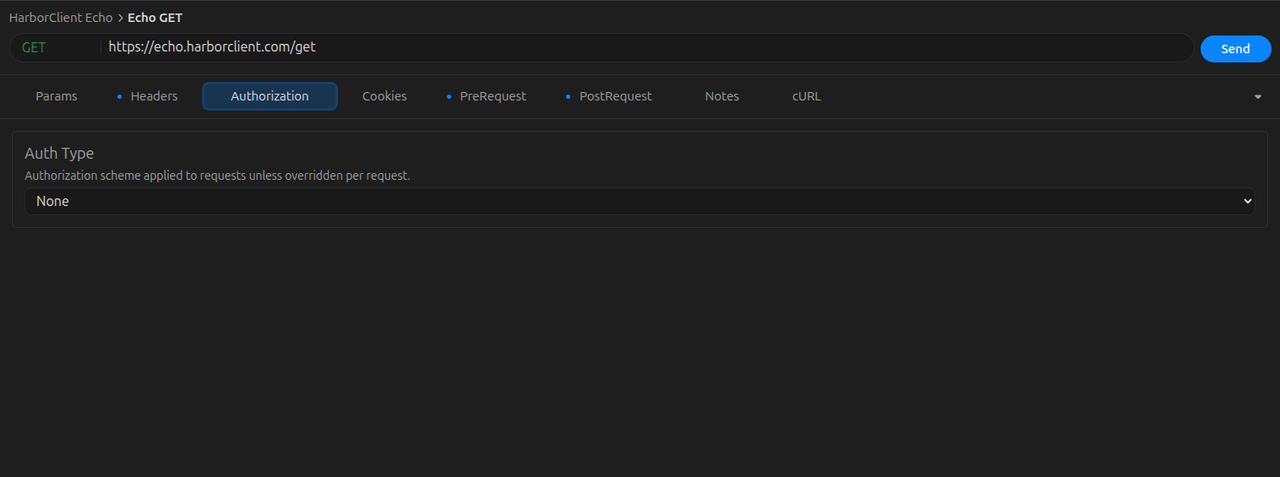
The Authorization tab configures how HarborClient adds an Authorization header at send time. The left pane selects an Auth Type; the right pane shows credential fields for the selected type.
| Auth Type | Fields |
|---|---|
| None | No request-level authorization — collection authorization still applies when configured |
| Basic Auth | Username and password |
| Bearer Token | Token value |
All credential fields support {{variable}} substitution. HarborClient resolves variables, then generates the header value (Basic … or Bearer …) immediately before the HTTP request is sent.
Precedence
HarborClient applies authorization in this order:
- Manual
Authorizationheader — a non-empty, enabledAuthorizationrow in the Headers tab, or one set by a pre-request script viahc.request.headers, always wins. HarborClient does not overwrite it with the Authorization tab. - Request Authorization tab or script — when Auth Type is Basic Auth, Bearer Token, or OAuth 2.0 Client Credentials, the request's credentials are used. Pre-request scripts can set the same fields with
hc.request.auth.set()orhc.request.auth.update()for the current send only. - Collection Authorization — when the request Auth Type is None, HarborClient uses the collection's Authorization tab settings (or values set with
hc.collection.authduring scripts) from Collection Settings.
Collection-level authorization is configured in Collection Settings → Authorization. See Collections — Authorization.
Alternatives
You can still authenticate with a manual header or script when you need full control:
| Approach | Example |
|---|---|
| Authorization header | hc.request.headers.set("Authorization", "Bearer " + hc.request.variables.get("token")) |
| Authorization tab API | hc.request.auth.set({ type: "bearer", token: hc.request.variables.get("token") }) |
hc.request.auth.set({
  type: "bearer",
  token: hc.request.variables.get("token"),
});
See Request scripts — hc.request.auth and hc.request.headers.
Request body
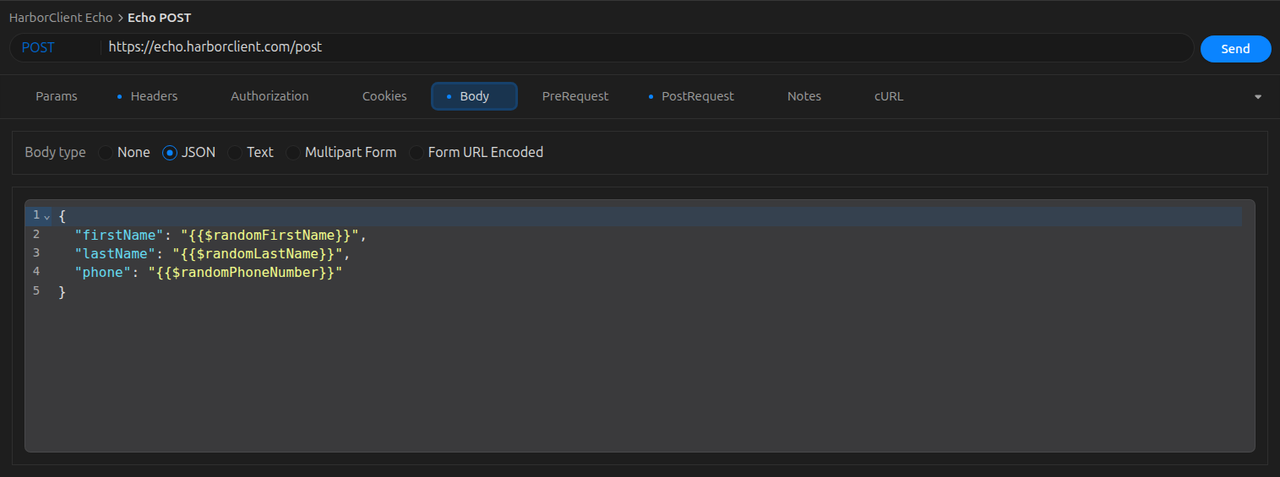
The Body tab is available for all methods except GET and HEAD. Choose a body type from the dropdown:
| Body type | Behavior |
|---|---|
| None | No body is sent |
| JSON | JSON code editor; HarborClient sets Content-Type: application/json automatically unless you already set Content-Type |
| Text | Plain text editor; HarborClient sets Content-Type: text/plain automatically unless you already set Content-Type |
| Multipart Form | Key/value rows where each field is Text or File; file fields support one or more uploads via a native file picker. HarborClient builds multipart/form-data at send time and lets the HTTP client set the boundary automatically. Any user-defined Content-Type header is ignored for this body type. |
| Form URL Encoded | Key/value rows using the same editor as Params and Headers; HarborClient encodes enabled rows as application/x-www-form-urlencoded at send time and sets Content-Type: application/x-www-form-urlencoded automatically unless you already set Content-Type |
Body text supports {{variable}} substitution. For multipart and urlencoded requests, substitution runs over the stored JSON body, so placeholders in field values are resolved at send time. Multipart file paths are stored as absolute paths and are machine-specific.
Example multipart fields:
| Key | Type | Value |
|---|---|---|
| name | Text | {{userName}} |
| avatar | File | profile.png (chosen via file picker) |
GET and HEAD requests never send a body, even if the Body tab has content.
Example JSON body:
{
  "name": "{{userName}}",
  "email": "[email protected]"
}
Variables in requests
Use {{key}} syntax (whitespace inside the braces is allowed) anywhere HarborClient substitutes values at send time:
- Request URL
- Header values
- Query parameter values
- Authorization credentials (Basic Auth username/password, Bearer token)
- Request body
- Pre- and post-request script source
Pipe the resolved value through filters with |—for example {{name|upper}} or {{query|trim|urlencode}}. See Variable filters for every supported filter.
Where variables come from
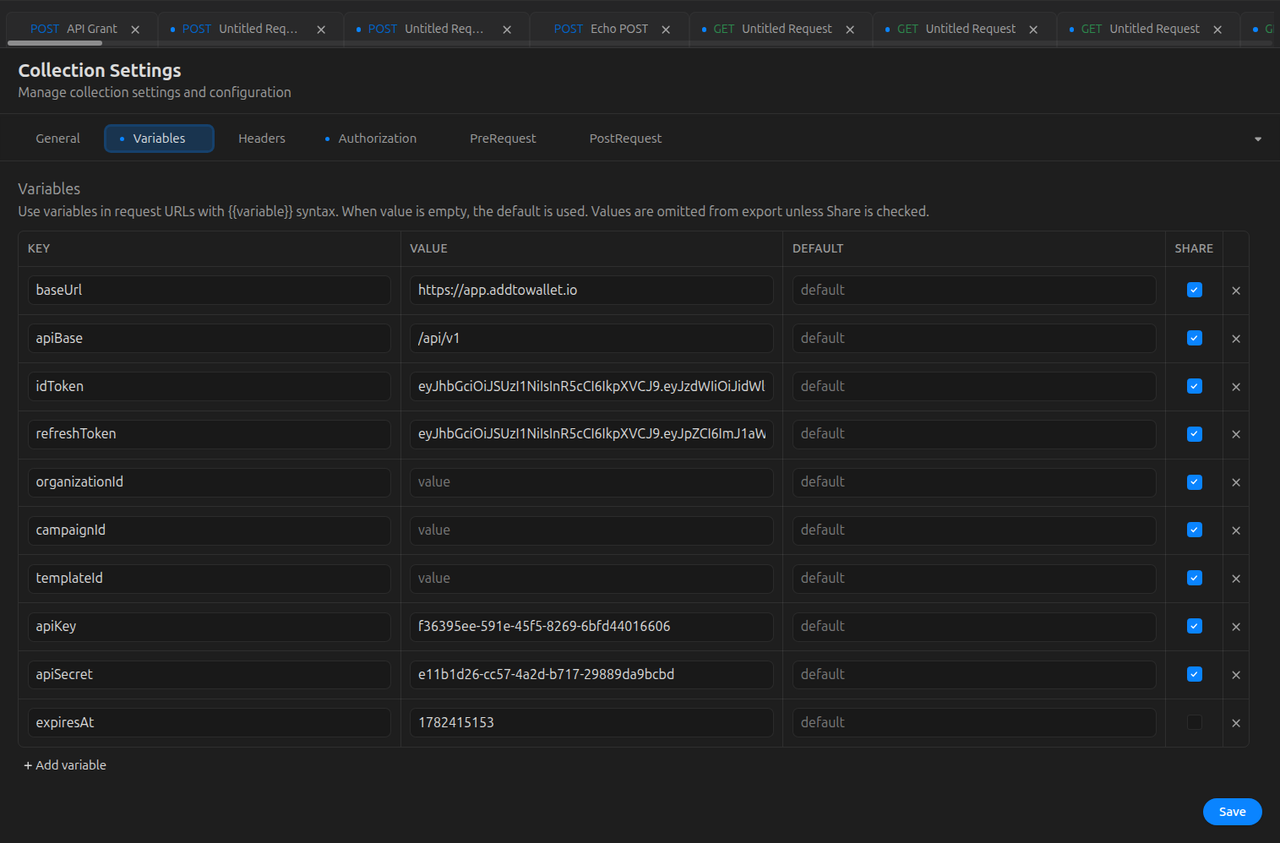
HarborClient resolves variables in this order:
- Collection variables — defined in Collection Settings → Variables
- Environment variables — from the active environment (environment wins when both define the same key)
hc.request.variables.set()— set in pre- or post-request scripts during the current send (overrides both for the remainder of that send)
Scripts can also share structured data (objects, arrays, mock fixtures) within one send via hc.data. That bag is ephemeral like hc.request.variables.set but is not used for {{key}} substitution.
If a variable's Value field is empty, HarborClient uses its Default instead.
In the editor, placeholders appear literally as {{token}}. Hover a placeholder to see the resolved value or Not defined. Click Edit value in the tooltip to open collection settings for the active collection.
For full details on managing environments and variables, see Environments. For setting variables from scripts, see Request scripts.
Collection context
When you send a request, HarborClient uses collection-level settings from:
- The collection the saved request belongs to, or
- The collection currently selected in the sidebar (for unsaved tabs)
Each collection provides:
- Variables — available to all requests in the collection
- Headers — merged with request headers (request wins on duplicates)
- Authorization — default Basic Auth or Bearer Token when the request Auth Type is None
- Pre-request and post-request stage script lists — run before and after every request in the collection
Request-level scripts in the PreRequest and PostRequest tabs run in addition to collection scripts. See Scripts at a glance for execution order.
Saving a request requires a collection. Use File → Save Request or Cmd/Ctrl+S — if no collection is selected, HarborClient prompts you to pick or create one.
For sidebar management, settings, and import/export, see Collections. You can also import a single request export, snippet export, theme export, environment export, or run results export via File → Import when the export type is recognized (see Collections — File → Import).
Scripts at a glance
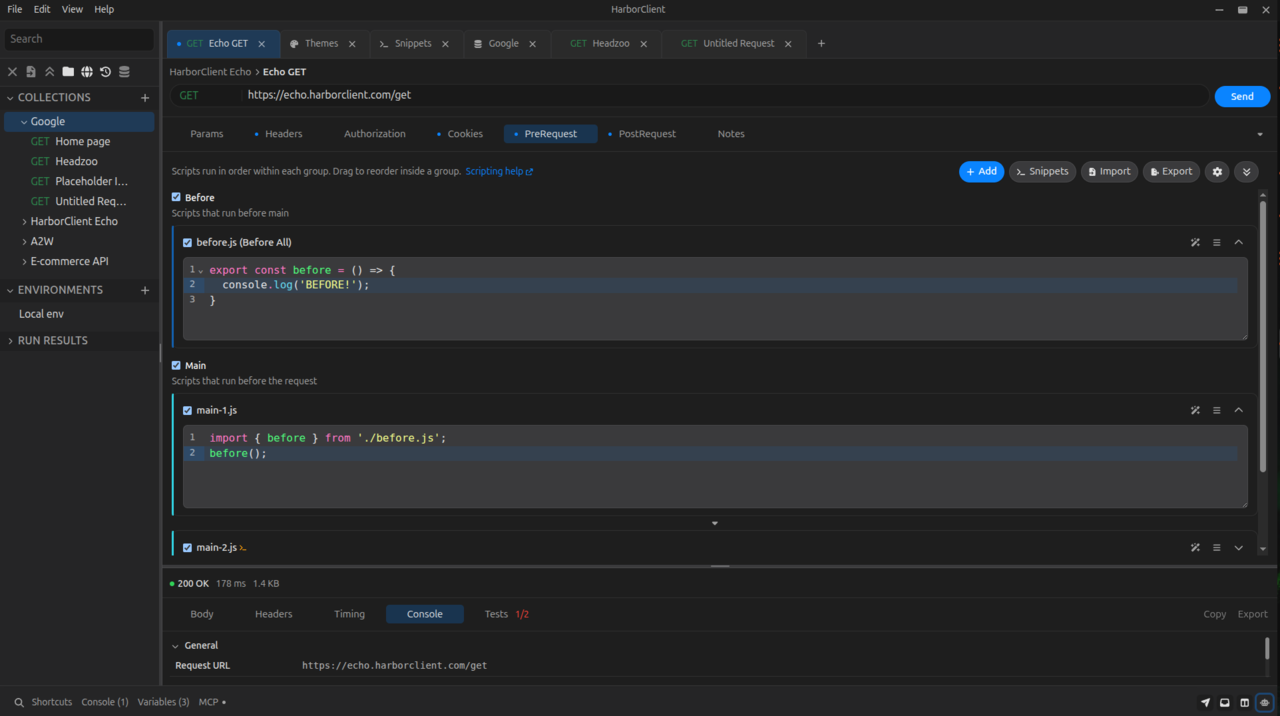
HarborClient can run JavaScript before and after each send. Each PreRequest and PostRequest tab holds an ordered list of scripts. Scripts use the global hc object to modify the outgoing request, set variables, and assert on responses. You can add multiple inline scripts, reference snippets, and enable or disable individual entries.
| Level | Where to edit |
|---|---|
| Collection | Collection Settings → PreRequest / PostRequest |
| Request | Request editor → PreRequest / PostRequest tabs |
Authorization is configured separately on the Authorization tab at the collection and request level (not in scripts), though scripts can still set or override headers manually.
When you send a request, scripts run in this order:
- Post-request tests (
hc.test) can live in any enabled post-request script in the list; results from all scripts aggregate in the response Tests tab. - Script
consoleoutput (log,error,warn, and the other supported Console methods) appears in the Console. - Scripts cannot change query parameters or body type.
- Post-request changes to
hc.requestdo not trigger a second send.
For the full hc API, sandbox limits, and examples, see Request scripts.
Sending a request
You can send a request in two ways:
- Click the Send button
- Press Enter while the URL field is focused
There is no global keyboard shortcut (such as Cmd/Ctrl+Enter) for Send.
What happens when you send
HarborClient runs collection and request pre-request scripts, substitutes {{variable}} placeholders (including authorization credentials), generates an Authorization header when configured, merges collection and request headers, attaches cookies from the jar for the request host, sends the HTTP request, captures any Set-Cookie headers from the response, then runs collection and request post-request scripts. The response viewer and Console update when the send completes.
Errors

| Condition | Result |
|---|---|
| Blank URL | Status 0, error URL is required — no network call is made |
| Network failure | Status 0, error message shown — round-trip time is still recorded |
| Script failure | Error toast and Console entry — the send continues with the last known request state |
Reading the response
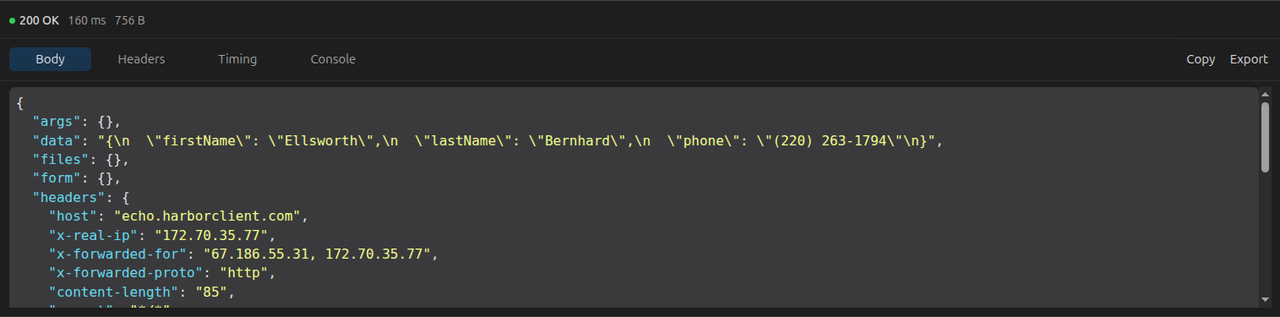
The response panel below the request editor shows the result of the last send for the active tab.
Before a response
- Sending request… — shown while a request is in flight
- Send a request to see the response — shown before the first send on a tab
Response header bar
After a send, the top line shows:
- A colored status dot and HTTP status (for example 200 OK), or Error when the send failed
- Round-trip time in milliseconds
- Response size
If the send failed, a red error banner displays the error message below the header bar.
Response tabs
| Tab | Content |
|---|---|
| Body | Read-only response body. JSON is pretty-printed when the Content-Type indicates JSON or the body looks like JSON |
| Preview | Appears for HTML and image responses so you can preview the rendered page or image |
| Headers | Request and response headers, plus general send metadata |
| Console | General, request, and response details for the last send, plus script execution trace |
| Logs | Script console output and script errors from the last send |
| Timing | Phase timing breakdown for the last send |
| Redirects | Appears when the request followed one or more redirects. Lists each hop (method, status, source URL, and Location target) plus the final destination. Redirect following is controlled by Settings → General → Follow redirects |
| Tests | Appears when post-request scripts registered tests. Shows pass/fail counts and error messages |
Splitting the response panel
You can view two response tabs side by side (or stacked) without opening a second window.
- Right-click a response tab (for example Console or Timing).
- Choose Split left, Split right, Split down, or Split up.
- HarborClient creates one secondary pane on that side and moves the clicked tab into it. Drag the divider to resize the panes.
While a split is open:
- Right-click a tab in the main pane and choose the same direction again (for example Split right) to move that tab into the existing secondary pane. You cannot create a third pane or change orientation until the split is cleared.
- Right-click a tab in the secondary pane and choose Unsplit to move it back to the main pane. When the secondary pane has no tabs left, the split closes.
- Each pane keeps its own active tab. The status bar (status, time, size, Copy, Export, Clear) stays shared above both panes.
- Use the visibility menu on either tab strip to show or hide tabs.
The split layout — direction, which tabs live in the secondary pane, pane size, and the secondary pane’s active tab — is remembered globally across request tabs, new sends, and app restarts.
Responses are not restored after you restart the app. Open tabs and their drafts persist, but you need to send again to see a response.
Console
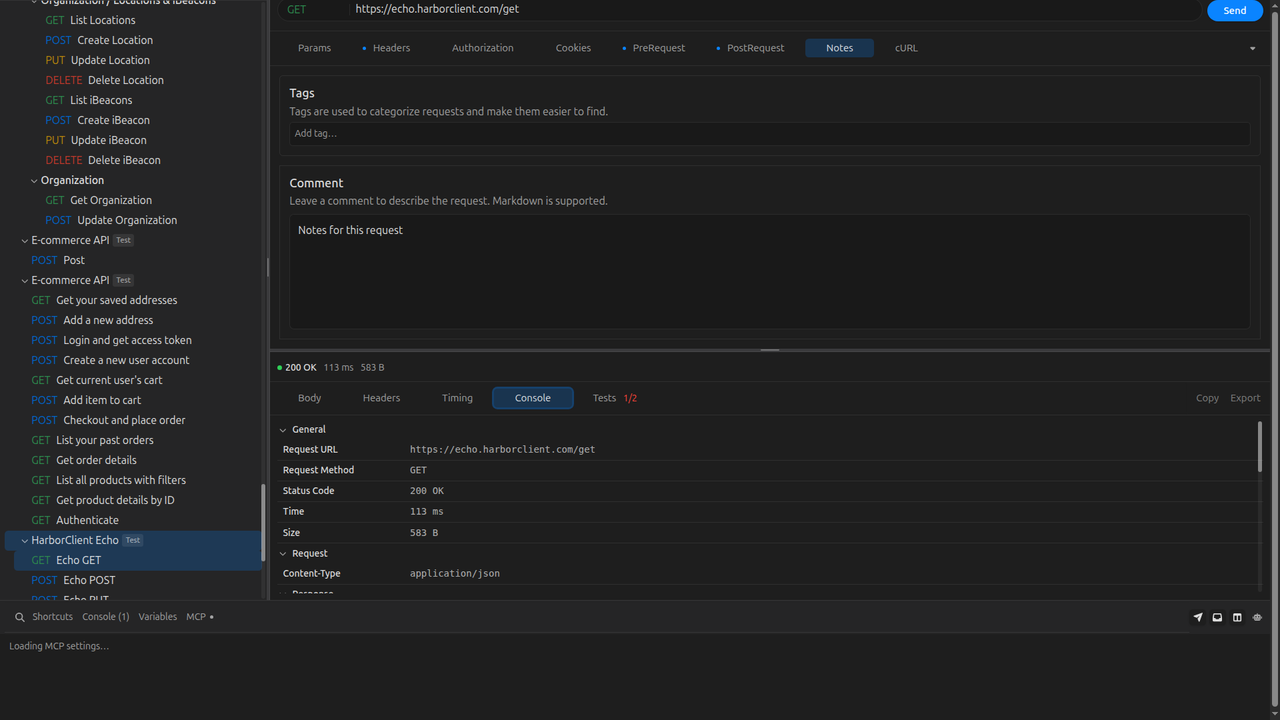
The Console is a session log of every request you send. Toggle it from the footer. Drag the top edge to resize it.
Each entry shows the method, URL, status, time, size, timestamp, and request or collection name. Entries are listed newest first. Expand an entry to inspect:
- Script errors
- Script
consoleoutput (log,error,warn, groups, tables, timers, and related methods) - Test pass/fail results
- Full request and response details (General, Request Headers, Payload, Response Body)
Click Clear to remove all entries. The Console is session-only — it does not persist across app restarts.
Tabs, collections, and saving

Tabs
- Open multiple requests in tabs at once. Each tab shows a method badge, request name, and a dirty dot when there are unsaved changes.
- Click + on the TabBar or choose File → New Request (Cmd/Ctrl+N) to open a blank tab.
- Click a saved request in the sidebar to open it in a tab. If the request is already open, HarborClient focuses that tab.
- Close a tab with the × button. If the tab has unsaved changes, HarborClient prompts before closing. Uncheck Warn when closing unsaved requests in Settings → General to close request tabs without prompting. See Settings — Unsaved changes and confirmations. Closing the last tab opens a new empty tab.
Saving
- File → Save Request or Cmd/Ctrl+S saves the active tab's request to a collection.
- If the request already exists in the collection, HarborClient updates it. Otherwise it creates a new saved request.
- Empty key/value rows in params and headers are stripped on save.
- A success toast confirms Request saved.
To create a request directly in a collection, use New Request from the collection row menu in the sidebar. HarborClient saves an Untitled Request and opens it in a new tab.
Environment selector
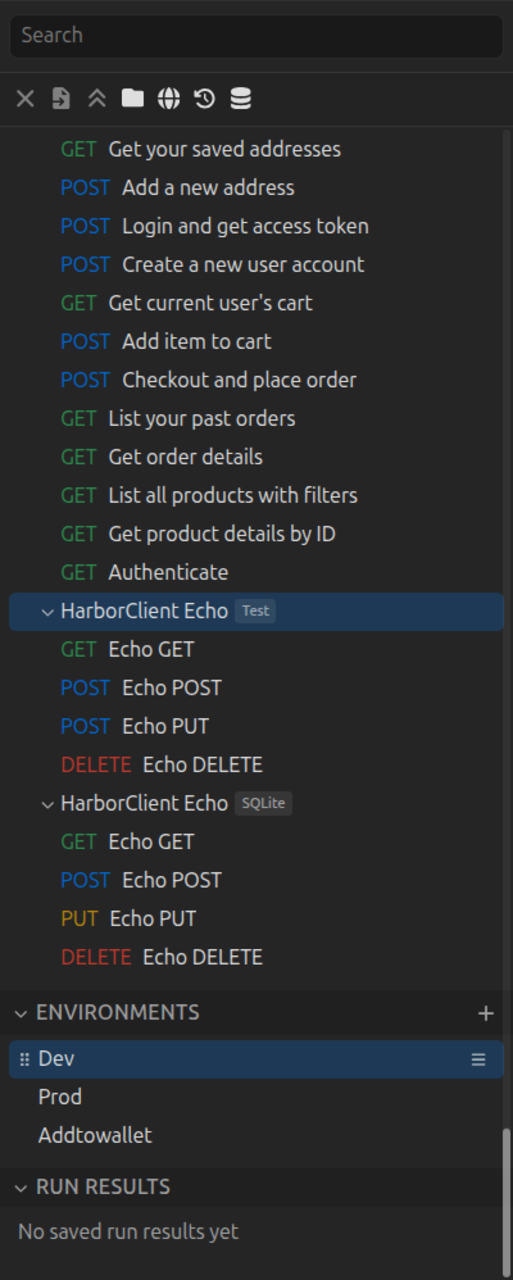
The Environments section in the left sidebar lists saved environments. Click an environment row to select it for all tabs; click the active row again to clear the selection (No Environment). The active environment persists across app restarts. See Environments for managing environment variables.
Keyboard shortcuts
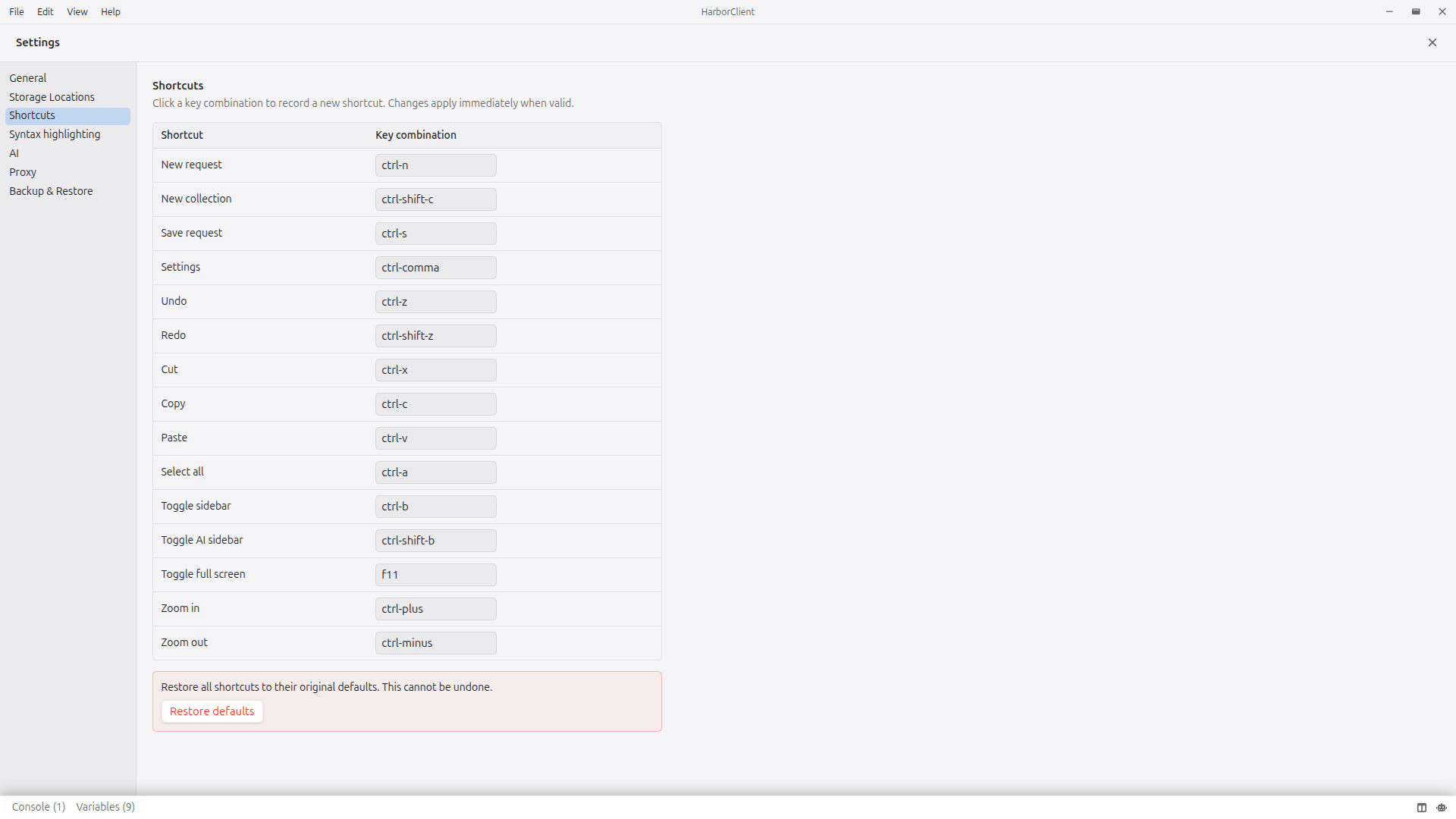
| Action | Shortcut |
|---|---|
| Send (when URL field is focused) | Enter |
| New request | Cmd/Ctrl+N (default; customizable in Settings → Shortcuts) |
| Save request | Cmd/Ctrl+S (default; customizable in Settings → Shortcuts) |
| New collection | Cmd/Ctrl+Shift+N (default; customizable in Settings → Shortcuts) |
| Settings | Cmd/Ctrl+, (default; customizable in Settings → Shortcuts) |
| Action menu | Cmd/Ctrl+Shift+P (default; customizable in Settings → Shortcuts) |
| Plugins | Alt+Shift+P (default; customizable in Settings → Shortcuts) |
Edit and View menu shortcuts (undo, copy, paste, zoom, full screen, and others) can also be changed under Settings → Shortcuts. See Action menu for global navigation and Search for sidebar, settings, and marketplace search.
Limitations
HarborClient does not currently support:
- OAuth or other interactive authentication flows
- Persisted request history beyond the session Console
- Changing query parameters or body type from scripts
GET and HEAD requests never include a request body.
What's next
- Cookies — manage the cookie jar across all domains (File → Cookies)
- Environments — create and switch between variable groups
- Request scripts — full
hcAPI reference, tests, and sandbox limits - Features — overview of collections, tabs, and local storage