
Storage
HarborClient stores collection data on infrastructure you choose — local SQLite by default, or remote databases, git repositories, and Team Hub servers when your team needs to collaborate. One desktop app presents a single sidebar; multiple storage backends can be mounted at the same time, each holding different collections, snippets, or run-result snapshots.
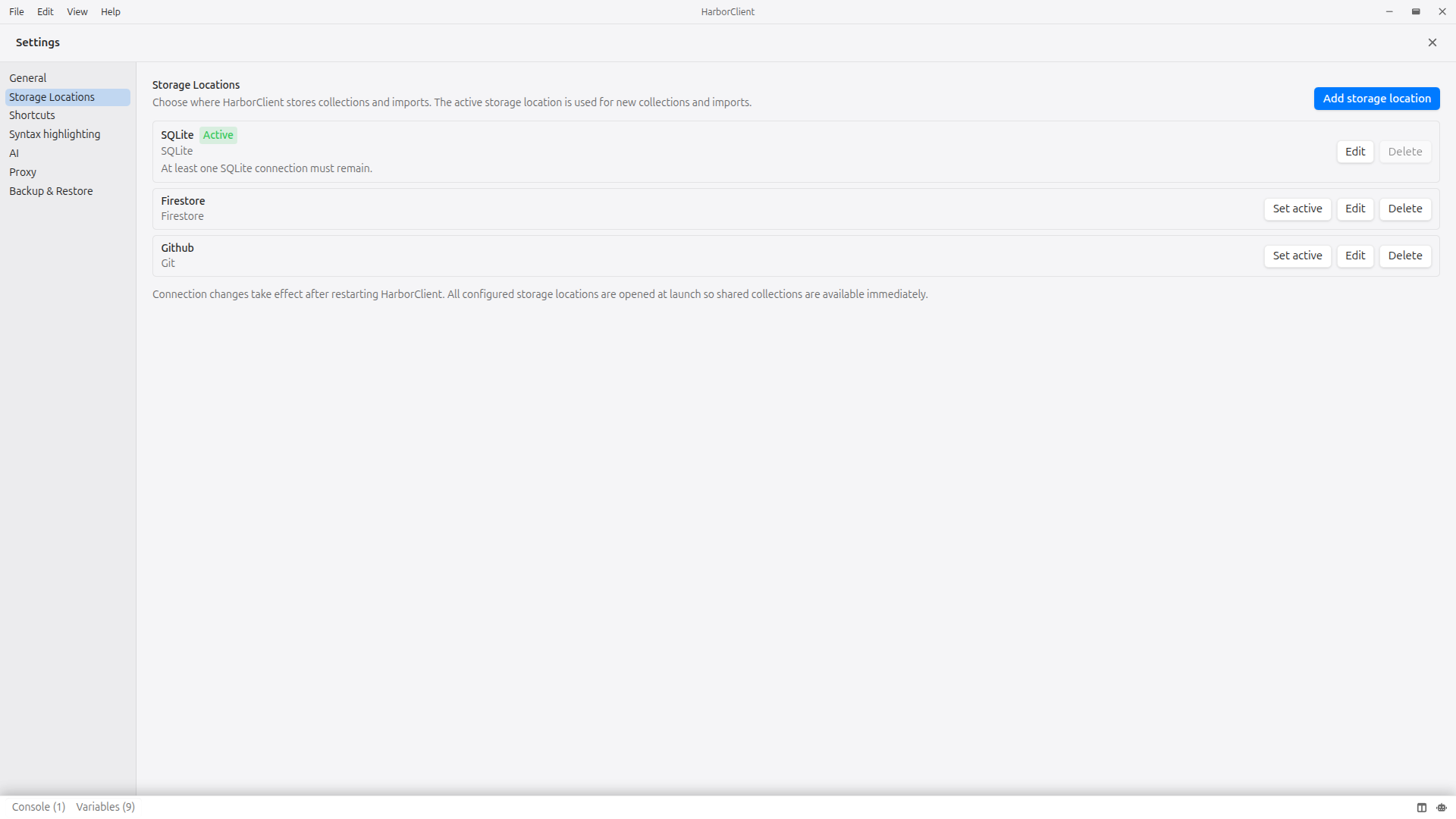
See Settings → Storage Locations for connection field reference, Git provider for version-controlled collections, and Team hubs for token-based sharing.
Why remote storage
Most API clients tie your collections to a vendor account and a hosted sync service. Teams pay per seat, secrets live on someone else's infrastructure, and leaving the platform means exporting what you can and rebuilding workflows elsewhere.
HarborClient takes a different approach:
- No required accounts — the desktop app is free; optional Team Hub infrastructure is self-hosted on your servers
- You choose where data lives — SQLite on disk, a database you operate, a git repo, or a Team Hub instance
- Collaboration on your terms — point teammates at the same backend, use git pull requests, join with encrypted share tokens, or connect to Team Hub with individual API tokens
Trade-offs for teams
HarborClient does not live-sync in the background. When several people share a remote storage location, changes from others appear when data is reloaded — for example after restarting the app, choosing File → Sync Storage, saving a Team Hub connection again, pulling a git-backed repo, or when the window regains focus for git connections. Plan for occasional refresh rather than real-time co-editing.
HarborClient keeps a hidden local registry that records which storage location owns each collection and snippet. Collection bodies, folders, and requests live in the mapped provider. Sidebar environments and connection settings always stay on your machine.
Storage types
| Type | Where configured | Best for |
|---|---|---|
| SQLite | Settings → Storage Locations | Solo work, offline-first, full control on one machine (default) |
| Firestore / MySQL / PostgreSQL | Settings → Storage Locations | Team shares one database directly; each teammate configures the same connection |
| Git | Settings → Storage Locations | Collections version-controlled in a repo with commit, pull, and push from the app |
| Team Hub | File → Team Hub | Token-based sharing without handing every teammate database credentials |
SQLite is the default. At least one SQLite connection must always remain; it cannot be deleted while it is the last SQLite connection.
Remote databases (Firestore, MySQL, PostgreSQL) store collection data on a server your team operates or trusts. Multiple HarborClient instances can point at the same database to share collections and saved requests.
Git writes collection files under a configurable subdirectory (default .harborclient/) inside a local repository clone. See Git provider for file layout, authentication, and the Git sidebar.
Team Hub is a separate connection type — not listed under Settings → Storage Locations. Each hub is a named URL plus a bearer API token (hbk_…). HarborClient syncs collections through the hub's HTTP API. See Team hubs for setup, admin tokens, and sync behavior.
How storage works
Active storage location
One connection is marked active (shown with a Default badge in Settings). The active storage location is used for new collections and imports when you do not pick another provider in the create dialog.
Use Set active in Settings → Storage Locations to change which connection is default. Deleting the active connection promotes another connection to active after restart.
All connections mount at launch
HarborClient opens every configured storage location and Team Hub at startup, not only the active one. Collections from shared remote databases, git repos, and hubs appear in the sidebar immediately without switching the default.
Connection definition changes (add, edit, delete, set active) take effect after restarting HarborClient.
Discover collections
When you add a storage location that already contains collections on the server or in a git tree, HarborClient may prompt you to discover and register them in the sidebar. Select which collections to add or skip discovery for that connection.
Storage location badges
Use the sidebar toolbar Storage location badges toggle to show or hide a badge on collection and run-result rows whose provider is not your active storage location. Badges help distinguish local collections from shared remote or hub-backed ones.
Adding storage locations
Database and git connections
Open File → Settings → Storage Locations (or Cmd/Ctrl+, then Storage Locations).
| Step | Action |
|---|---|
| 1 | Click Add storage location |
| 2 | Enter a Name and choose a Type (SQLite, Git, Firestore, MySQL, PostgreSQL). The type cannot be changed after creation. |
| 3 | Fill in type-specific connection fields. See Settings → Storage Locations for field tables. |
| 4 | Click Save |
| 5 | Restart HarborClient when prompted so the new connection mounts at launch |
| 6 | If HarborClient finds existing collections, use the Discover collections modal to register them in the sidebar |
| Action | Description |
|---|---|
| Set active | Mark a connection as the default for new collections and imports |
| Edit | Change name and connection details (type is fixed) |
| Delete | Remove a connection. The last remaining connection and the last remaining SQLite connection cannot be deleted |
Team Hub
Team hubs are added under File → Team Hub, not in Settings.
| Step | Action |
|---|---|
| 1 | Click Add team hub |
| 2 | Enter a Name, Team hub URL, and API token (hbk_…) |
| 3 | Click Save |
On success, HarborClient mounts the hub and syncs collections your token can access into the sidebar. See Team hubs for prerequisites, admin tokens, and user management.
Join a shared collection
Instead of configuring a remote database manually, a colleague can send you an encrypted share token that bundles storage credentials and a collection mapping.
| Step | Action |
|---|---|
| 1 | Sidebar + or File → New Collection |
| 2 | Join shared collection tab → paste the token → Join |
| 3 | Restart HarborClient |
The new connection appears under Settings → Storage Locations and the shared collection appears in the sidebar. Share tokens work only for remote database collections (Firestore, MySQL, PostgreSQL), not SQLite or git. See Collections → Sharing collections and Sharing Keys.
Choosing storage per entity
Not every kind of data can be assigned to a storage location. The table below summarizes where each entity lives and how you choose its provider.
| Entity | Assignable? | How to choose storage |
|---|---|---|
| Collections | Yes | Create or move (see below) |
| Snippets | Yes | Snippet edit modal |
| Run results | Yes, at save time | Collection runner Save modal |
| Environments | No — always local | Sidebar environments stay on each machine; use export/import to hand off |
| App settings | No — always local | Settings, layouts, and connection definitions |
Collections
| Action | UI path |
|---|---|
| Create | Sidebar + or File → New Collection → Create new → Storage location dropdown |
| Move | Collection Settings → General → Provider (same concept; Collection Settings labels the field Provider) |
| Default | Active storage location when you do not change the dropdown |
Moving a collection copies its folders and requests to the target provider and updates the sidebar entry. When the source is a Team Hub, the original collection remains on the server for teammates. When the source is SQLite or a remote database, HarborClient deletes the source copy after a successful move. See Team hubs → Moving and deleting collections.
Imports always land on the active storage location unless you create a collection on another provider first.
Snippets
Reusable script snippets can live on any provider that supports snippet storage.
| Action | UI path |
|---|---|
| Create or edit | File → Snippets or Settings → Snippets → add or edit → Storage location in the modal |
| Move | Change Storage location when editing an existing snippet |
Team Hub connections that do not expose snippet routes are omitted from the picker. Admin-token hub connections are never used for snippet storage. See Using snippets and Request scripts.
Run results
After a collection or folder run completes, persist a snapshot to a storage location:
| Step | Action |
|---|---|
| 1 | Open the runner from a collection or folder row menu → Run |
| 2 | When the run finishes, click Save in the runner toolbar |
| 3 | Choose Storage location in the Save run results modal → Save |
Saved run results appear in the sidebar Run results section. Rows can show storage location badges when enabled.
When you save to a Team Hub, HarborClient stores the snapshot on the server and can generate a deep link you copy from the runner to share with teammates.
Export and Import in the runner toolbar produce portable .json files that are not tied to a storage location — useful for archives and one-off handoffs. See Collections → Running collections.
Environments
Sidebar environments are not assignable to a storage location. Every HarborClient instance keeps its own environment list in a hidden local database, even when collections live on a shared remote database or Team Hub.
To hand off variable groups between machines or teammates:
- Export / Import environment
.jsonfiles (Environments) - For git-backed workflows, commit environment files under
.harborclient/environments/in the repository (Git provider → File layout) — this is separate from the sidebar environment list
Team hubs do not share sidebar environments through HarborClient. See Team hubs → Limitations.
Syncing and collaboration
Sync Storage
Choose File → Sync Storage to refresh all mounted database connections and user-token Team Hubs. A progress modal shows each provider and reports success or errors per connection.
Use sync after teammates change shared collections, or when you want to pull the latest hub catalog without restarting.
When teammate changes appear
| Backend | Typical refresh trigger |
|---|---|
| Remote database | App restart, Sync Storage |
| Team Hub | App launch, hub save, Sync Storage, user access changes on server |
| Git | Pull in the Git sidebar, external git pull, file watcher, window focus |
| Share token join | Restart after joining |
There is no background polling. Concurrent edits on shared backends are last write wins; HarborClient does not merge conflicting changes.
Sharing options compared
| Approach | Best for |
|---|---|
| SQLite / local | Solo work, offline-first |
| Remote storage (Firestore, MySQL, Postgres) | Team shares one DB; each person configures the same connection |
| Encrypted sharing | One-step handoff of credentials plus one collection |
| Git provider | Reviewable diffs, branches, and PRs in a repo |
| Team hubs | Token-based access without sharing DB credentials per teammate |
See Team hubs → Team hubs vs other sharing options for a detailed comparison including share tokens vs hubs.
Security
Storage connection credentials (database passwords, Firestore auth, git tokens) are stored locally on your machine. Git tokens and similar secrets use encrypted secret storage when the OS keychain is available.
Share tokens embed remote storage connection credentials. Treat them like secrets and share only over trusted channels. Recipients should restart HarborClient after joining.
Backups (.hcb files) include connection definitions and may include secrets in readable form inside the archive. Store backup files securely. See Settings → Backup & Restore.
For the full security policy, see the HarborClient SECURITY.md on GitHub.
What's next
- Settings → Storage Locations — connection types and field reference
- Collections — create, move, import, export, and sharing
- Team hubs — Team Hub setup, sync, and administration
- Git provider — git file layout, Git sidebar, and Git menu
- Environments — local variable groups and export/import
- Sharing Keys — keys and trusted collaborators for encrypted sharing
- Using snippets — snippet library and storage location moves