
Features
HarborClient is the developer’s API workbench: a desktop HTTP client for building and sending requests, inspecting responses, organizing collections and environments, and extending the tool with scripts, plugins, and themes. Collaboration through Git, shared storage, and Team Hub is available when you need it. Built-in search and the action menu help you jump to any request, setting, or plugin from anywhere in the app.
Request builder
The request editor is the center of HarborClient. Choose an HTTP method, enter a URL, and configure query params, headers, body (none, JSON, or plain text), and authorization (None, Basic, Bearer, or OAuth 2.0 Client Credentials). Each request also has access to a per-host cookie jar for session management.
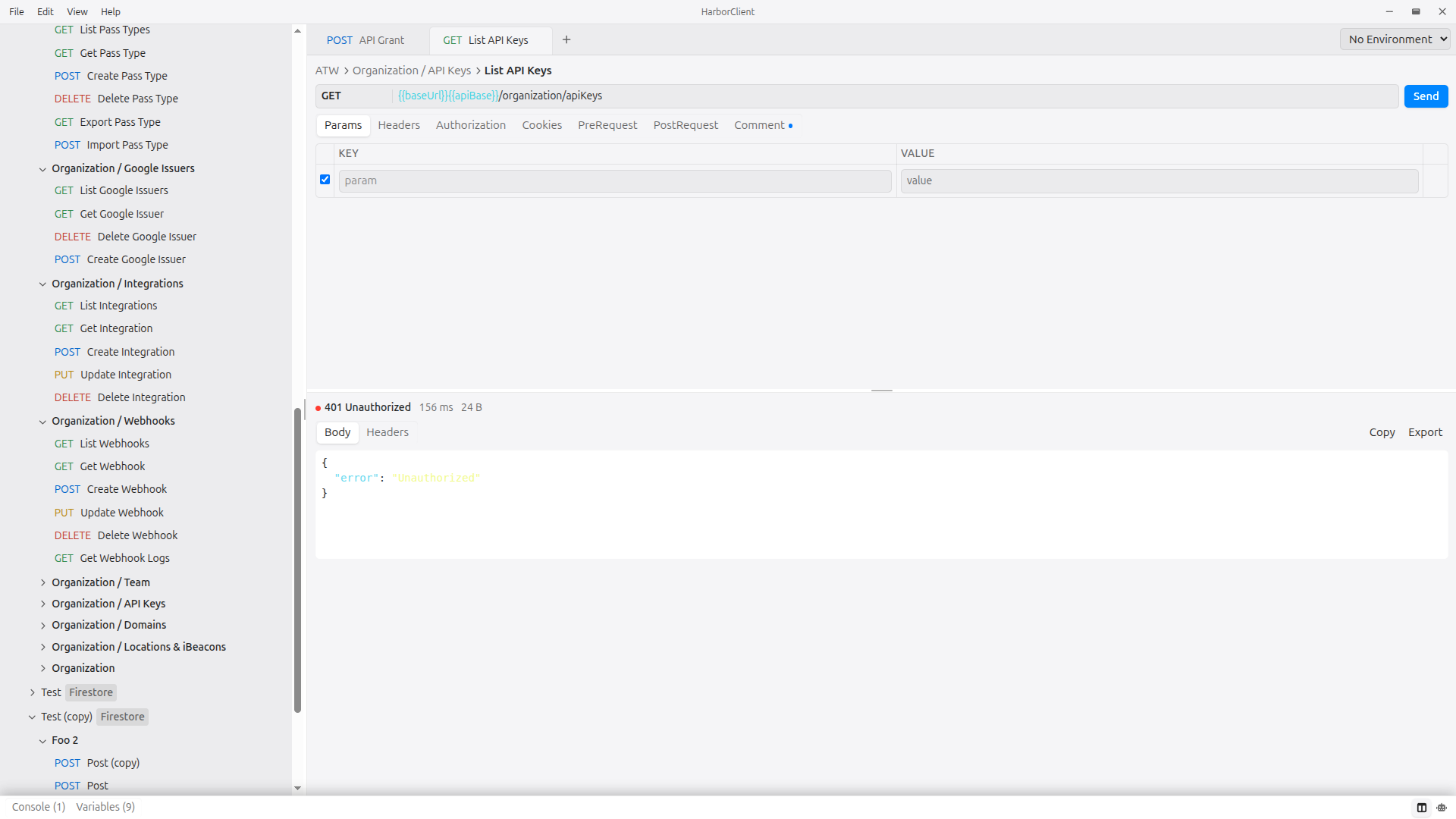
See Making requests for the full guide to editor tabs, variables, and sending.
Cookies
HarborClient persists cookies by hostname so sessions survive across requests. Edit cookies from the request editor's Cookies tab or manage every domain from File → Cookies. Responses that include Set-Cookie headers update the jar automatically.
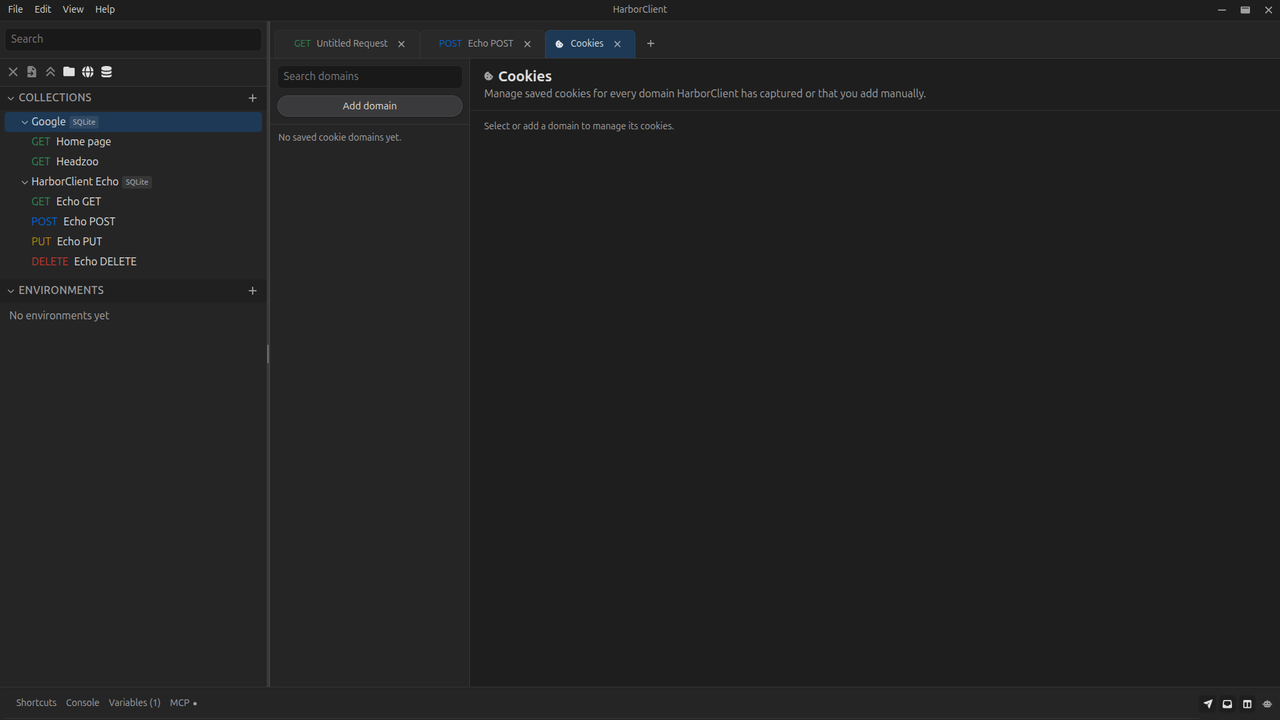
See Cookies for jar behavior, domain management, and capture rules.
HTTP methods
HarborClient supports the standard HTTP verbs: GET, POST, PUT, PATCH, DELETE, HEAD, and OPTIONS. The method selector sits beside the URL bar; body and certain editor tabs adjust automatically based on the method you choose.
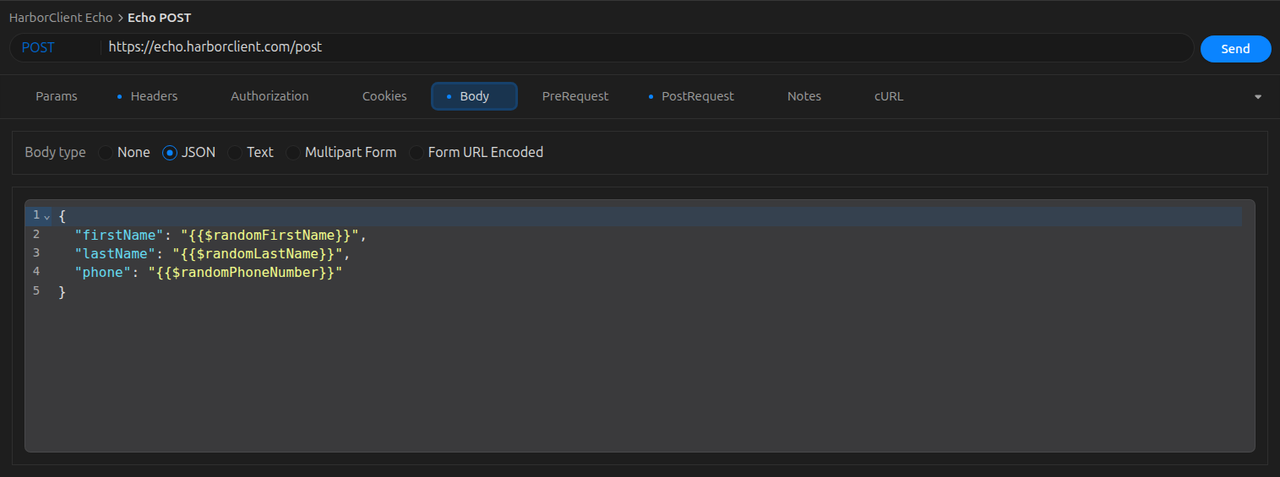
See Making requests for method-specific behavior and keyboard shortcuts.
Command line
The same harborclient binary that opens the desktop app also sends ad-hoc HTTP requests and runs saved collections or workflows from the terminal — for example harborclient GET https://echo.harborclient.com.
See Command line for usage, options, exit codes, collection runs, and workflow runs.
Response viewer
After you send a request, the response panel below the editor shows status code, timing, size, response headers, and body. JSON responses are pretty-printed for readability. The active tab's response is always what you see in the panel.
Right-click a response tab to split the panel left, right, up, or down so you can compare two views (for example Body and Timing) at once. Move more tabs into the secondary pane with the same split action, or Unsplit a tab to return it. The split layout is remembered across requests and restarts.
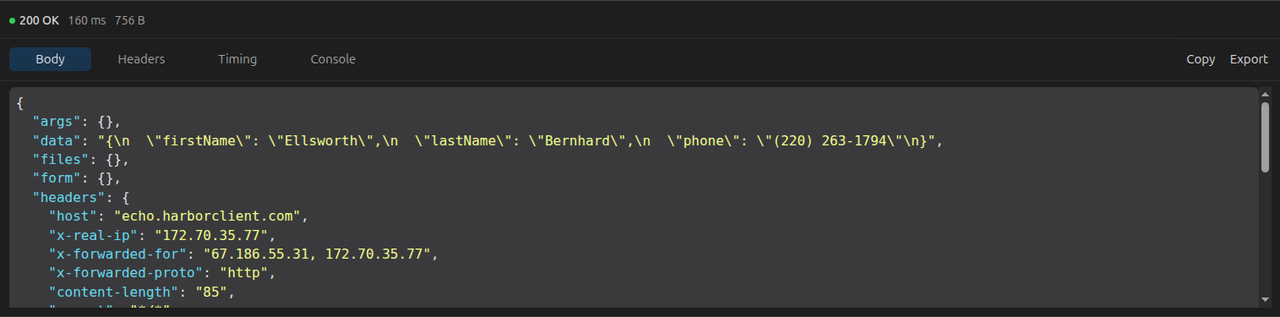
See Making requests — Reading the response for tabs, splitting, copying, and inspecting responses.
Snippets
HarborClient stores reusable JavaScript blocks in an app-wide snippet library under File → Snippets. Reference a snippet from any collection or request PreRequest or PostRequest script list with Snippet library... instead of duplicating code. Snippet rows are live pointers — editing the library updates every request that references them on the next send.
Chain multiple steps in a single request stage by adding several scripts to the same list: mix inline scripts and snippet references, drag to reorder, and enable or disable individual rows. Scripts run top to bottom (up to 64 per request stage), and variables or request changes from earlier steps are available to later ones. Collection scripts run before request scripts in each request stage.
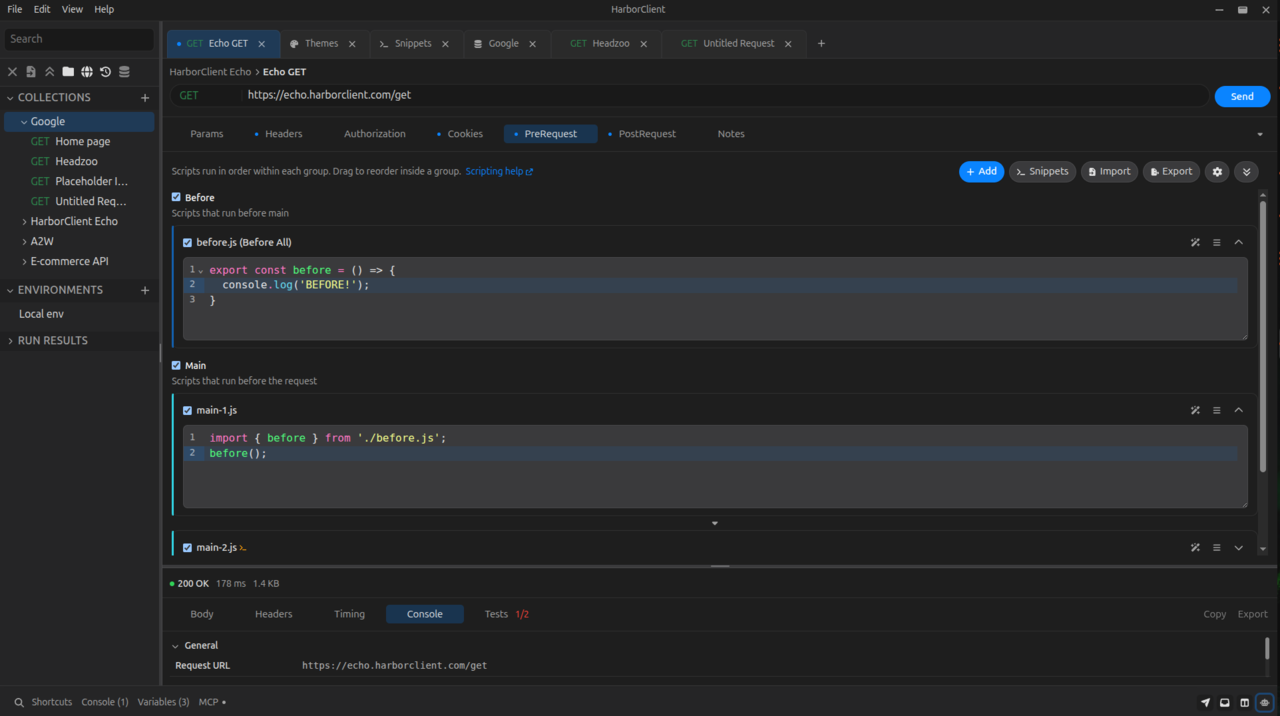
See Request scripts for the hc API, execution order, and script limits, and Using snippets for the snippet marketplace and library management.
Collections
Collections are named groups of saved HTTP requests. Create, rename, and delete collections from the sidebar; organize requests into nested folders and inherit shared variables, headers, authorization, and script lists at the collection level.

See Collections for the sidebar guide, folders, collection settings, color coding, and workspaces.
Live pages
Save embedded browser sessions in the sidebar Live pages section. Each live page keeps a home URL, optional variables, headers and authorization for chrome-driven navigations, pre/post sandbox scripts, and page injection scripts. Open a live page to browse in HarborClient, or configure it from Live Page Settings.
See Live pages for the sidebar guide, browser chrome, and settings tabs.
Live servers
Serve a local folder over HTTP or HTTPS from the sidebar Servers rail. Each live server has a document root, optional port, bind host, open path, index files, path aliases, response headers, CORS, optional SSL, and file-watch reload. Start a server to open it in a Live Page; use the footer panels to edit settings or stream access logs. The same rail includes Server Logs, which lists a retained session for each start so you can reopen logs after stop.
See Live servers for create/edit (General, Headers, CORS, SSL), aliases, Server Logs, and how saved configs relate to running instances.
Workflows
Record a session of HarborClient activity — loading and sending requests, editing drafts, switching environments, and more — then replay it from the sidebar or run it headlessly from the CLI. Use workflows for multi-step demos, env smoke checks, and script-driven branching during playback.
See Workflows for recording, editing, results export, CLI usage, and hello-world recipes.
Sidebar color coding
Assign colors to collections, folders, requests, markdown documents, environments, and workspaces from each row's Set color menu action. Colors appear as dots beside item names and are included in exports and full backups. See Collections — Color coding.
Workspaces
Save named sets of open saved request tabs in the sidebar Workspaces section so you can reopen related workflows together. Create a workspace from open tabs with File → New Workspace (also captures layout, theme, and active environment), open a workspace with one click to restore tabs and that UI snapshot, and edit membership, order, and visibility from the workspace row menu.
See Collections — Workspaces for creating, editing, exporting, and deleting workspaces.
Storage locations
Collections, requests, and environments live in pluggable storage locations. Use SQLite locally or connect to remote engines such as Firestore, MySQL, or PostgreSQL. You can even use Git. Each location is configured independently under Settings → Storage.
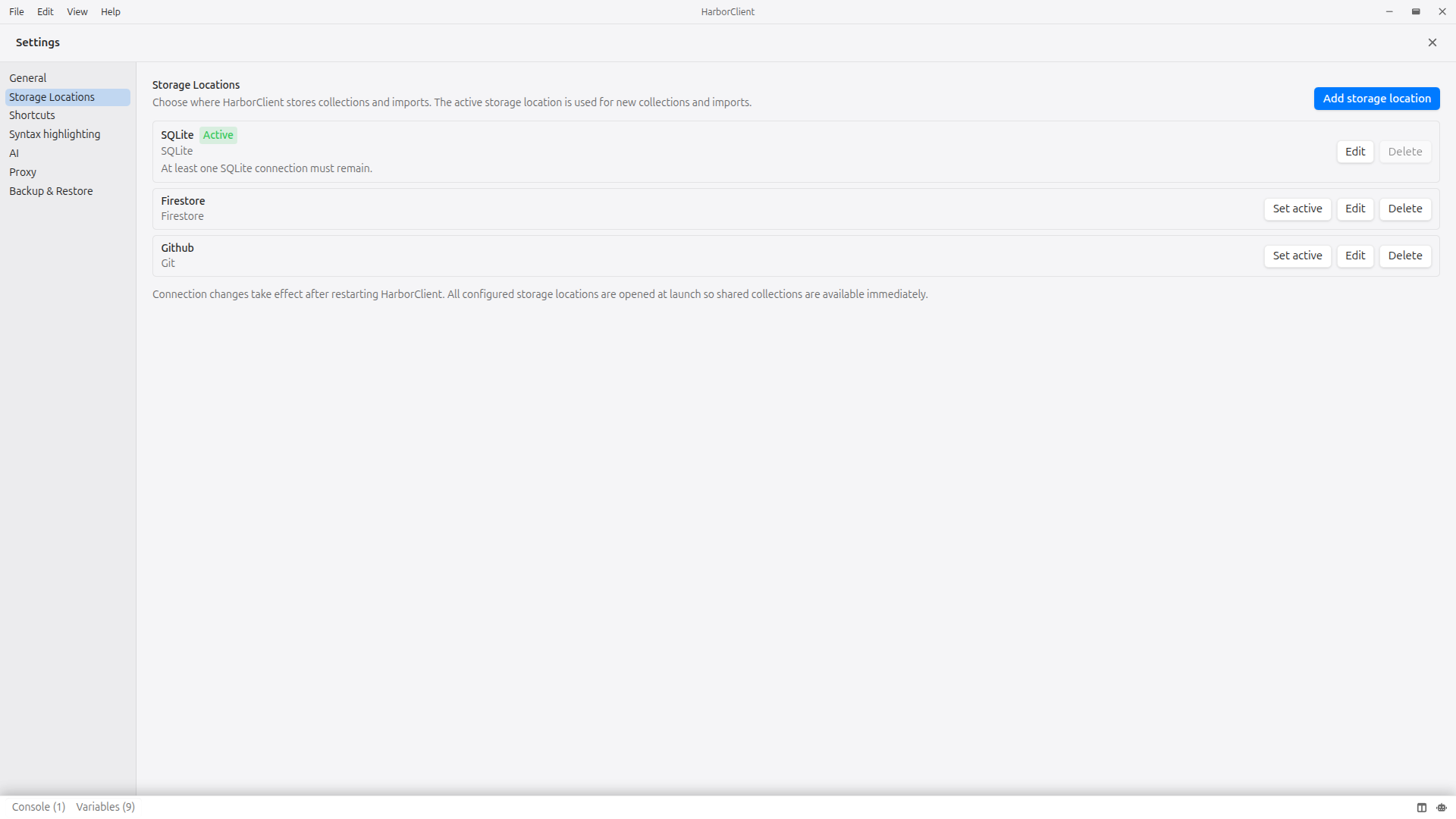
See Storage for why remote storage matters, storage types, and how to assign collections and other data to specific locations. See Settings for connection field reference.
Team Hub
Connect HarborClient to a self-hosted HarborClient Team Hub instance for token-based shared collections without manual storage setup for every teammate. Hub connections appear alongside local and remote storage locations in the sidebar. On hub-backed work, the Discuss tab hosts threaded team discussions on requests, collections, folders, and run results.
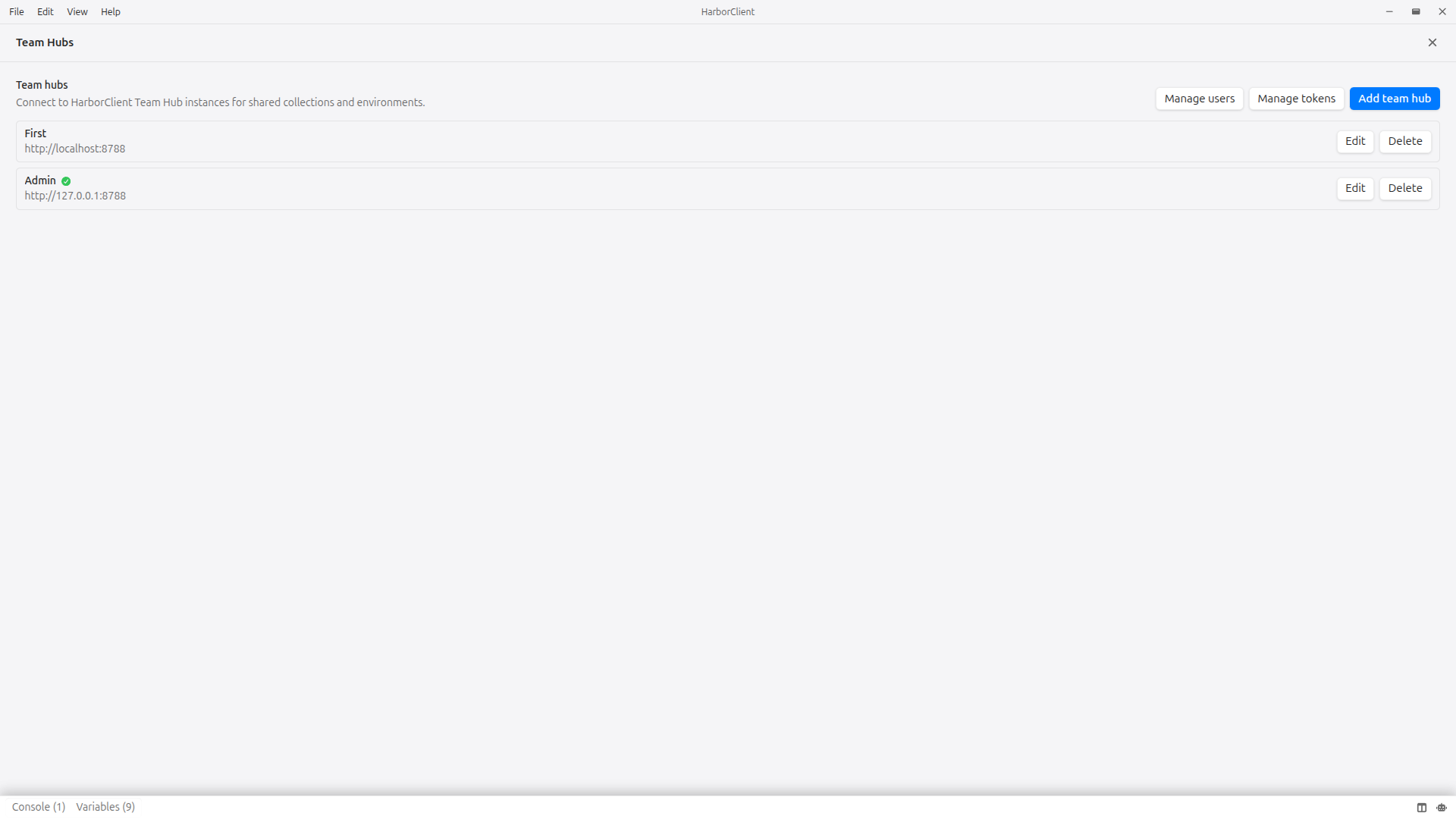
See Team Hub for setup, user management, sync behavior, and discussions.
Team collaboration
Point multiple HarborClient instances at the same remote storage location to share collections and saved requests across your team. Sidebar environments stay local on each machine. For live remote collections, signed and encrypted share tokens use RSA keys you manage under File → Sharing Keys.
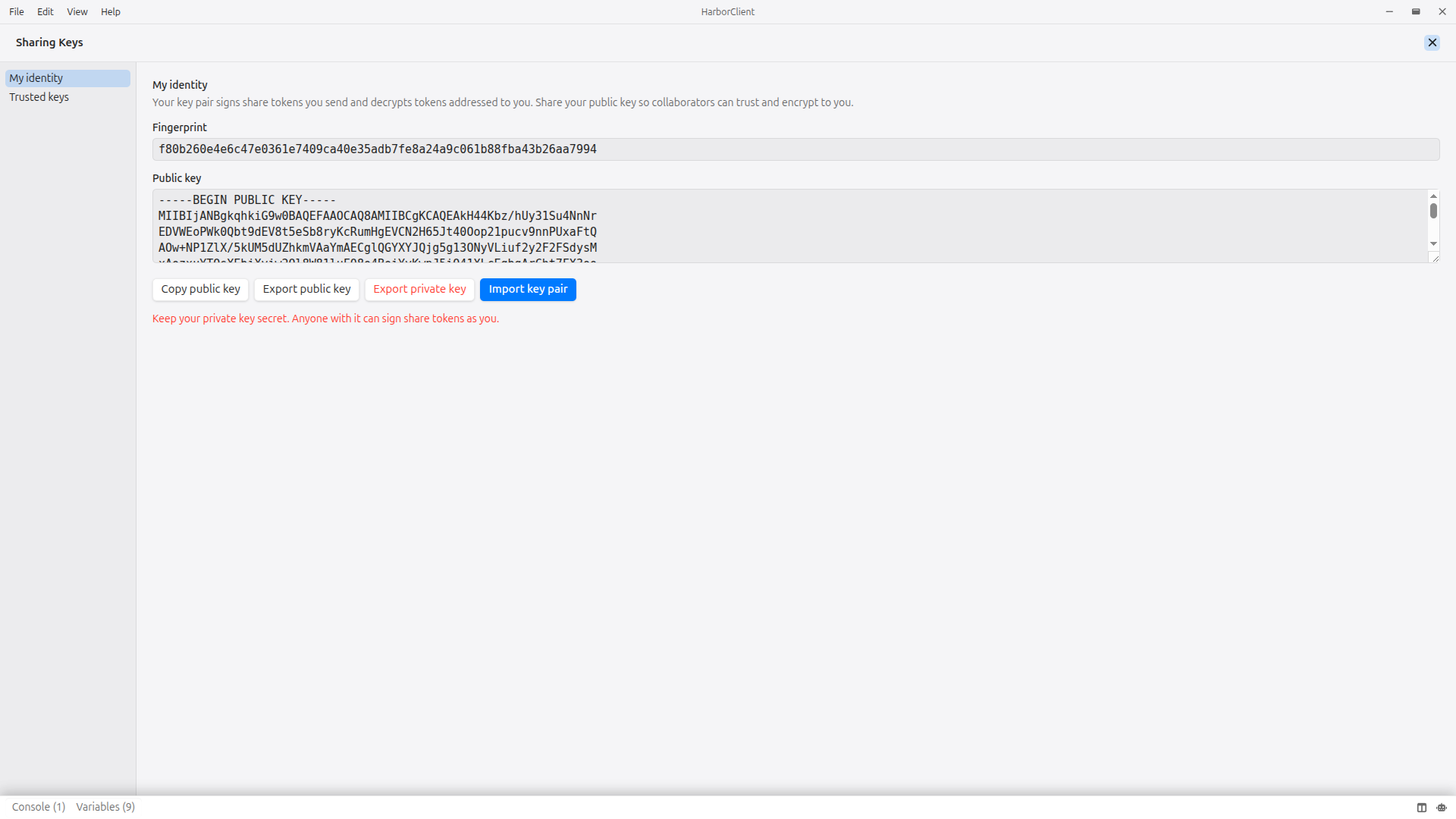
See Storage for collaboration options and Sharing Keys for identity, trusted keys, and collection shares.
AI assistant
Chat with OpenAI, Claude, or Google Gemini using your own API keys — or use models provided by a connected Team Hub. The assistant can inspect collections, send requests, read responses, and query JSON bodies with JMESPath.
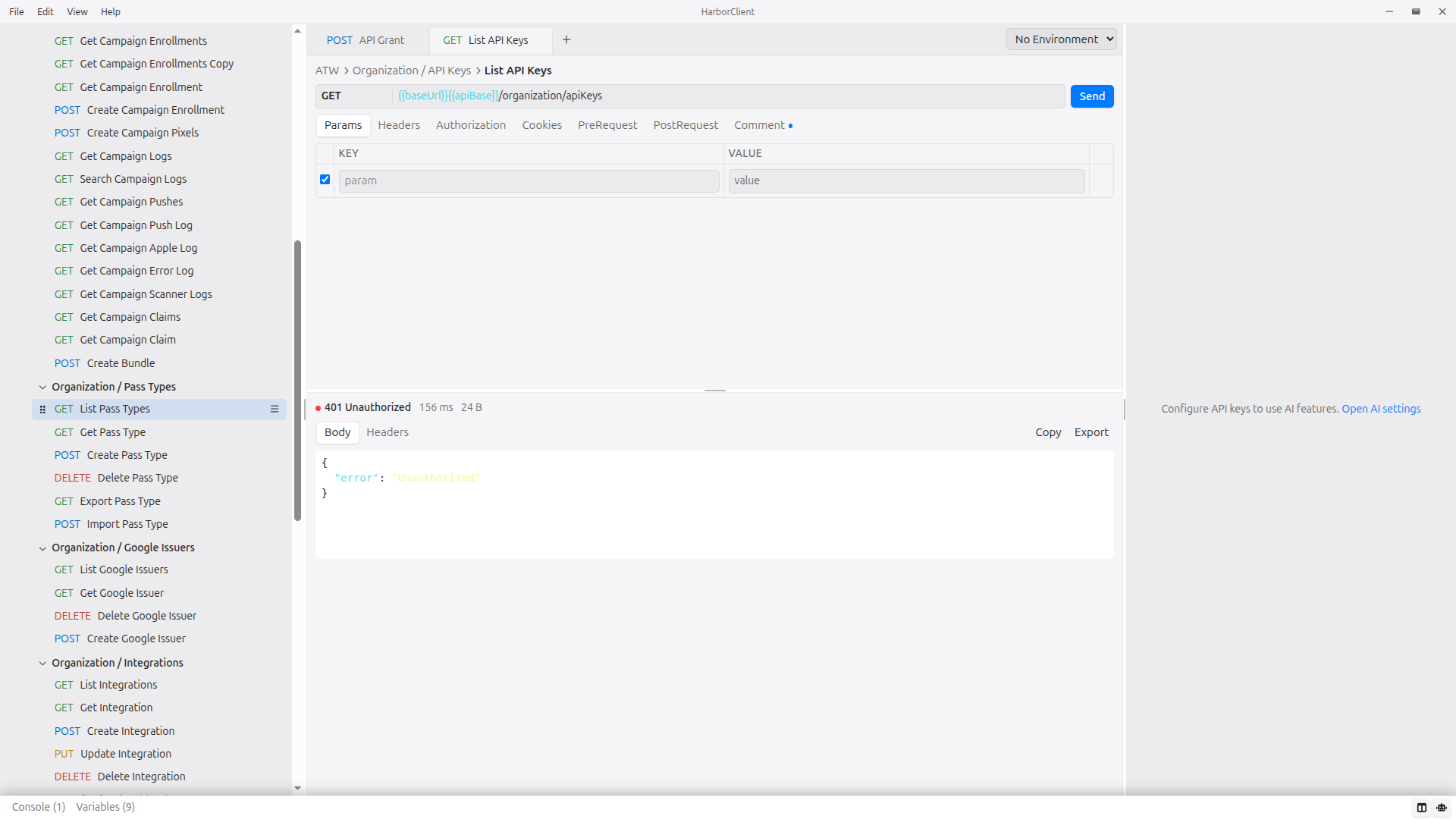
See AI assistant for provider setup, model selection, and tool behavior.
Plugins
Extend HarborClient with installable .hcp packages or load unpacked plugins during development. Plugins can add custom settings panels, HTTP hooks, sidebar panels, and persistent storage. Browse the plugin marketplace or manage installs under File → Plugins.
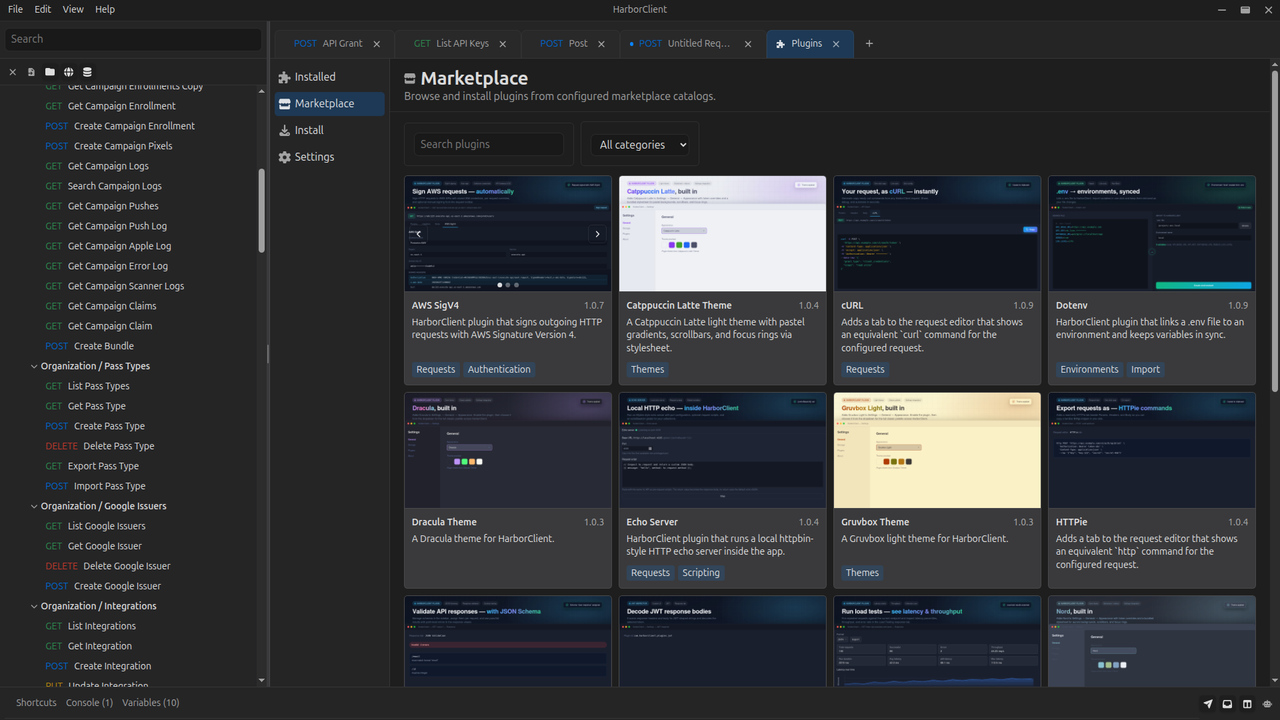
See Using plugins for installation and Plugin development for building plugins.
Themes
Install appearance themes as plugin packages with categories: ["themes"] in the manifest. Themes use the same marketplace and install flow as plugins, managed under File → Themes.
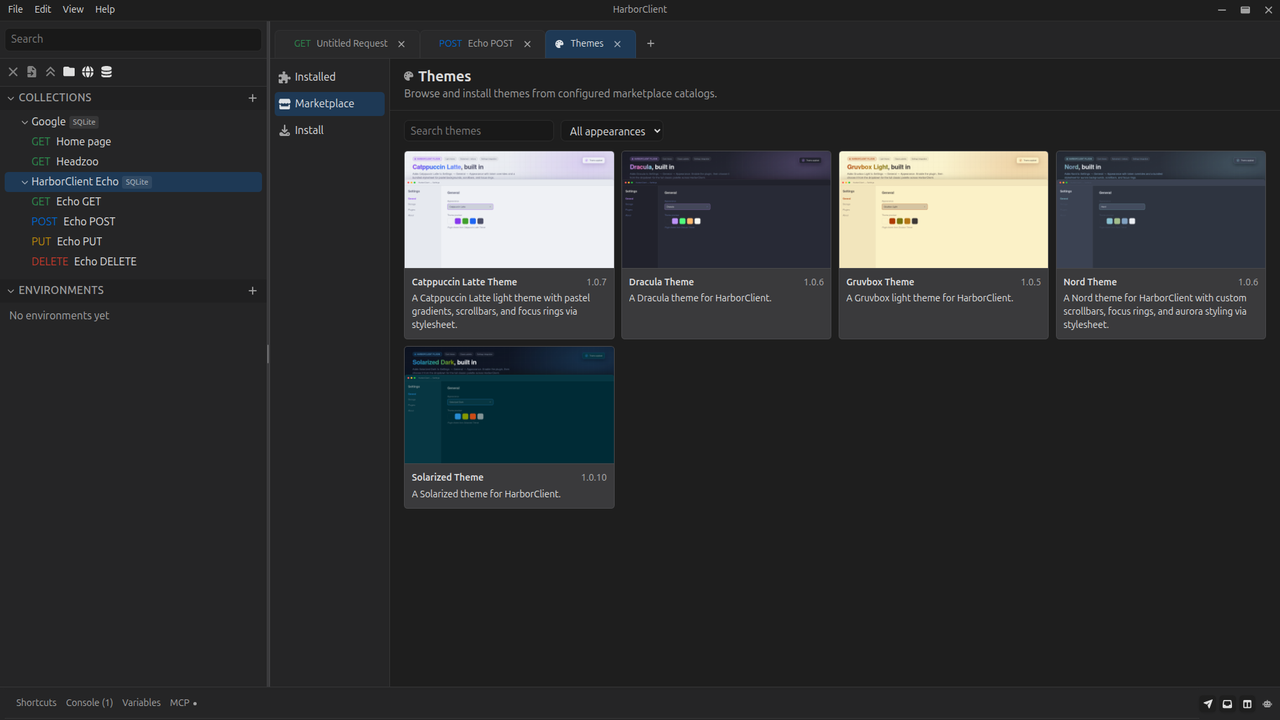
Browse the theme marketplace or see Using themes to install and manage themes.
Search and actions
Jump to collections, requests, environments, settings, plugins, and themes from the global Action menu (Cmd/Ctrl+Shift+P). Filter in place with sidebar search, settings search, and marketplace or installed search on the Plugins and Themes pages.
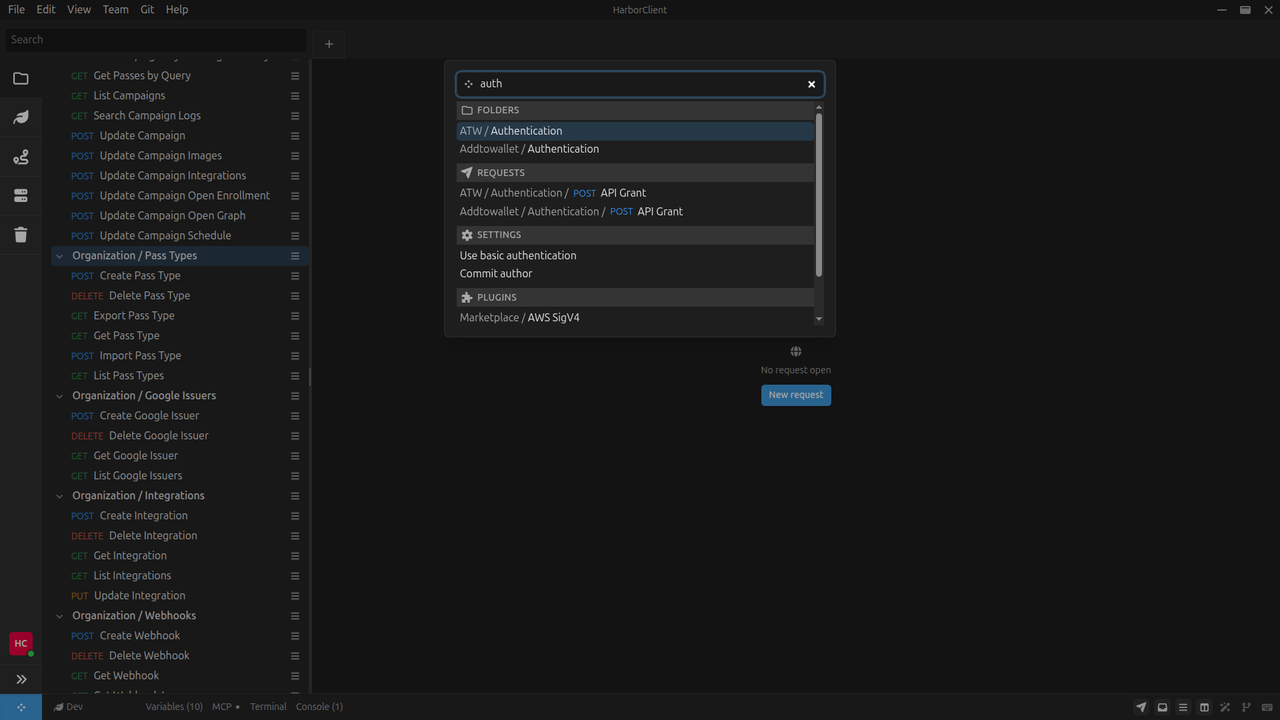
See Action menu for global navigation and commands, and Search for focused search surfaces.