
AI assistant
HarborClient includes a built-in AI sidebar for working with your API requests. Chat with models from OpenAI, Claude, or Google Gemini using your own API keys, or use models provided by a connected Team Hub. When a hub offers a model, HarborClient prefers the hub and never sends you the server-side provider keys.
API keys are encrypted and stored locally on your machine. HarborClient uses the OS keychain when available; on systems without Secret Service support it falls back to a local encryption key in your application data directory. On Linux, OS-backed encryption typically requires GNOME Keyring or KWallet to be running.
API keys
Before you can chat with personal models, add at least one provider API key:
- Open File → Settings (or Cmd/Ctrl+,).
- Select the AI section in the settings sidebar.
- Enter one or more keys:
- OpenAI API key
- Claude API key
- Google Gemini API key
- Click Save.
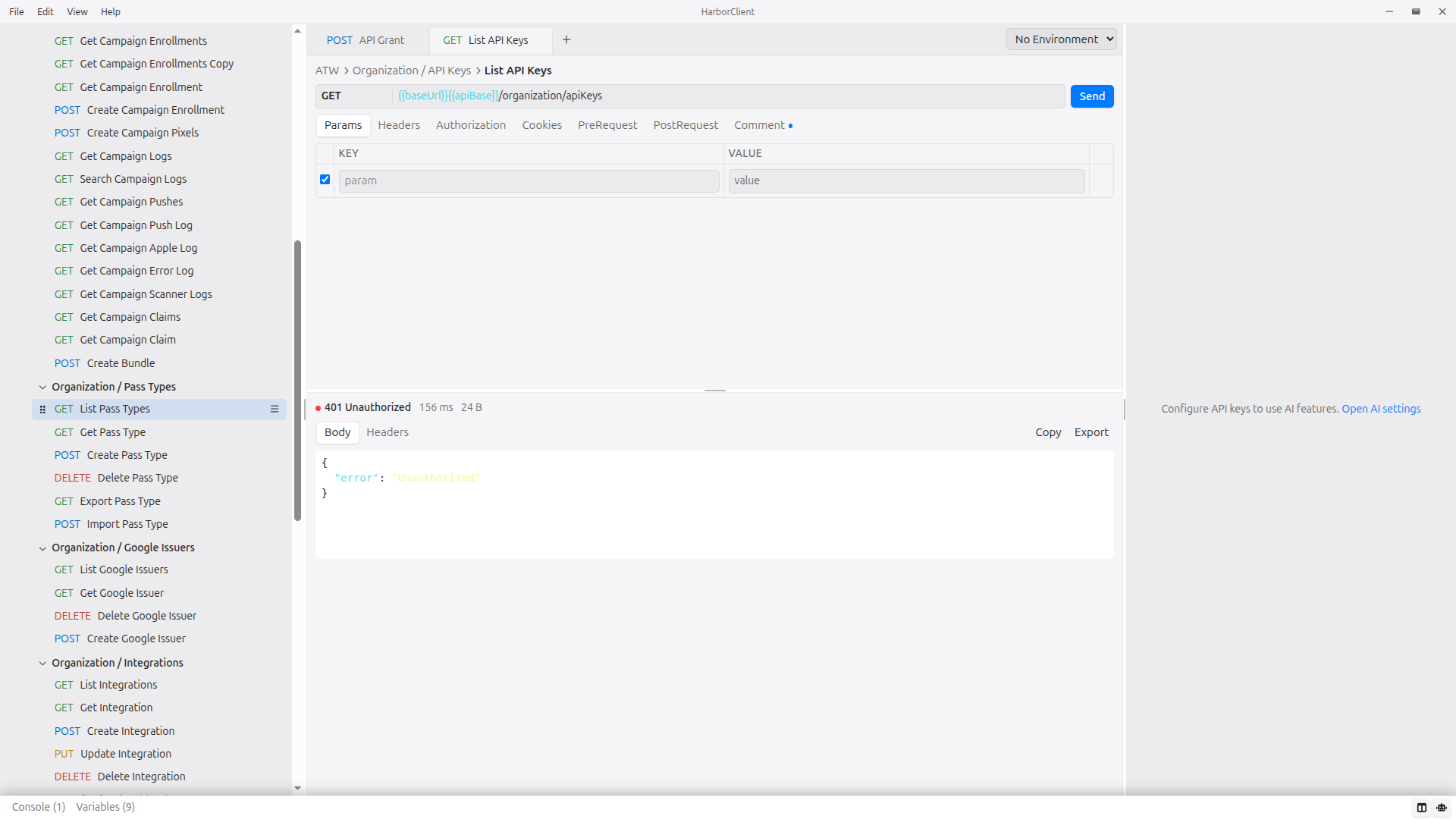
If you open the AI sidebar before any keys or Team Hub models are available, click Open AI settings in the prompt to jump straight to the AI section.
Only available models appear in the chat model picker. Labels show whether a model uses Team Hub or Personal keys. Supported models:
| Model | Provider |
|---|---|
| GPT-4o | OpenAI |
| GPT-4o Mini | OpenAI |
| Claude 3.5 Sonnet | Claude |
| Claude 3.5 Haiku | Claude |
| Gemini 1.5 Pro | Google Gemini |
| Gemini 1.5 Flash | Google Gemini |
See Settings → AI for key storage details.
Opening the AI sidebar
Show or hide the AI panel from:
- View → AI in the menu bar
- The robot button in the footer (Show/Hide AI sidebar)
Your sidebar visibility preference persists across app restarts. The AI sidebar is hidden while Settings, Team Hub, or Sharing Keys are open.
Using chat
The AI sidebar provides a tabbed chat panel. Use the controls in the chat tab bar and composer to manage conversations.
| Action | How |
|---|---|
| New chat | + button in the chat tab bar |
| Open previous chat | History button (clock icon) → select a chat |
| Close tab | Close button on the tab (the chat remains in history until deleted) |
| Delete chat | History menu → Delete |
| Choose model | Model dropdown in the composer (per chat) |
| Send message | Send or Enter (Shift+Enter for a newline) |
Chats and messages are stored locally in the local database. New chats start as New Chat; the tab title updates from your first message. Open tabs and the active selection persist across restarts. While the model is working, the UI shows Thinking…; errors appear inline below the composer.
Inline /ask in script editors
While editing JavaScript in a pre- or post-request script, type /ask for quick AI help without opening the sidebar. The model replaces the entire /ask line with a short answer — either // comment lines or executable JavaScript — so the command is not left in the script at send time.
Where it works
- Expanded inline script editors in request PreRequest and PostRequest tabs
- The same inline editors in collection settings PreRequest and PostRequest tabs
- Requires AI to be configured — a personal API key or a connected Team Hub with LLM models (same gate as the Ask AI wand button)
- Not available on snippet-linked rows, which show read-only snippet source; use the Ask AI wand or an
@script reference on those rows instead
How to use
| Input | Behavior |
|---|---|
/ask on its own line | Opens a small anchored dialog. Type a short question, choose a model, then Send or Enter (Shift+Enter for a newline). Stop cancels an in-flight request. Escape or click outside dismisses the dialog and removes the /ask line. |
/ask followed by a question on the same line | Runs immediately. The line shows Thinking… until the answer is applied. |
You can also pick /ask from the editor slash-command menu when AI is available.
What you get back
- Explanations — one or more
//comment lines inserted in place of the/askline - Code or examples — JavaScript that replaces the
/askline, using thehcAPI (not Postmanpmsyntax) - Errors — shown inline in the dialog, or as a toast when you used inline
/ask questionmode
Model selection
Script /ask requests use a separate model preference from sidebar chats. HarborClient picks the last model you used for a successful /ask request, then falls back to the active sidebar chat model, then the first available model. The modal includes a model dropdown when you need to override the default.
Examples
Pre-request script:
/ask How do I set a request header?Post-request script:
/ask Write a test that asserts status 200Inline /ask vs sidebar Ask AI
Inline /ask | Ask AI wand / @ token | |
|---|---|---|
| UI | In-editor dialog or one-shot | AI sidebar chat |
| Scope | Replace one line or a short answer | Multi-turn; can edit the whole script row |
| Snippet-linked rows | Not available | Use this |
For broader script edits and multi-turn conversations, use the Ask AI wand or an @<request-id>.<pre\|post>.<index> reference in the sidebar — see Script references below.
What the assistant can do
The assistant reads live HarborClient state through built-in tools. It inspects your workspace and responses, and can perform a few actions when you ask.
Inspect workspace
- The collection selected in the sidebar, and all collections (with variables, headers, auth, and scripts)
- Saved requests in a collection
- Environments and which one is active
- The request open in the editor (summary and full draft, including cookies for the URL host)
- The saved request highlighted in the sidebar
Inspect responses
- Last response summary (status, headers, short body preview, test results)
- Full response body (capped)
- JMESPath queries against JSON response bodies (for example
length(data.items),data.users[*].id)
Actions (only when you ask)
- Send the active request (equivalent to clicking Send)
- Switch or clear the active environment
- Modify the active request (method, URL, params, headers, body, auth, pre/post scripts, cookies)
- Update a specific pre- or post-request script on the active request when your message includes an
@<request-id>.<pre|post>.<index>reference (for example@42.post.1)
Changes from the assistant appear in the editor immediately. Saved requests show as unsaved until you save them yourself.
Constraints
- The assistant uses tools to read live app state — it should not invent URLs, headers, or test results.
- It will not send requests or change environments unless you explicitly ask.
- Request edits update the open tab draft only; they are not saved to the collection automatically.
- Very long conversations may hit model context limits; start a new chat if that happens.
Example prompts
- “What collections do I have?”
- “Summarize the last response for this request.”
- “How many items are in the response array?”
- “Send this request and tell me if the tests passed.”
- “Add a post-request script to the script list that asserts the response status is 200.”
- “
@42.post.1— add a test that asserts the response status is 200.” - “Using
@active.pre.1, set the Authorization header from the token variable.”
Script references (@request.stage.index)
When a message starts with @<request-id>.<pre|post>.<index> (for example @42.pre.1), the assistant treats it as a pointer to a specific script row in the pre-request or post-request stage on the request open in the editor. It reads that script's source, then applies your requested changes to the same row. You can type the reference yourself or use the Ask AI wand on a script row to open a new chat with the token prefilled.
| Token part | Meaning |
|---|---|
<request-id> | Saved request database id (for example 42), or active for an unsaved request tab |
<pre|post> | Request stage: pre for the pre-request stage, post for the post-request stage |
<index> | 1-based position in that request stage's script list (first script is 1) |
For quick line-level help while typing in an inline script editor, use Inline /ask in script editors instead — it stays in the editor and does not open the sidebar.
Live server references
You can point the assistant at a live server with @live-server.<uuid>, or at its access logs with @logs.<uuid> (optionally @logs.<uuid>#start.end for a line range). Use Copy to chat on a Servers sidebar row, or open the logs panel from Server Logs / a Live Servers row menu → Logs and use Add logs to chat or a log selection, to insert these tokens. The assistant can inspect servers and logs, and will start, stop, create, update, delete, or clear logs only when you explicitly ask.
What's next
- Settings — API key storage and other application preferences
- Cookies — cookie jar storage and File → Cookies management
- Making requests — the request editor the assistant reads
- Environments — variables the assistant can inspect and switch
- Collections — saved requests the assistant can list