
Sharing Keys
HarborClient uses RSA key pairs to sign and encrypt collection share tokens — the tokens you send when sharing a live remote collection with a colleague. Open File → Sharing Keys to manage your identity and the public keys you trust.
This is separate from Settings → SSL certificate verification, which controls whether HTTP requests reject invalid TLS certificates. The keys on this page are for sharing security only.
The Sharing Keys panel has two sections: My identity (your key pair) and Trusted keys (public keys of people you trust).
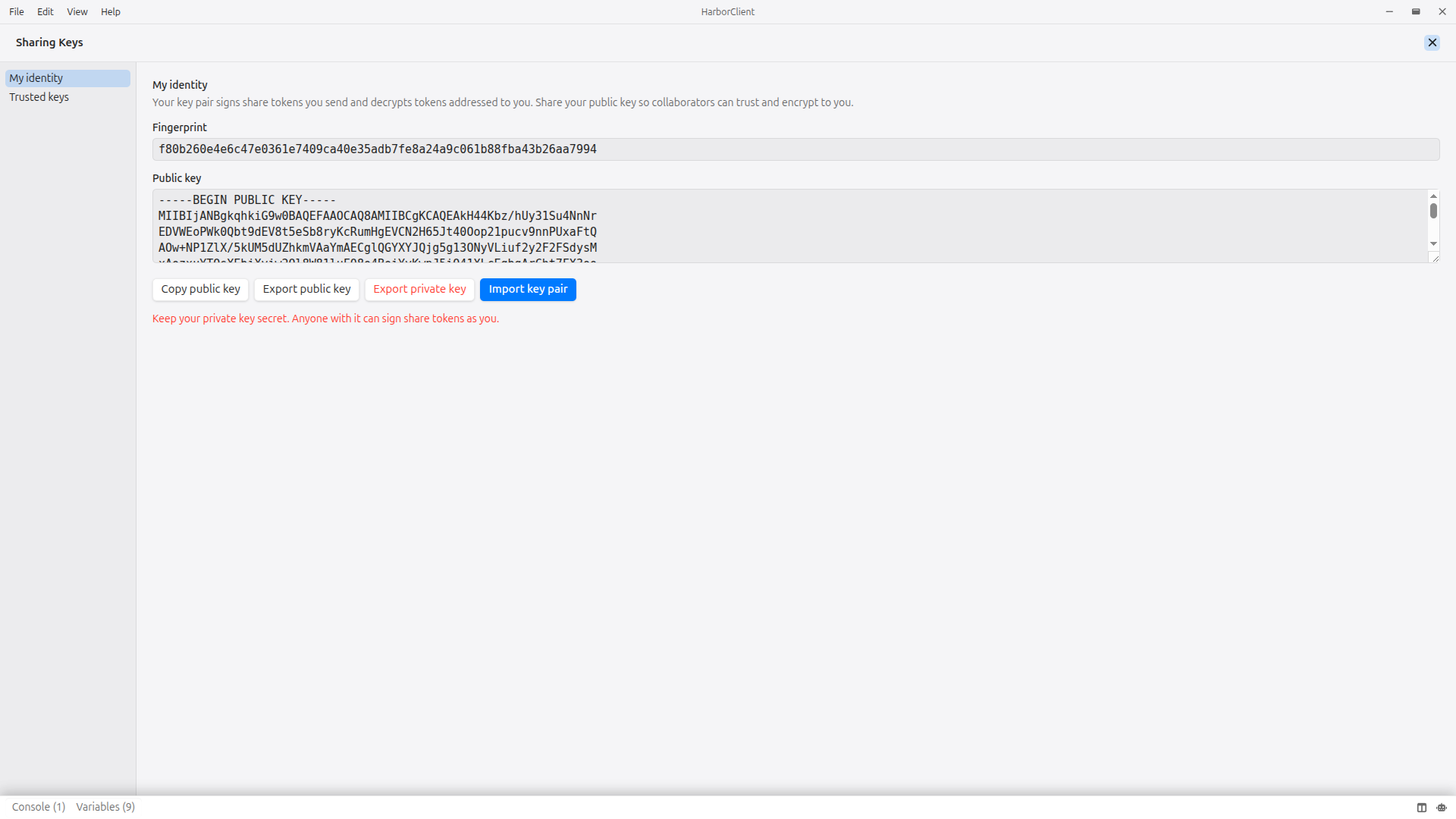
My identity
HarborClient creates a 2048-bit RSA key pair the first time you need one — for example, when you open Sharing Keys or create a share token. Your key pair is stored locally in the application data directory as sharing-key.pem (private) and sharing-pub.pem (public).
Your key pair serves two roles:
- Sign share tokens you send — recipients can verify the token came from you
- Decrypt tokens addressed to you — only your private key can read tokens encrypted to your public key
The My identity section shows:
| Field | Description |
|---|---|
| Fingerprint | SHA-256 hash of your public key. Use it to confirm you and a colleague are referring to the same key. |
| Public key | PEM-encoded RSA public key. Safe to share — colleagues need it to send you share tokens. |
Exporting your public key
Share your public key so collaborators can add you as a trusted recipient and encrypt share tokens to you.
| Action | Description |
|---|---|
| Copy public key | Copies the PEM text to the clipboard |
| Export public key | Opens a save dialog; default filename sharing-pub.pem |
Send the copied text or the .pem file to your colleague over a channel you trust (email, chat, in person, and so on). Only share the public key — never your private key.
Exporting and importing your key pair
Use these actions to back up your identity or move it to another machine.
| Action | Description |
|---|---|
| Export private key | Opens a save dialog; default filename sharing-key.pem. Keep this file secret — anyone with it can sign share tokens as you. |
| Import key pair | Opens a file picker for a private-key PEM file. Replaces your local key pair with the imported one. |
Import is useful when you set up HarborClient on a new computer and want to keep the same identity, or when restoring from a backup.
DANGER
Keep your private key secret. Anyone who has it can sign collection share tokens as you.
Trusted keys
The Trusted keys section lists public keys for people you trust. Trusted keys control who can send you share tokens and who you can share with.
| Rule | Description |
|---|---|
| Incoming share tokens | HarborClient only accepts tokens signed by a sender whose public key is in your trusted list. |
| Outgoing share tokens | When you create a share token, you must select a recipient from your trusted keys. The token is encrypted so only that person can decrypt it. |
Trusted keys are stored per machine in the local database. They are not synced through shared storage locations — each HarborClient installation maintains its own trust list.
Adding a trusted key
| Action | Description |
|---|---|
| Add trusted key | Enter a Label (for example, Alex) and paste the colleague's public key PEM, then click Add trusted key. |
| Import from file | Enter a label first, then click Import from file and select a .pem file containing the public key. |
Each trusted key is listed with its label and fingerprint. Click Delete to remove a key. After removal, share tokens signed by that key will no longer be accepted, and you can no longer select that person as a share recipient.
If you try to create a share token without any trusted keys, HarborClient prompts you to add the recipient's public key under File → Sharing Keys → Trusted keys first.
Working with collaborators
Before sending or joining shared collections, exchange public keys:
| Step | Who | Action |
|---|---|---|
| 1 | You | Copy or export your public key from My identity and send it to your colleague |
| 2 | Colleague | Open File → Sharing Keys → Trusted keys, add your public key with a label |
| 3 | Colleague | Share their public key with you |
| 4 | You | Add their public key to your trusted keys |
| 5 | Either party | Follow Sharing collections to share access or join a shared collection |
When sharing access, the sender opens the collection row menu → Share access, selects the recipient from the trusted-keys list, and copies the generated token. Share tokens expire after seven days.
When joining a shared collection, the recipient pastes the token under Join shared collection, then restarts HarborClient so the shared connection and collection load.
Security notes
- Public keys are safe to share. Private keys must stay on your machine and out of chat logs or email.
- Share tokens embed storage connection credentials. Treat them like secrets and share only with the intended recipient over a trusted channel.
- Share tokens expire after seven days. Generate a new token if one expires before the recipient joins.
What's next
- Collections → Sharing collections — share access and join live remote collections
- Settings → Storage Locations — configure remote storage connections used by shared collections