
Environments
Environments are app-wide groups of variables. Unlike collection variables, which belong to a single collection, environments are global: you create them once and can activate any environment from the TabBar while working across collections and tabs.
One active environment is shared across all open request tabs. When an environment is selected, its variables become available to every request you send.
Managing environments
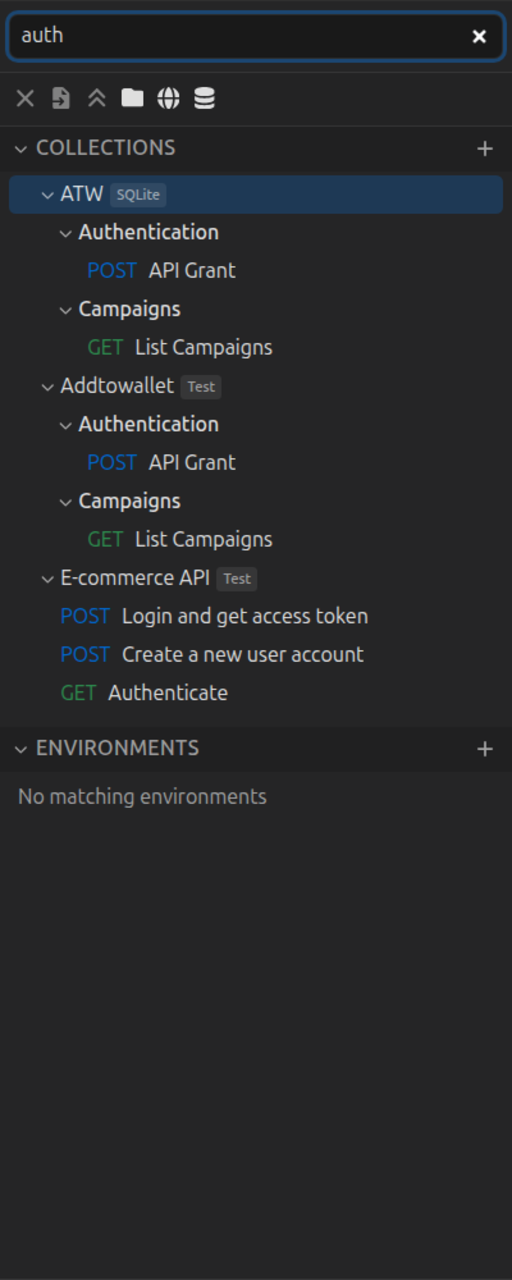
The Environments section in the sidebar sits below Collections. Each section can be collapsed independently.
When environments use inheritance, the sidebar shows a nested tree: children appear under their parent, and parents with children expand and collapse with a chevron (expansion is remembered). Drag-and-drop and Move up / Move down reorder siblings under the same parent only. Search, marker filters, or a non-default sort switch the list to a flat view.
- Add — Click the
+button in the Environments header to open the Add environment dialog. Use Create new to enter a name, or Import from file to load a HarborClient environment export. - Activate — Click an environment name to make it the active environment. The selected row is highlighted.
- Reorder — Drag an environment by its handle, or choose Move up / Move down from the row menu, to change order among siblings that share the same parent.
- Settings — Double-click an environment, or choose Settings from the row menu, to open environment settings. Edit the name, Inherit from, and variables, then save.
- Export — Choose Export from the row menu. HarborClient opens a save dialog with a default filename of
{environment-name}.json. - Duplicate — Choose Duplicate from the row menu. HarborClient creates a new environment named
{original-name} (copy)with the same variables and the same parent (a sibling under the same Inherit from), and activates it. The original environment is unchanged. - Copy down — Choose Copy down from the row menu (hamburger or right-click). HarborClient adds variables from this environment to the next sibling under the same parent, skipping any keys that already exist there. Existing values in the sibling are left unchanged, and both environments remain. Unavailable when there is no next sibling. If every variable already exists on the sibling, HarborClient shows a toast and does nothing.
- Merge down — Choose Merge down from the row menu. HarborClient merges this environment into the next sibling under the same parent: variables are combined (this environment wins on duplicate keys), the sibling is renamed to match this one, and this environment is deleted. The sibling keeps its Inherit from. Deleting this environment orphans any of its own children the same way as Delete. Unavailable when there is no next sibling.
- Delete — Choose Delete from the row menu. This removes the environment and clears the active selection if it was selected. Direct children become roots (their Inherit from is cleared). Grandchildren keep their links to those children.
- Set color — Choose Set color from the row menu to assign a sidebar color dot for visual grouping. The color is saved on the environment and included when you export it. See Collections — Color coding.
Selecting an environment
Use the environment dropdown on the far right of the TabBar. Choose an environment name to activate it, or No Environment to clear the selection.
The active environment persists across app restarts. All tabs share the same selection.
Inheritance
An environment can inherit from one parent. Shared keys live on a base environment; children override only what differs. Chains can nest (for example Shared → Staging → Personal), up to a safety limit.
Set a parent
- Open Environment Settings (double-click the row, or Settings from the row menu).
- Under Inherit from, choose None (root) or another environment. HarborClient omits the current environment and its descendants so you cannot create a cycle.
- When a parent is set, HarborClient shows a breadcrumb such as
Shared → Staging. - Edit only this environment’s own variables. Keys that come from ancestors appear below in a read-only Inherited list (key, effective value, and which environment they come from). Use Override on a row to insert or enable a local variable that shadows that key.
Helper text under Inherit from explains that parent variables are available unless overridden below.
How variables merge
When the active environment has a parent chain, HarborClient merges variables from the root down to the leaf at send time:
- Later environments override earlier ones on the same key.
- Only enabled rows with a non-empty key participate.
- An enabled child row fully replaces the parent for that key — including when Value is empty (HarborClient still uses that row’s Default, same as within a single environment).
- A disabled child row does not override, so the parent value passes through. Uncheck Enable on a child key to let the parent through without deleting the row.
Each environment has a single parent only. For “mixins,” chain levels (Base → Team → Personal) rather than attaching multiple parents. Cycles are blocked in the picker. Chains longer than 32 environments are rejected; if the chain cannot be resolved, HarborClient falls back to the leaf environment’s own enabled variables.
Script writes with hc.environment.variables.set and hc.environment.variables.clear still persist only on the active environment — they create local overrides, not edits to the parent. Runtime reads already include inherited values. See Request scripts.
Variables
Environment variables use the same shape as collection variables and support {{key}} syntax in:
- Request URLs
- Headers and query params
- Request body
- Pre- and post-request script source
Each variable has these fields:
| Field | Description |
|---|---|
| Enable | When unchecked, the row is skipped at resolve time. On a child environment, uncheck Enable to let a parent value pass through without deleting the row |
| Key | Variable name referenced in {{key}} placeholders |
| Value | Value substituted when the variable is resolved |
| Default | Used when Value is empty |
| Share | When unchecked, the variable Value is cleared in environment exports (Key, Default, Enable, and Share are kept) |
When Value is empty, HarborClient uses Default instead.
The Enable column is shared across globals, collection, folder, and environment variable tables — disabled rows in any scope are skipped at resolve time.
You can transform a resolved value with Twig-style filters in the placeholder—for example {{name|upper}} or {{query|trim|urlencode}}. See Variable filters for the full list.
Dynamic variables
HarborClient supports Postman-style dynamic variables whose values are generated fresh each time a request is sent. Use them in {{$name}} placeholders in:
- Request URLs
- Headers and query params
- Request body
- Auth fields
See Variables for the complete list of supported dynamic variables.
HarborClient variable names are case-sensitive and include the leading $ for dynamic placeholders.
Dynamic variables resolve after collection and environment variables. If you define a static variable with the same key (for example $randomInt), the static value wins.
Dynamic placeholders are highlighted in the request editor. Hover a token to see its description.
Precedence
At send time, HarborClient builds a runtime variable map from global variables, the active collection (and folder, when the request is in a folder), and the merged inheritance chain for the active environment. Globals load first; collection variables are applied on top; folder variables override collection; the merged environment chain is applied last. When multiple scopes define the same key:
merged environment chain wins, then folder, then collection, then global.
See Inheritance for how the environment chain itself merges.
Values set with hc.request.variables.set in a pre- or post-request script override global, collection, folder, and environment variables for the remainder of that send. Use hc.environment.variables.clear(key), hc.collection.variables.clear(key), or hc.globals.clear(key) to remove persisted keys after the send completes — pass an exact key, or a namespace.* pattern to clear every key under that prefix. Dynamic variables ({{$name}}) resolve after static variables when no runtime value is defined for that key. See Request scripts for script execution order and the full hc variable API.
The request editor highlights {{variable}} tokens using the merged set of global, collection, folder, and environment variables, with higher-precedence scopes shown when keys overlap.
Storage
Sidebar environments are stored locally on each machine in HarborClient's hidden local database — they are not assignable to a remote storage location or Team Hub. Even when collections live on a shared Firestore, MySQL, PostgreSQL, or Team Hub backend, environment variable groups in the sidebar stay per-instance.
See Storage for how storage locations work and which entities can be assigned to each provider.
The active environment ID is stored in browser localStorage under harborclient.activeEnvironmentId, not in storage.
Export and import
Export
Choose Export from the environment row menu. HarborClient opens a save dialog with a default filename of {environment-name}.json. After a successful export, an Environment exported toast appears.
Variables with Share unchecked have their Value cleared in the export file. Key, Default, Enable, and the Share flag are kept so you can share exports without exposing secrets.
Import
Import an environment from a .json file using either:
- File → Import (auto-detects environment exports)
- Add environment → Import from file
If an environment with the same portable uuid already exists, HarborClient prompts you to Update existing, Import as new copy (fresh uuid), or Cancel. Otherwise import creates a new environment. On success, HarborClient activates the imported environment and shows an Environment imported or Environment updated toast.
If the file is invalid, HarborClient shows an alert with a descriptive error (for example, unsupported format version or missing environment name). Canceling the file dialog does nothing.
Export file format
HarborClient environment export files require harborclientExport: "environment" and harborclientVersion: 1. They contain the environment name, variables, and an optional parentUuid (portable uuid of the parent environment, or null for a root). Storage IDs are not included. Older exports without parentUuid or enabled still import; missing enabled defaults to enabled.
Example (abbreviated):
{
  "harborclientVersion": 1,
  "harborclientExport": "environment",
  "name": "Staging",
  "parentUuid": "aaaaaaaa-bbbb-cccc-dddd-eeeeeeeeeeee",
  "variables": [
    {
      "key": "baseUrl",
      "value": "https://staging.example.com",
      "defaultValue": "",
      "enabled": true,
      "share": true
    }
  ]
}
Common validation errors:
| Error | Cause |
|---|---|
unsupported format version | harborclientVersion is not 1 |
not a HarborClient environment export | harborclientExport is not "environment" |
environment name is required | Name is missing or blank |